Navigate the workspace
Find modules, search, alerts, account options and dashboard filters.
The workspace navigation, search and alerts help you reach records and reports available to your role.
Navigate the workspace
- Expand a section such as Organization, Reports or Settings, and select a page. Use Expand navigation to change the navigation display. On smaller screens, use Open navigation.
- Open Quick Setup for initial configuration, Help & apps for supporting links, or the Account menu for My profile and Sign out.
- On Dashboard, choose Reporting date, Office and Team, then select Apply. Use Refresh report data to update the displayed report. The dashboard shows information within your permitted scope; check-in coverage is a recorded count, not an absence calculation.
Search your workspace
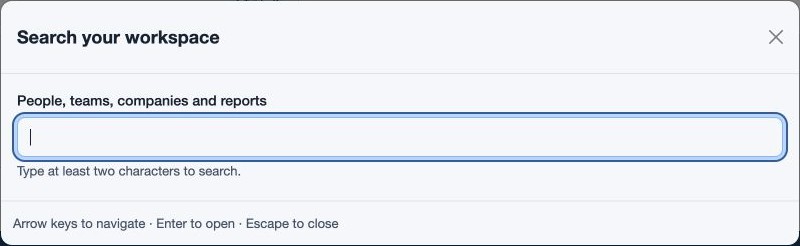
- Select Search your workspace or press Ctrl K. Executive accounts see Search my reports and search reports.
- Enter at least two characters. For example, search for a team name or a report title. Non-executive search can include people, teams, companies and reports according to available permissions and scope.
- Choose a result, or use the arrow keys to navigate and Enter to open it. Press Escape or select Close search to dismiss the dialog.
Review alerts
- Open System alerts using the bell button.
- Read the latest unread messages and undelivered notifications. Opening the list acknowledges receipt of displayed notifications; unread messages are separate. Select Refresh alerts to update the list. A count may appear on the bell. If receipt cannot be confirmed, a notification may appear again; if loading fails, use Refresh alerts to retry.
When access is unavailable
If a page or office is missing, check your role, permissions, enabled features and office scope with an administrator. If the account-expired or account-access-unavailable page appears and you cannot manage billing, contact your billing administrator to review and renew the company subscription. Access returns once renewal is confirmed. Use Sign out on that page when needed. A billing administrator may be directed to Billing to review the account.