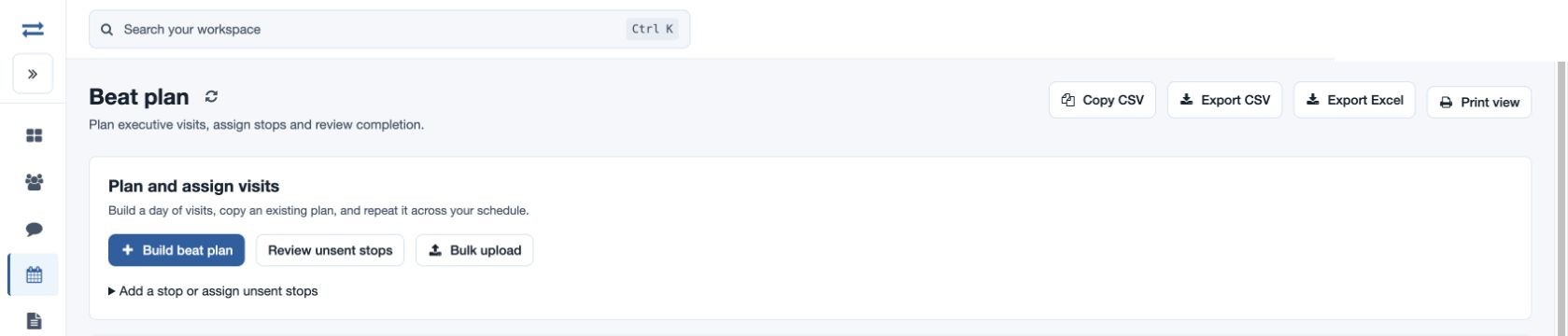
Beat plan report and assignment
Review planned stops and assign saved unsent stops.
Open Beat Plan. The report and controls depend on your permissions and company plan.
Single stops and assignment
The report’s Add a stop or assign unsent stops section can save a single stop. Assign stops assigns that executive’s unsent stops scheduled today or later, including those outside the report dates. Previously assigned stops are not resent; reschedule past stops first.
Filter and read the report
Set Date range, Office, Team and Executive; More filters searches Employee or company name. Select Apply filters. Scheduled stops by date and Visit completion summarize the selection. Report records identify Plan ID and reference, employee, team, office, scheduled time, company, contact, phone, address, remarks, visit type, coordinates, creation time and creator, completion, linked visits, assignment time, app receipt and stored visit status. Sort or page the rows; the completion link opens recorded visits when permitted.
Review progress
Filter the report by date and executive. Completed means a visit was recorded for the stop; Received by app indicates the plan reached the app. Open the visit link for evidence. For example, schedule fictional Acme Traders for 10:00, review the date and recipient, then check the report after the visit.
Use Copy CSV, Export CSV, Export Excel or Print view where permitted. If a stop is absent, check date and scope. If assignment is uncertain, review saved stops and delivery status before retrying.
Report size
Narrow the date range or employee scope if the report exceeds 2,000 records. Assignment, receipt by the app and a completed linked visit are distinct states; check each before following up.