Statutory Contributions
Review employee and employer contributions for a selected period.
Select a contribution view
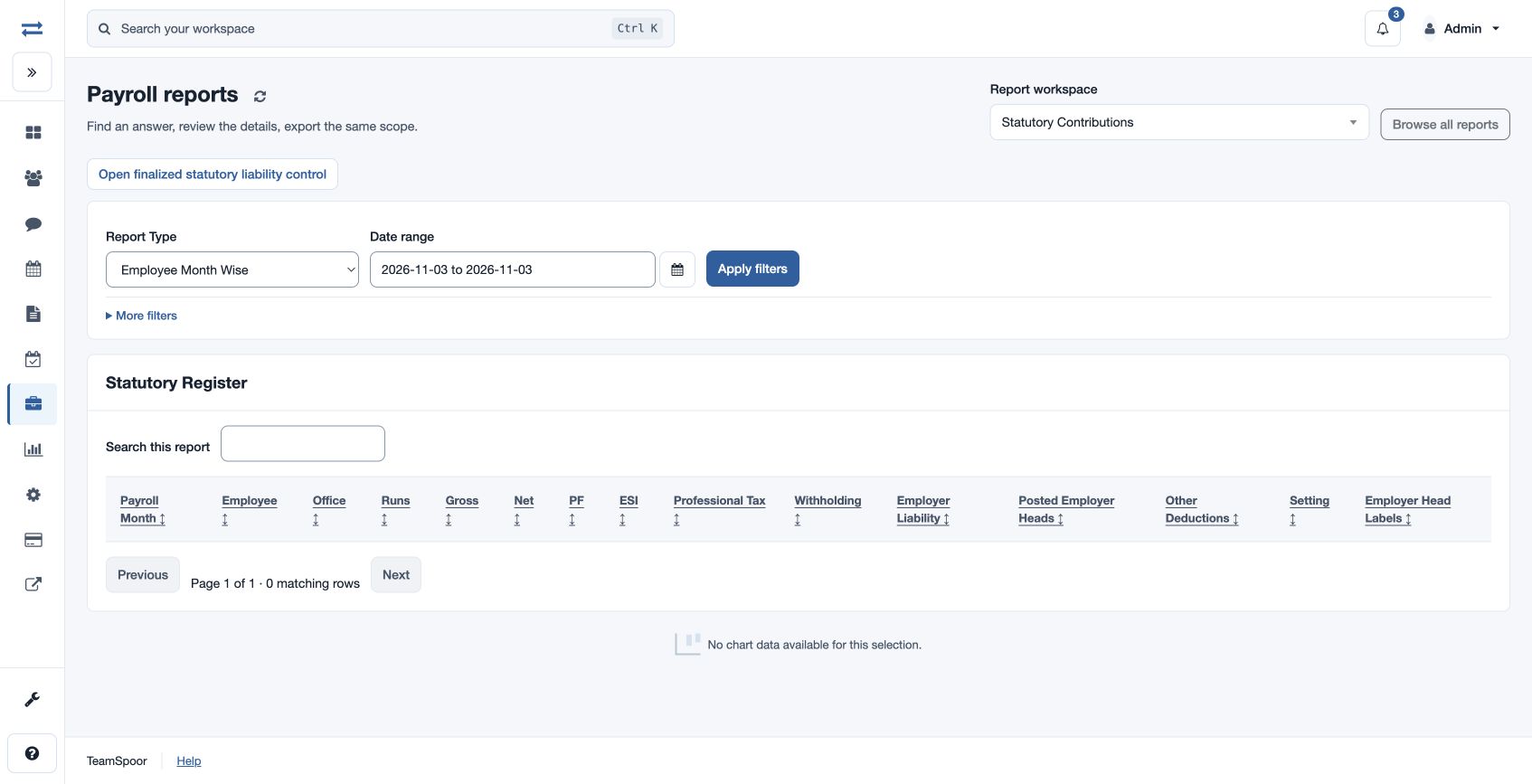
Open Payroll → Reports → Statutory Contributions. Choose Report Type: Employee Month Wise, Consolidated Month Wise, Office Month Wise or Configured Heads; choose a date range and Office under More filters and Apply filters. Search, sort and page through the register; charts are shown when data exists.
The month-wise views show gross, net, PF, ESI, professional tax, withholding, employer liability, posted employer heads, other deductions and labels, with employee or office detail according to the view. Configured Heads shows payroll month, office, head type, code, head name, run count and posted amount. Open finalized statutory liability control for the related detailed report.
For example, compare one office’s month-wise totals against the effective approved rule. If no rows appear, check the dates and office.
Access and scope
The payroll feature and statutory report permission are required. Results are limited to your permitted scope. If a report exceeds 2,000 entries, narrow the selected period or scope and run it again.
Read each register
Employee Month Wise identifies Payroll Month, Employee and Office; Office Month Wise groups by month and office; Consolidated Month Wise groups by month. Each shows Runs and the applicable gross, net and contribution totals. The employee view also shows Setting. Employer Head Labels identifies the posted employer heads behind the summarized amount.
Configured Heads lists Payroll Month, Office, Head Type, Code, Head Name, Run Count and Posted Amount for each configured head. For a fictional North office, select one month, compare its consolidated amounts with the employee view, then review the applicable run and rule if they differ. Dates use the report timezone shown on the page.