Payroll Version Comparison
Review payroll version comparison for a selected payroll scope.
Purpose and access
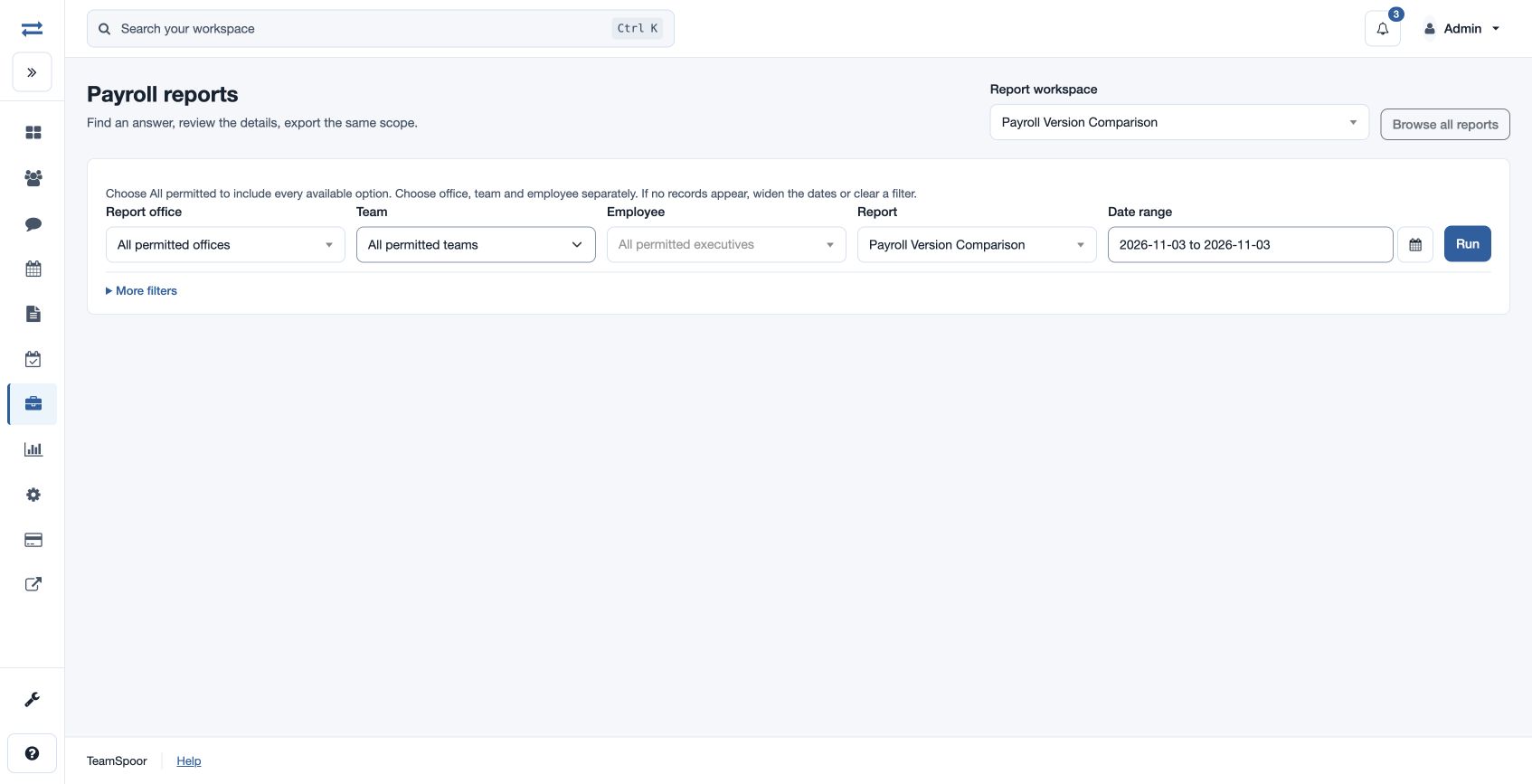
Open Payroll → Reports → Payroll Version Comparison. The payroll feature and payroll finance report permission are required; CSV export requires report-download permission.
Run the report
- Select the report in the report picker, then set the office and Date range for the period to review. Open More filters and choose Run Status: ALL, DRAFT or RELEASED.
- Choose Team and Employee as needed; use More filters to set the available Department, Payroll group and Component. Choose All permitted to include all available choices.
- Choose Run, inspect the results and use Export CSV if available. The export uses the selected permitted scope.
Compare current and previous versions and their employee, gross, deduction and net variances. Open the relevant run history to investigate a change.
What the results show
The report includes: Run ID, Run Version, Version Status, Current Version, Office, Period Start, Period End, Employees, Gross Total, Deductions Total, Net Total, Previous Version, Employee Variance, Gross Variance, Deductions Variance, Net Variance, Snapshot Hash.
Example and troubleshooting
Compare the current version with the previous version and inspect employee, gross, deduction and net variances. If no rows appear, check the date range and scope, then confirm report access. Choose Report office, Team and Employee separately; clear a filter or widen the dates if a valid selection has no records.
Results and limits
Review the summary above the sortable result table and any available charts. Dates are inclusive in the viewer timezone; From must not follow To, and the range cannot exceed two years. If more than 2,000 results match, narrow the range or scope. Export CSV uses the selected scope and requires download permission.