Import field executives
Create executive accounts from a spreadsheet or text file.
Use this workflow when adding several executives. You must be an administrator with add-user permission and have teams in your scope.
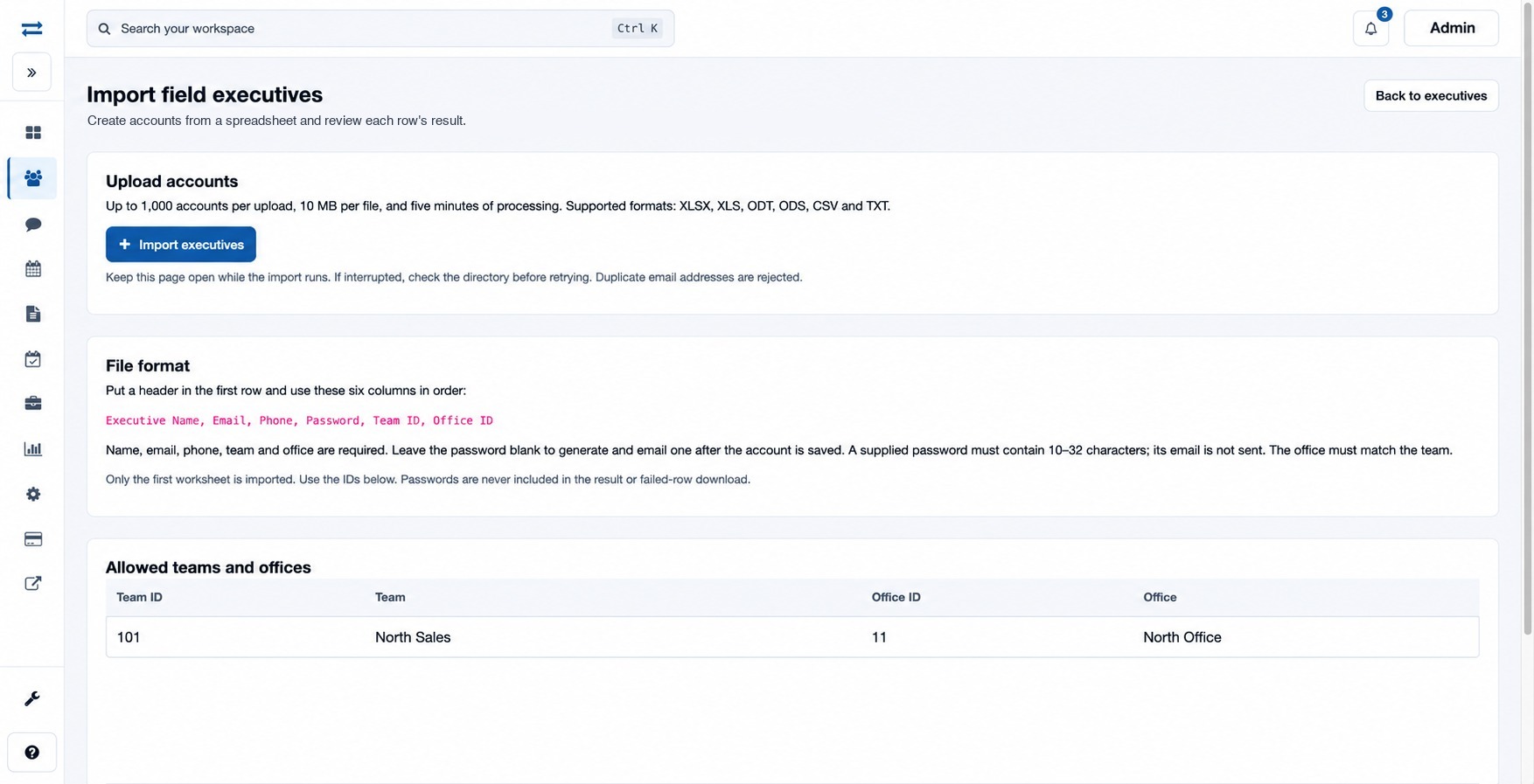
How to use this page
- Open Organization → Field Executives → Import executives from a file. Review Allowed teams and offices for the IDs to use.
- Create a file with a header and these six columns in order:
Executive Name, Email, Phone, Password, Team ID, Office ID. Only the first worksheet is imported. Name, email, phone, team and office are required; office must match team. - Leave Password blank to generate and email one after creation. A supplied password must be 10–32 characters and is not emailed. For example, use a fictional name and the IDs listed for its team and office.
- Choose the Spreadsheet or text file and select Import executives. Keep the page open. Files can be XLSX, XLS, ODT, ODS, CSV or TXT, up to 10 MB and 1,000 accounts; processing is limited to five minutes.
- Review Created accounts and Rows needing attention. Download failed rows as Excel, correct the reasons and import the corrected rows.
Duplicate email addresses are rejected. If interrupted, check the directory before retrying so you do not recreate successful rows. Passwords do not appear in results or the failed-row download.
Use the Download failed rows (Excel) link only for rows needing attention; it contains no passwords. Check each row’s reason, ensure the office ID matches the team, and upload only corrected failed rows. If the account exists but the password email could not be confirmed, review that account rather than reimporting it.