Integrations and route distance credits
Review credits and configure the ZNICRM connection.
Full administrators can open Settings → Global settings.
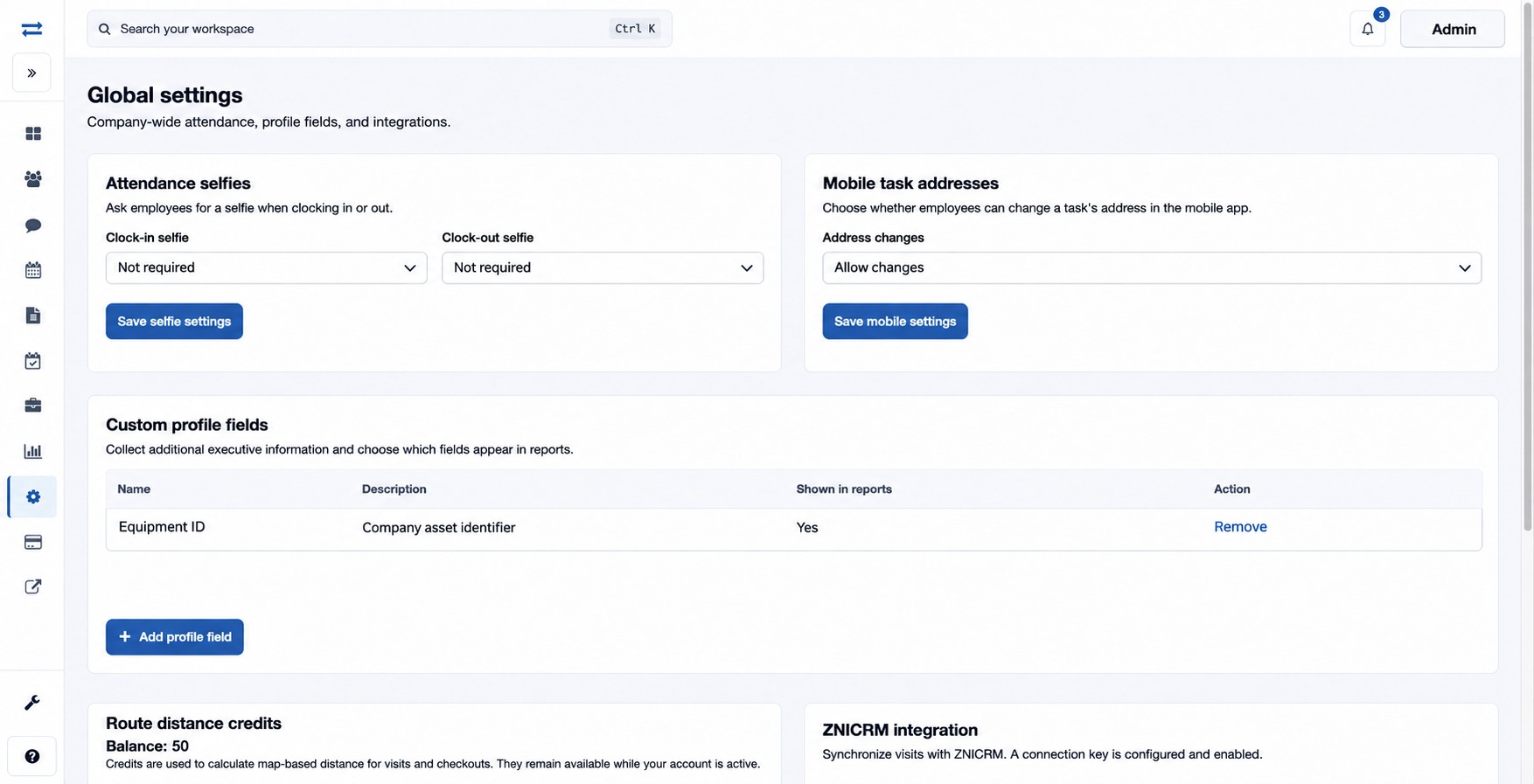
How to use this page
- Read the Route distance credits balance. Credits calculate map-based distance for visits and checkouts and remain available while the account is active. Eligible billing managers can use Manage wallet and credits.
- Under ZNICRM integration, review whether a connection key is configured and enabled. Enter the 32-character key from ZNICRM in Integration key or Replacement key, then select Save and connect. The saved key is hidden. This saves the key and requests synchronization; verify the connection in ZNICRM before relying on visit delivery.
- For other integration access, follow TeamSpoor API documentation and use Contact support to request an API key.
If the key is rejected, check that it is the correct 32-character key. If synchronization could not be confirmed, retry Save and connect and verify the connection in ZNICRM. Do not share the key in support messages.
Connection and balance controls
Route distance credits is the available credit balance, not a setting to type into. The wallet link appears for eligible billing managers when applicable. Integration key or Replacement key accepts the ZNICRM key; the existing secret is never shown. Save and connect saves the entered key and requests synchronization. The API documentation and support links are separate from the ZNICRM connection.