Shifts
Define working-time templates for employee attendance.
Create and assign a shift
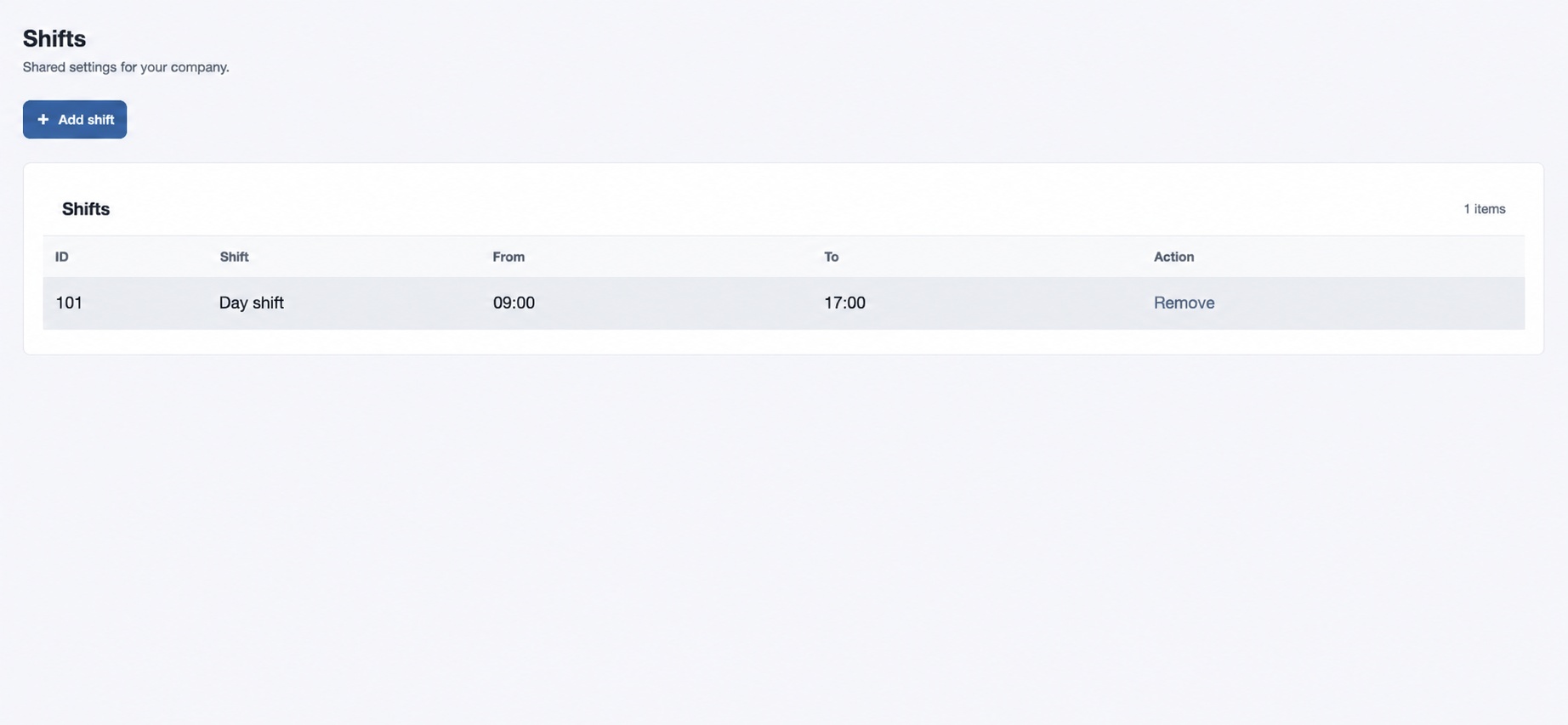
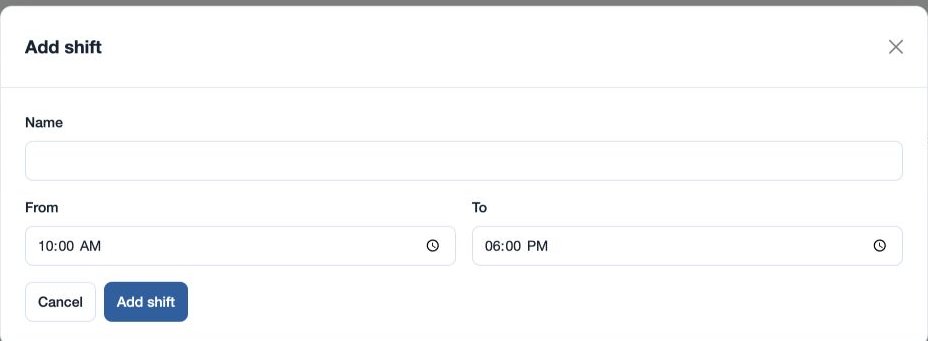
Open Settings → Shifts. The HRMS feature and HR management permission are required. Choose Add shift, enter a required Name and required From and To times, then add it. The list shows ID, Shift, From, To and Action. To remove an obsolete shift, expand Remove, type DELETE and choose Remove item. Check affected assignments before removing it; there is no edit action in this list.
For example, create “Day shift” from 09:00 to 17:00 and assign it on the employee profile. Shifts provide attendance hours; attendance policies contain interpretation rules. If an employee’s hours look wrong, check both their assigned shift and policy.
The Add shift form defaults to 10:00–18:00. Review both times for the intended schedule, including overnight work, before assigning the shift. Use the employee profile’s Shift field to choose an available shift; “Keep current shift” leaves the assignment unchanged.
Shift Name accepts up to 45 characters and both times must be valid. For a changed schedule, add a new shift and assign it to the relevant employees. Check the assigned shift if an attendance report appears to use the wrong hours.