Custom profile fields
Collect additional executive information and choose report visibility.
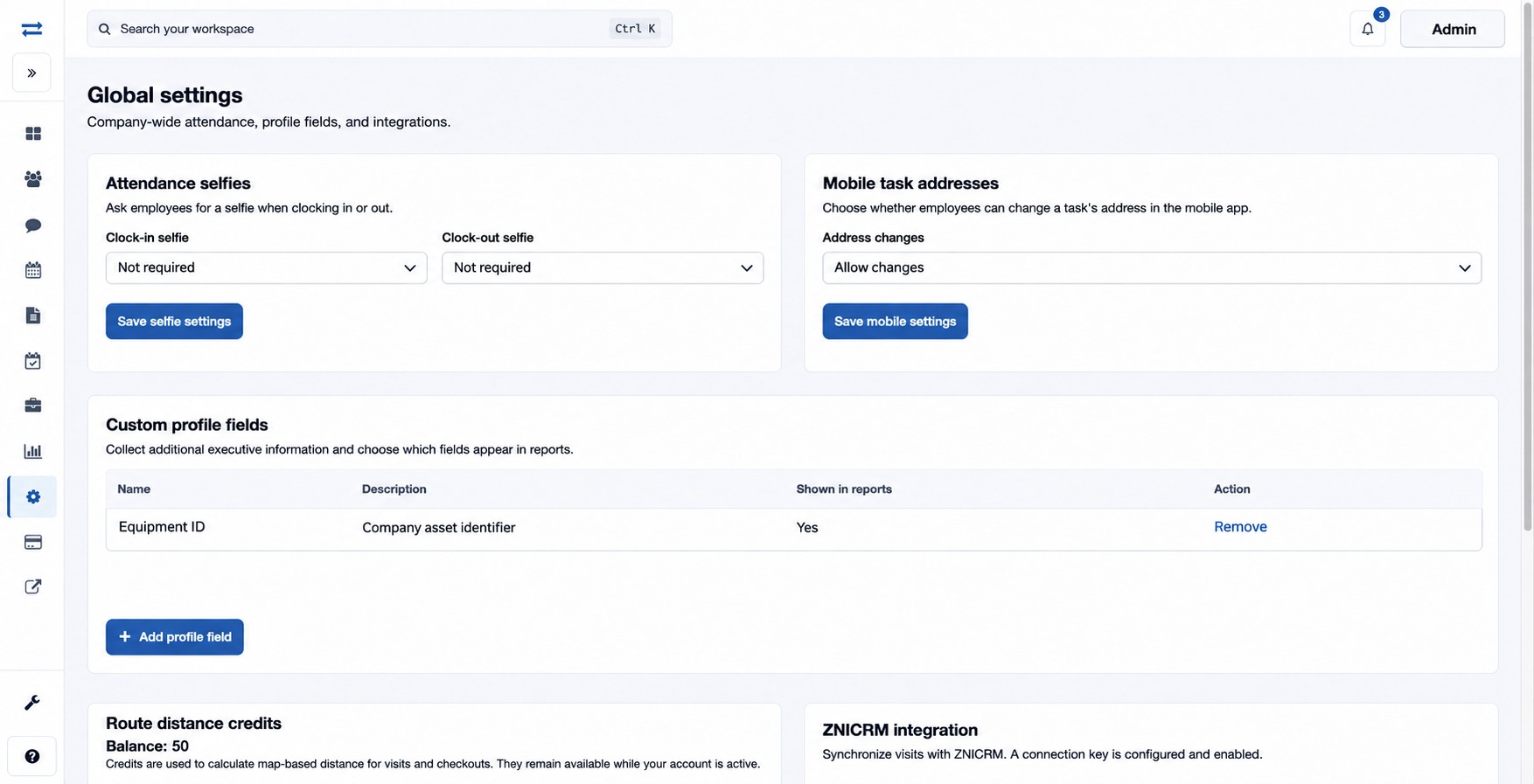
Full administrators can manage custom fields under Settings → Global settings → Custom profile fields.
How to use this page
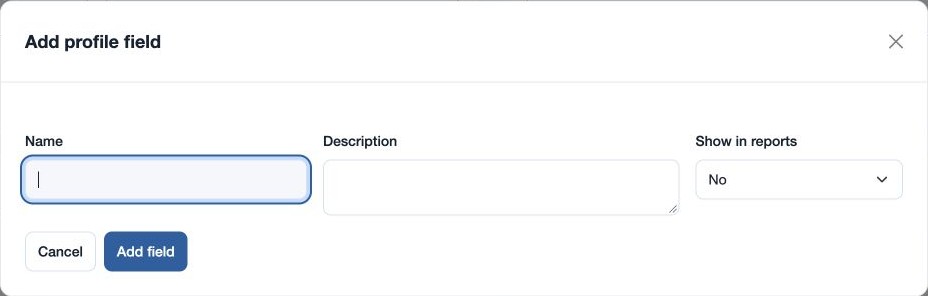
- Choose Add a profile field. Enter its Name and optional Description, then choose Yes or No for Show in reports. For example, add “Equipment ID” to record a fictional company asset identifier.
- Select Add field and check its name, description and report visibility in the list.
- Open an executive profile, enter that person’s value and select the field’s Save button.
- To remove a field, expand Remove, type DELETE and select Remove field. Review the impact before removal.
If a field does not appear, check the saved field list and the executive profile access available to your role.
Field controls
Name is the label shown on executive profiles (up to 45 characters); Description supplies explanatory text; Show in reports chooses whether the field is shown in reports. Each executive’s value is saved separately on that person’s profile. The table displays the current visibility and offers removal, which requires typing DELETE.