Bulk upload beat plans
Upload, validate, assign and track many planned stops.
Open Beat Plan → Bulk upload. Administrators need beat-plan create permission and the company feature.
Bulk upload
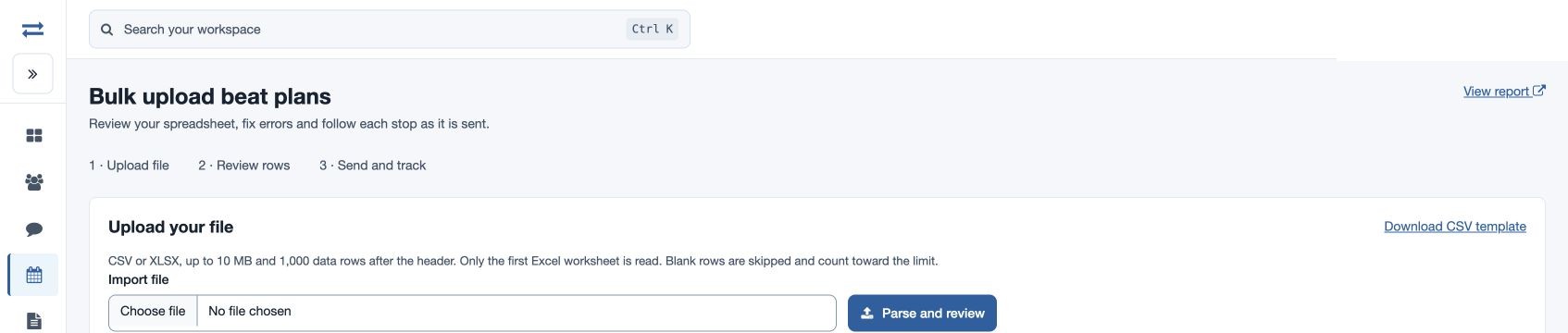
Choose Bulk upload and download the CSV template. Keep ten columns in order: Executive email, Company, Contact, Phone, Scheduled time (YYYY-MM-DD HH:MM:SS), Visit type ID, Remarks, Address, Latitude, Longitude. Company, contact, an active executive and a company visit type are required. Use both coordinates or neither, preserve phone numbers as text and paste values instead of spreadsheet formulas. Past dates cannot be imported; a blank time uses the time of review.
Choose a CSV or XLSX file up to 10 MB and 1,000 data rows after the header, then select Parse and review. Only the first Excel worksheet is read; blank rows are skipped but count toward the limit. Inspect row feedback, select valid rows, resolve or explicitly confirm duplicates, and choose whether to skip invalid rows. Select Send reviewed rows and keep the page open while assignment runs. Check status and Check download status distinguish server assignment from notification and app download. Download errors or results before correcting and retrying only rows confirmed not saved.
Confirm the outcome
Sent means assigned on the server; app notification and download are separate. If processing is uncertain, check status and downloaded results before reuploading only rows confirmed not saved.
Review and track the upload
The first Excel sheet is read, with a maximum file size of 10 MB and 1,000 rows; blank rows count. Choose an active employee and a current or future visit date. Supply both coordinates or neither. A blank scheduled time uses the time the file is reviewed, shown before sending. Review this and all reported errors before creating stops.
Use the row filters to inspect all rows, errors and rows needing attention, unsent rows or sent rows. Filtering and paging do not change selected rows. Skip invalid rows omits them; Create anyway accepts an intentional duplicate. Review the generated results and use Check status or Check download status. You can pause after the current step and download errors or all results. Assignment and receipt on the device are different states; check the latter before assuming an executive received the plan.