Assign employee payroll setup
Review readiness and assign payroll settings to selected employees.
Find employees
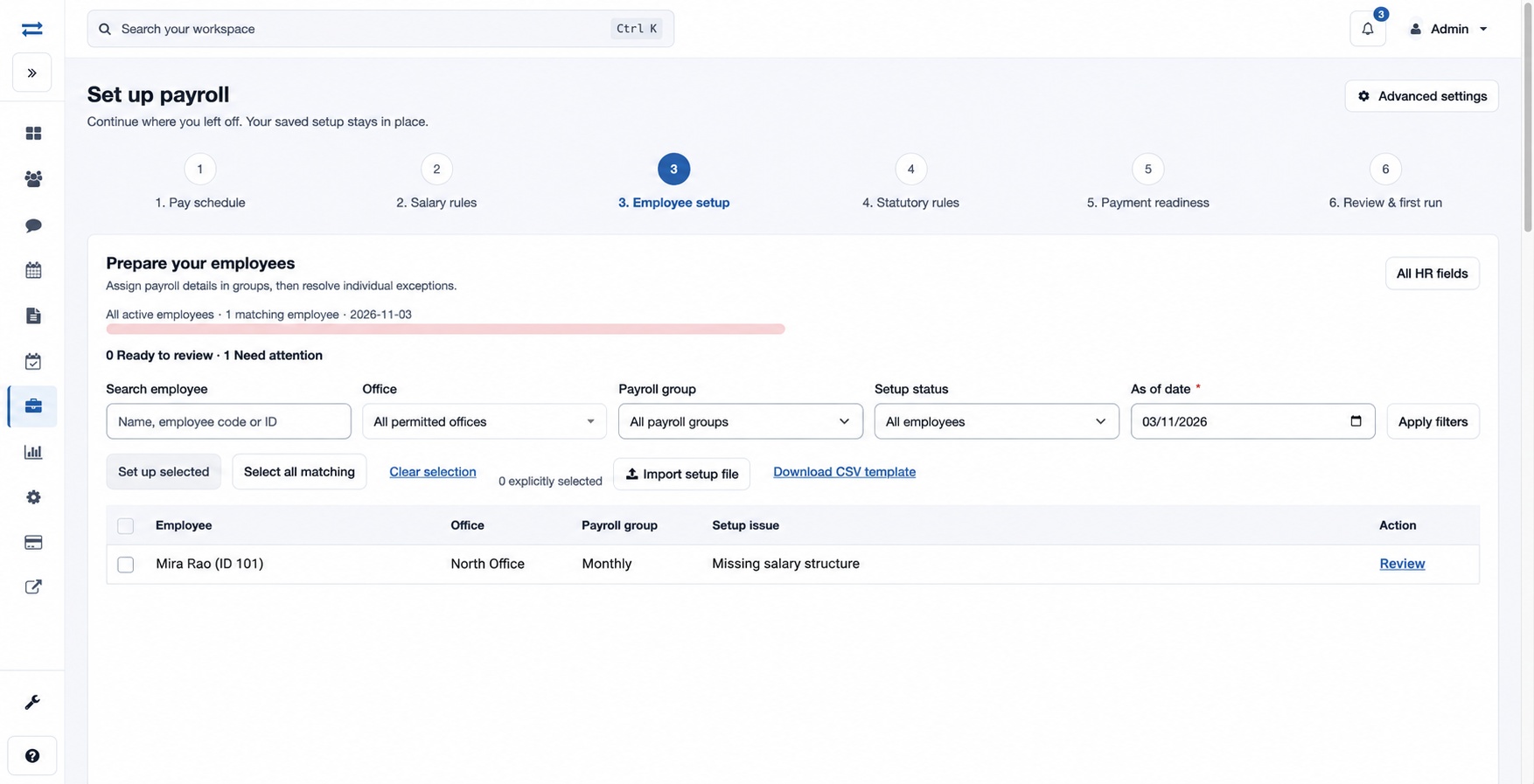
Open Payroll Foundation and choose step 3, Employee setup. The roster is limited to your permitted scope. Search by name, employee code or ID; filter by Office, Payroll group, Setup status (All employees, Needs attention, Ready to review) and required As of date. Apply filters and use Previous or Next to browse.
Make reviewed changes
- Select employees on the page or choose Select all matching. Clear selection removes the current selection. Choose Set up selected.
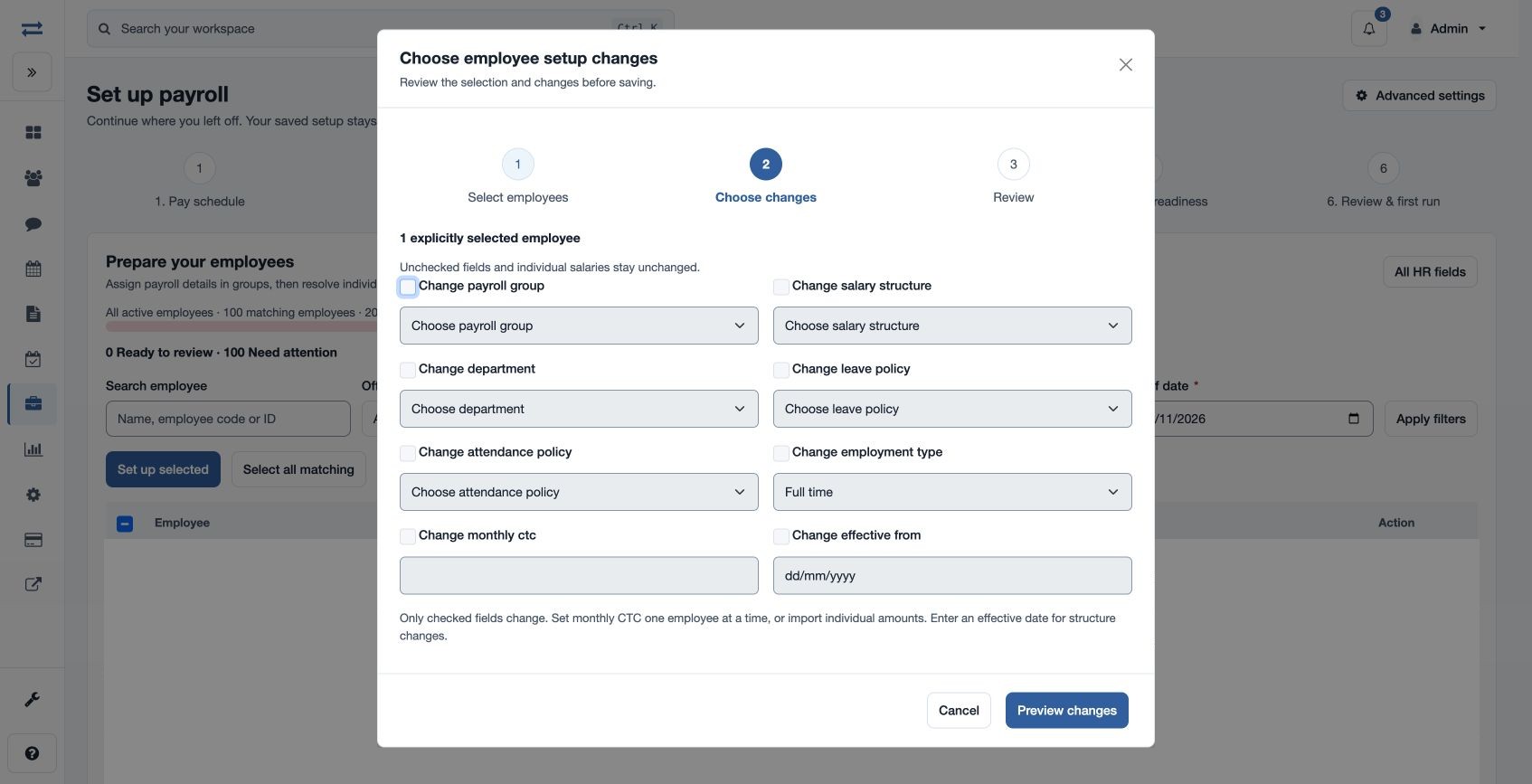
- Check only the fields to change: Payroll group, Salary structure, Department, Leave policy, Attendance policy, Employment type, Monthly CTC and Effective from. Employment type choices are Full Time, Part Time, Contract and Intern; applicable selectors also offer None.
- Set monthly CTC for one employee at a time, or import individual amounts. Monthly CTC accepts 0–999999999 with up to two decimals. Enter an effective date for salary or structure changes.
- Choose Preview changes. Inspect each employee’s Changes and Result, page through the preview or download validation results. Apply reviewed changes only after resolving problems.
Alternatively download the CSV template and import a CSV or XLSX setup file. Preview and review its validation before applying. If a choice is unavailable, check the employee’s office and your scope; if an effective date is missing, add it and preview again.
Import format and validation
Use the supplied CSV header and include employee_id. The supported additional columns are payroll_groups_id, payroll_salary_structures_id, hr_departments_id, hr_leave_policies_id, hr_attendance_policies_id, employment_type, monthly_ctc and effective_from. Import 1–1,000 employee rows; unknown or duplicate headers and duplicate employee IDs are rejected. Leave a field blank to leave it unchanged.
Employment type is FULL_TIME, PART_TIME, CONTRACT or INTERN. Monthly CTC accepts a non-negative amount up to 999,999,999 with at most two decimal places. Enter Effective from as YYYY-MM-DD when changing CTC or salary structure; a date alone does not make a change. If changing structure without an existing effective salary, enter the employee’s individual monthly CTC. Review the preview and resolve its row errors before applying the changes.
Review the application results
Each employee is applied separately, so inspect every result: Saved, unchanged, conflict, failed or uncertain. A conflict means the record changed after preview; preview that employee again. For an uncertain result, reconcile the current employee record before retrying. A preview expires after 30 minutes; preview unresolved employees again if it expires.