Payment export and reconciliation
Track the bank file, submission, rejection and reconciliation.
Before you begin
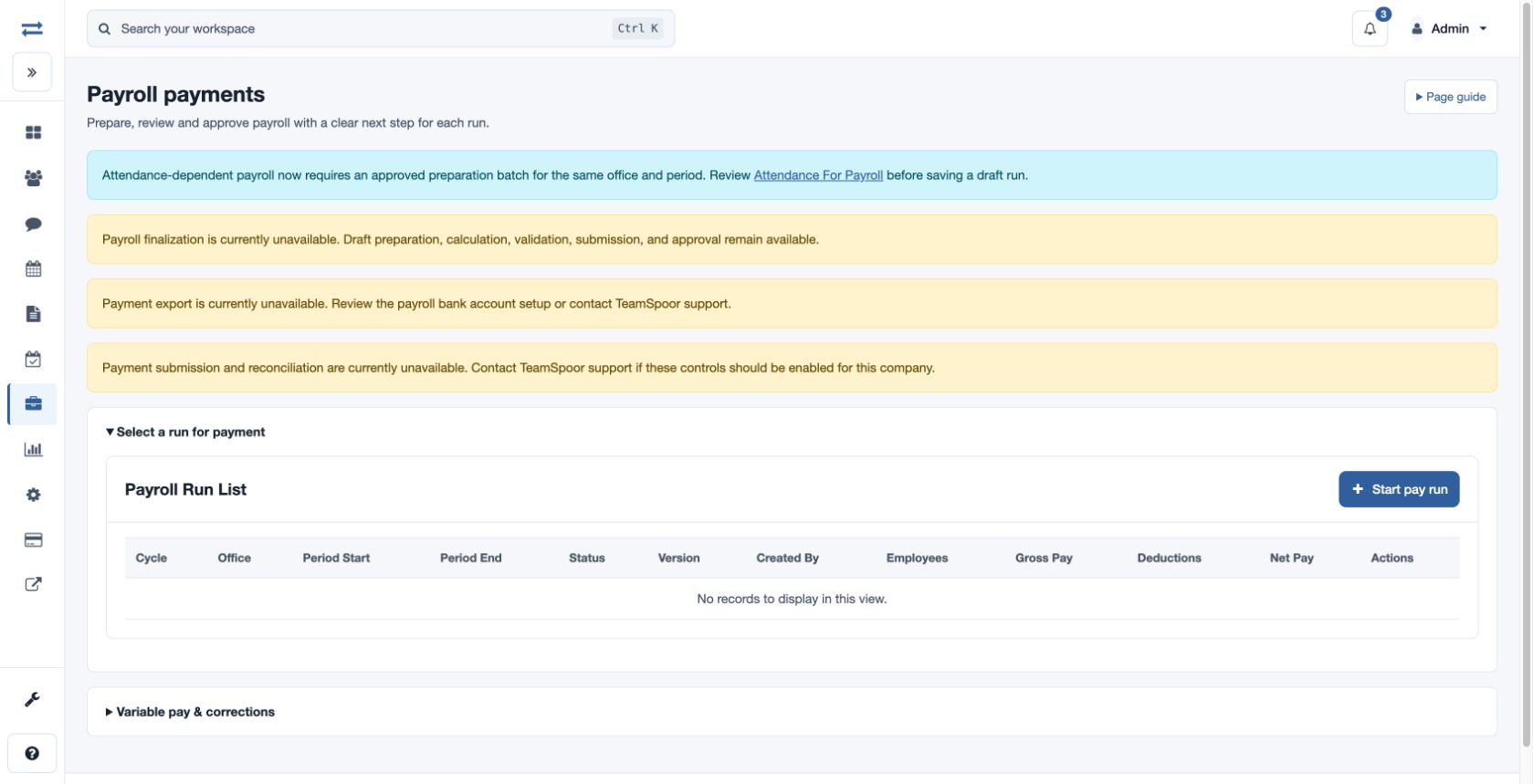
Open Payroll → Payslips & payments → Payments and select the intended run. The eligible run, published payslips, verified effective bank accounts, payment controls and export or mark-paid permission determine available actions. Export and submission do not transfer money.
Prepare and track a file
- For an eligible published run choose Export Payment CSV and supply the requested reason. Save the file and review Payment Export Evidence: run/export versions, artifact and payment statuses, format, record count, control total, links, file hash and timeline.
- After the actual bank submission, choose Submit and enter its unique bank submission reference and Finance reason. This records the submission in TeamSpoor.
- If the bank rejects a submitted file, choose Record Rejection and enter the rejection code and bank reason. Generate Replacement creates a linked replacement and requires a Finance reason. Review its status before use.
- After verifying the actual payment against the displayed bank reference, record count and control total, choose Reconcile & Mark Paid. Enter the reconciliation reference and Finance reason. This is separate from the transfer itself.
Resolve problems
Compare the file’s employee count and total with the bank submission. If bank details, export or reconciliation are unavailable, check the account’s verification and effective dates, permissions, run state and any on-screen availability notice. If another user changed the run or export, reload and review current evidence before retrying.