Visit details and verification
Inspect a visit, its location and linked evidence, then verify or print it.
Open a visit’s ID from a Visits report or a completed Beat Plan stop. Visit-report access and permission to see the employee are required. The detail page brings the recorded visit and available evidence together.
Read the visit
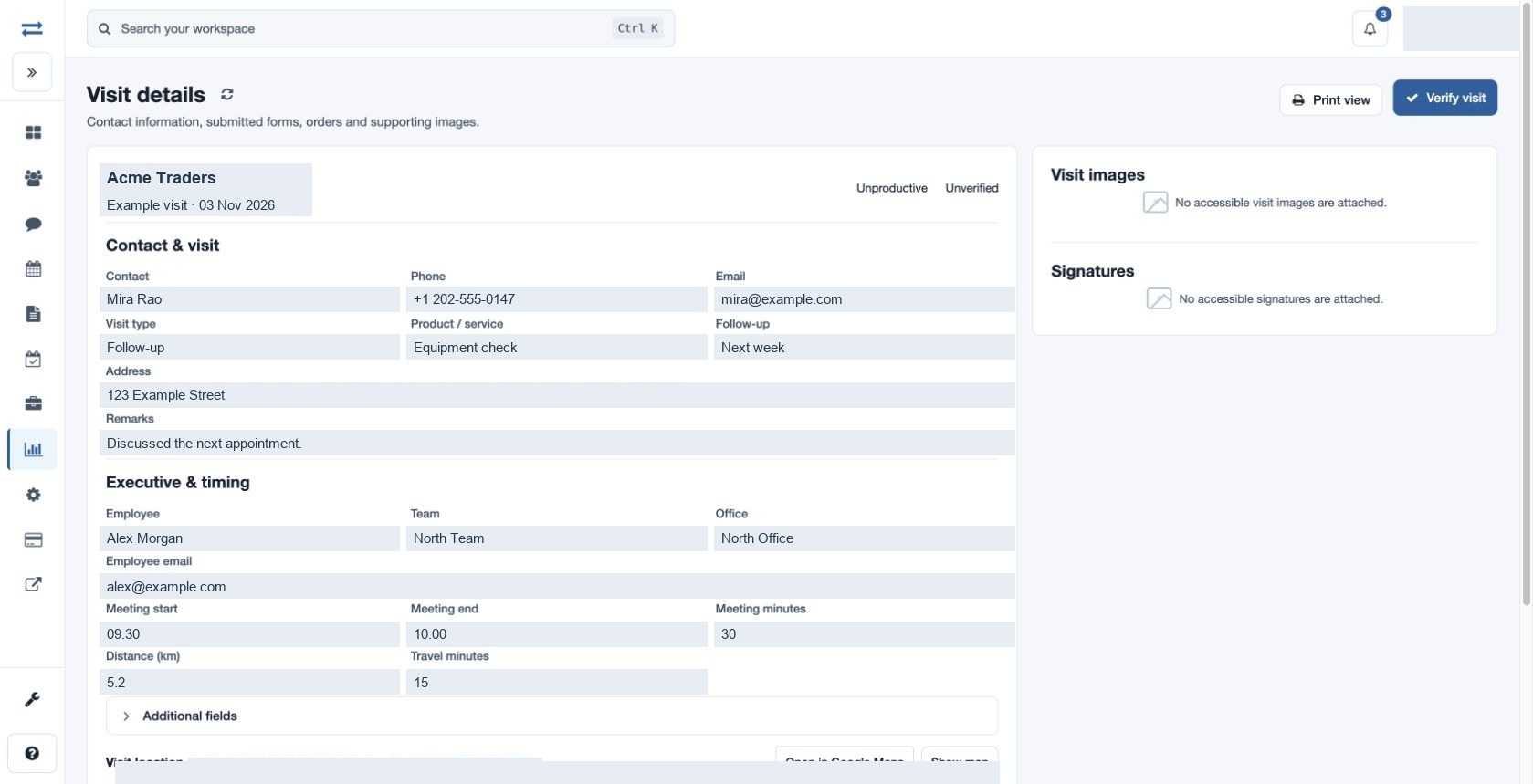
The header identifies the company, Visit ID, date, meeting status and verification state. Contact & visit shows Contact, Phone, Email, Visit type, Product / service, Follow-up, Address and Remarks. Executive & timing identifies the Employee, Team, Office and Employee email, meeting start and end, meeting minutes, distance in kilometres and travel minutes. A dash indicates a value was not recorded or is unavailable.
Expand Additional fields to see other recorded fields, including the visit reference and configured custom or employee profile fields when available. The report identifies the visit; it does not itself establish that every event or attachment was recorded.
Review location
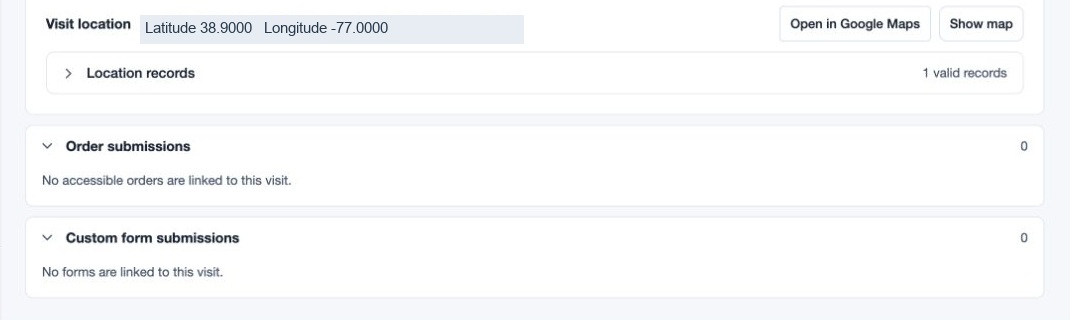
Visit location shows recorded latitude and longitude. Where mapping is enabled, select Show map to load the recorded point and expand Location records for its record, time, layer, coordinates and details. The available Open in Google Maps link opens the coordinates in a new tab. If coordinates are missing or invalid, there may be no usable map point.
Review submitted evidence
- Expand Order submissions. Each accessible order shows the recorded date and an item table with Item, Unit price, Quantity, Discount per unit and Item total. The total is calculated from the recorded unit price less per-unit discount, multiplied by quantity. Expand Original order data to inspect the saved data.
- Expand Custom form submissions to inspect each form’s name, submission time and question-and-answer fields. Original submitted data shows the saved response. A warning indicates when saved data could not be decoded.
- Review Visit images and Signatures. Select an available image or its Open link to view it in a new tab. A count of zero or an unavailable attachment does not prove that an image was never captured.
If the visit reference identifies multiple visits, the page warns that shared orders and images are withheld because ownership cannot be established. Employee-owned form submissions remain available.
Verify or print
A non-executive reviewing an unverified visit may see Verify visit. After reviewing the record, select it and confirm the prompt. Verification records the action against the reviewing account and changes the visit to Verified; the verification button is no longer offered for that already verified visit. Executives cannot verify. If the result is uncertain, refresh and check the status before repeating the action.
Select Print view to open a printable version in a new tab; use Print report there when ready. The printable view opens the detail disclosures for review. The print action and visit verification are separate.
Example and troubleshooting
For a fictional Acme Traders visit, review the contact and meeting details, expand the order to check quantity and total, then inspect the form answers and any images before deciding whether to verify. If a section is empty, check whether evidence was linked and whether your scope permits access. If the detail page fails to load, refresh, confirm the visit and employee are in scope, and try again.