Wallet automatic renewal
Control prepaid and Instatrack renewals and adjust future capacity.
Find renewal settings
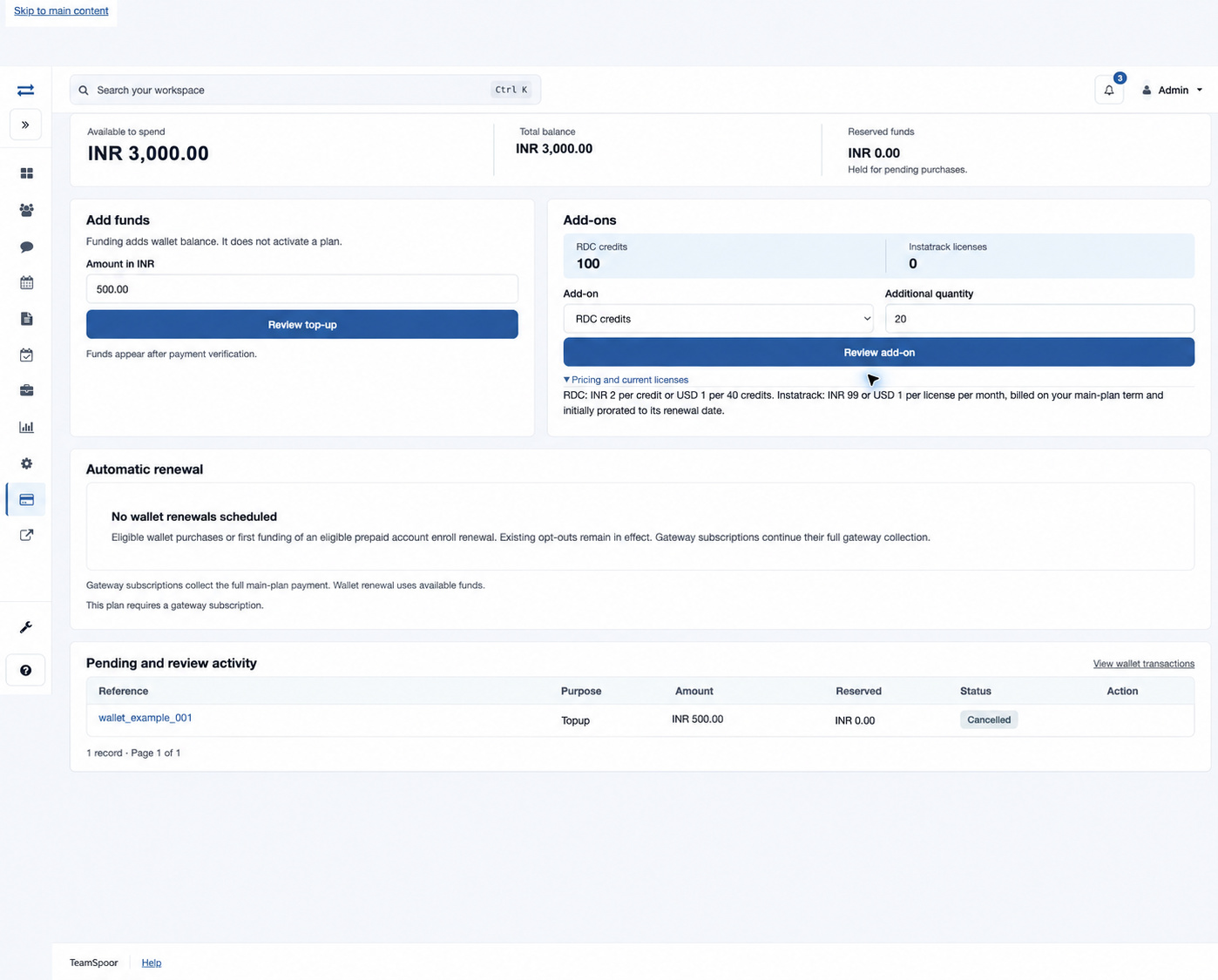
Open Billing → Add Funds and find Automatic renewal. Each scheduled renewal identifies its scope, next due date in UTC, amount, enabled status and processing state. A company can have a main-plan renewal and a separate Instatrack renewal.
How enrollment works
Eligible wallet purchases enable automatic renewal. First funding of an existing eligible prepaid account can also enroll its renewal. Existing opt-outs remain in effect. Gateway subscription main plans continue collecting their full payment through the gateway; the wallet renewal controls do not replace the gateway subscription settings.
Enable or disable a renewal
- Identify the correct row by Renewal, quantity, Next due (UTC) and Amount.
- Read the current enabled/disabled status and any review message.
- Select Disable renewal to stop the scheduled wallet renewal, or Enable renewal to enable it.
- Look for Automatic renewal setting saved and check the saved status in the same row. Review sufficient available funds before the next due date.
Understand renewal processing
Enabled or Disabled controls whether automatic wallet renewal is requested. The separate processing state explains its progress. Enabling a renewal does not itself pay for the next term.
- Waiting for funds: add sufficient available funds for all renewals due at the same time. Reserved funds are unavailable. Automatic wallet renewal does not automatically collect a shortfall from a payment card.
- Review: the saved plan, price, quantity or service period needs review. Check the displayed reason and contact billing support if you cannot resolve it.
- Gateway-owned main plan: manage its renewal through Manage subscription. The gateway continues to collect the full main-plan payment.
An Instatrack renewal waits for a valid next main-plan period. Keep the main plan current and check the applied operation and new service dates after the due date. A reminder or an enabled setting alone does not confirm that service has renewed.
Change future Instatrack quantity
- Under the Instatrack renewal, enter Future renewal quantity.
- Keep the present quantity or reduce it to the number required next term. The field does not increase paid capacity; use Add-ons to buy an increase.
- Select Review quantity change and read Due now (zero), the future renewal quantity, full-term renewal amount and UTC due date.
- Select Confirm renewal quantity, then check the updated schedule.
This change makes no current debit, changes no already-paid capacity and provides no automatic refund. The quantity must be at least one and no greater than the existing scheduled quantity, with a maximum of 10,000. Before reducing it, disable or reassign tracking so the number of active paid allocations fits the future quantity. Otherwise confirmation is rejected with an instruction to adjust tracking first.
Renew an eligible prepaid main plan now
- Select Review renewal from wallet when available.
- Review the plan, term, billing quantity, wallet contribution, gateway shortfall and any related Instatrack renewal.
- Confirm and complete any required checkout.
- Verify the applied service period on the operation and account overview.
Example
A company has paid for 12 Instatrack licenses through the current term but expects to need only eight next term. It can review a future quantity of eight. Its current paid capacity remains 12 until the existing period ends.
Troubleshooting
No wallet renewals scheduled means no renewal profile is available for the account; funding or an eligible purchase may enroll one. This plan requires a gateway subscription means main-plan renewal belongs in Manage subscription. For a renewal requiring review, check its reason and contact billing support if it cannot be resolved from the account settings.