Geofence report
Review geofence entry and exit visits or boundary events.
Open the geofence report
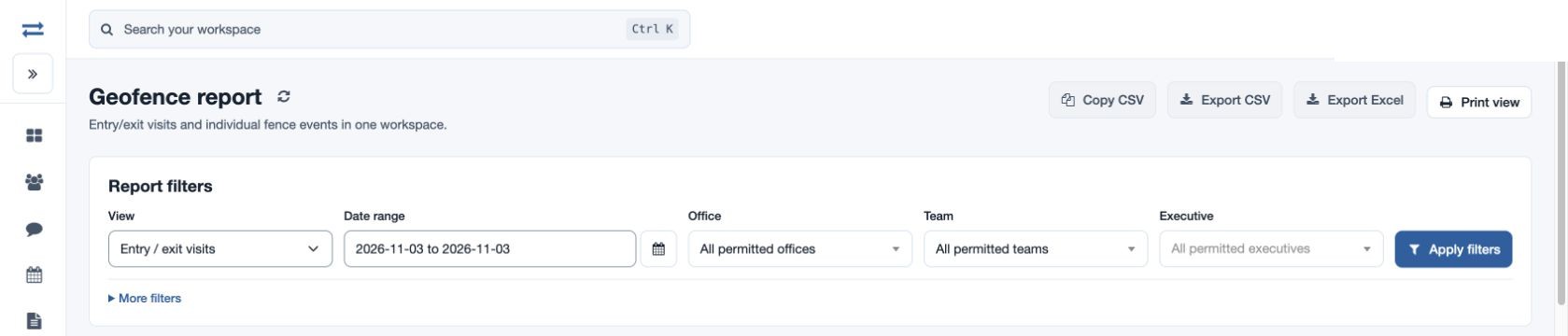
Open Reports → Geofence report. The results include only employees within your permitted scope.
Choose a view and filters
- Set the Date range, Office, Team and Executive. Expand More filters to search by employee or fence name.
- Select Apply filters. Choose View: Entry / exit visits for arrival and departure times, or Breach events for individual movement alerts. More filters includes Employee or fence name. A missing exit means no departure was recorded; inspect the location records and map where available.
- Sort or page the records. Where available, use Copy CSV, Export CSV, Export Excel or Print view.
Example and troubleshooting
For example, select a fictional North team for one week and compare the records with the employee’s related visits. If no results appear, check the period, search and scope, and confirm the app recorded the relevant evidence.
Access and evidence
The geofence feature and report permission are required. Entry and exit rows record the fence and timestamps; a blank exit means no exit was recorded. Breach events identify movement in or out, or Unknown when the event cannot be classified. The map identifies the fence location; use recorded location evidence separately to investigate the journey. Narrow the selection if more than 2,000 rows match.