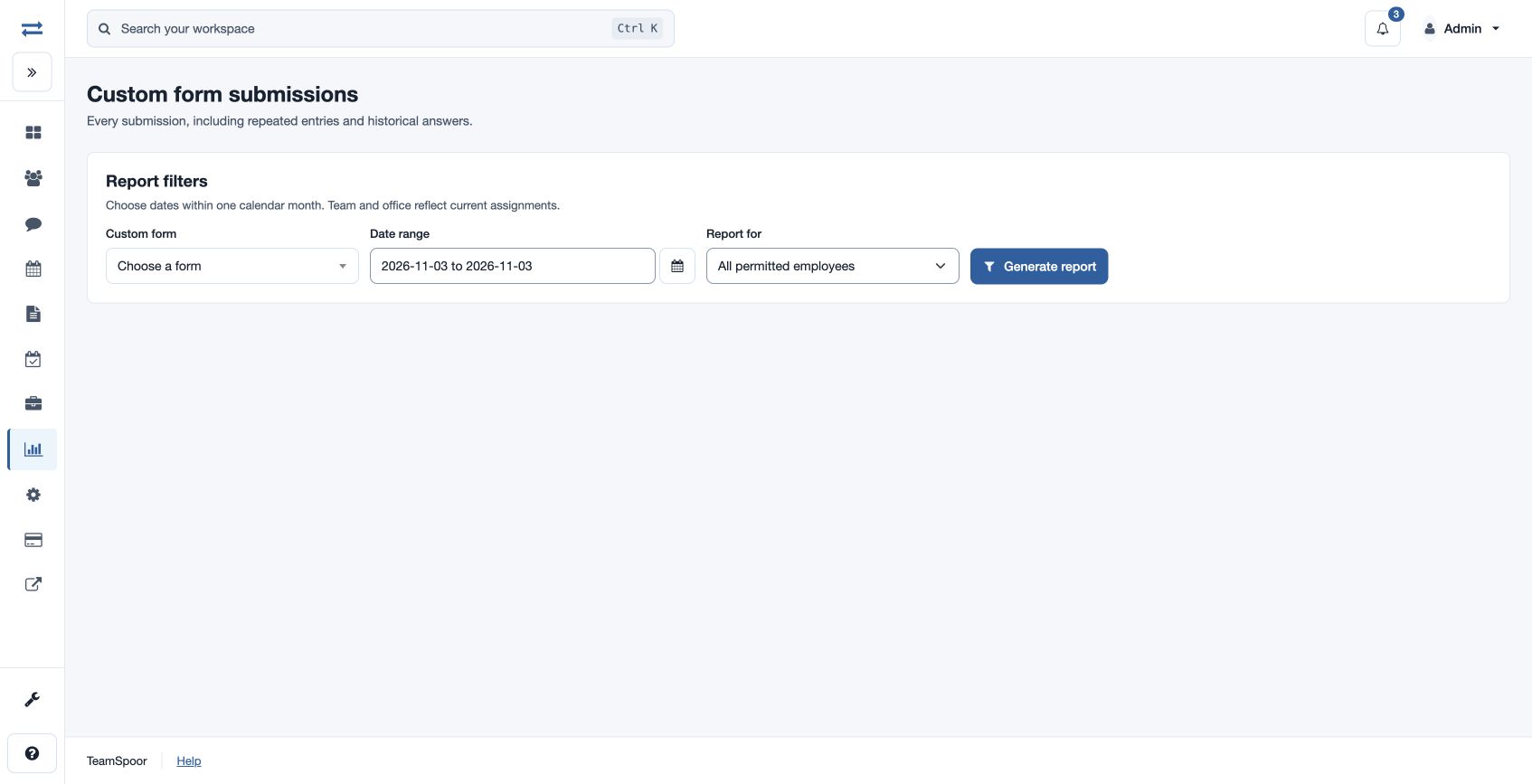
Custom form submissions
Generate a report of submitted custom form answers.
Choose the form and scope
Open Reports → Custom form submissions. Choose a Custom form, From and Through dates within one calendar month, and Report for. Administrators can choose All permitted employees, Team, Office or Employee; managers can choose My teams, Team or Employee; executives see My submissions. When a specific scope is chosen, choose its Selection.
Generate and review
- Select Generate report.
- Review the charts and table, including repeated submissions and historical answers. Team and office reflect current assignments.
- Sort and page the records as needed. With download permission, use Copy CSV, Export CSV or Export Excel.
Example and troubleshooting
For example, choose a fictional Store Audit form for 1–30 June and Team North to compare answers. If results are empty, confirm that the form was submitted during that month, the scope and selection are correct, and you have access to the form and employee. Split a range crossing months into separate reports.
Understand the columns
Each row identifies Submission ID, Submitted at, Employee, Team, Office, Visit reference and Data status, followed by answer columns and Original submitted JSON. Historical answer names are retained alongside current fields. Sort the records and page through them; narrow the filters if more than 2,000 submissions match.
Interpret submitted data
Data status flags submissions whose saved answers cannot be decoded as Invalid JSON. Original submitted JSON retains the submitted data for inspection. A blank historical answer can mean that the field was not present in that submission; compare the submission date and the retained answer columns before concluding it was omitted.