Teams
Group executives under an office and reporting manager.
Each executive belongs to a team. Create the office and manager first. Viewing teams requires user-report access; add and edit actions require administrator permissions.
How to use this page
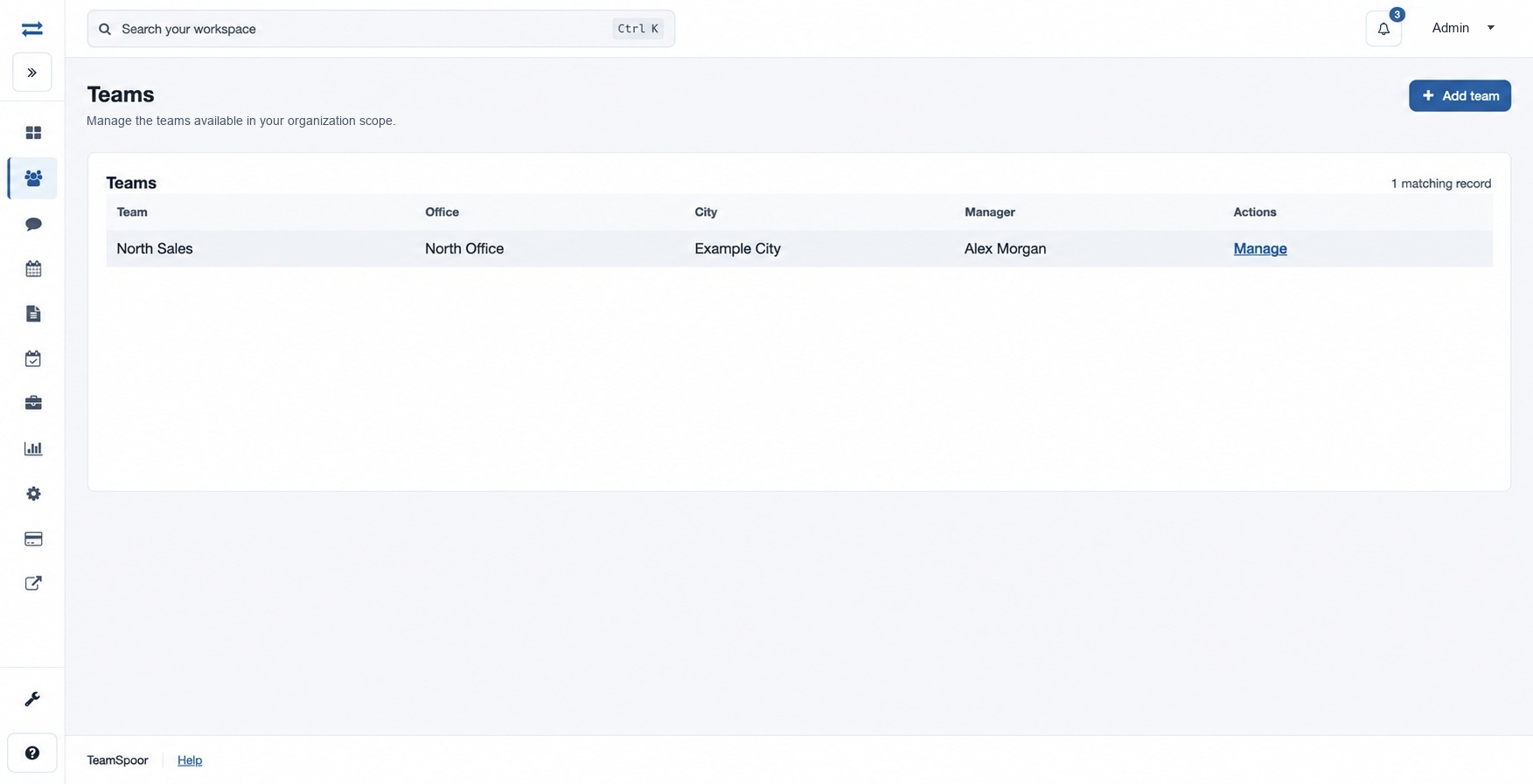
- Open Organization → Teams and select Add team.
- Enter a Name of at least four characters, choose the Office and Manager, and select Save team. For example, “North Sales” could belong to “North Office”.
- Find the team in the directory. Select Manage to change its name or manager and save. The office is selected at creation.
If the office or manager is missing from the selector, create it first or check your access. A new team can then be selected when adding an executive.
Team fields
Name is the label shown in the directory and executive selector. New names require at least four characters and may contain up to 45. Office identifies the team’s location and is selected during creation. Manager determines the reporting manager and is required on both create and edit. On the edit form, change the name or manager and select Save team; the office is not an edit field on this page.
If a newly created team is unavailable, refresh the form and check that the office and team are in your permitted scope.
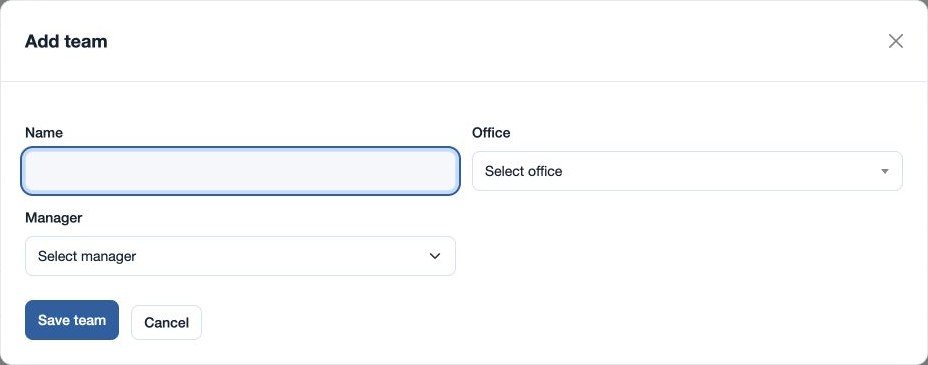
When editing, a team name may be 2–45 characters; creation requires at least four. Changes to manager assignment affect the team’s reporting relationship. If the record cannot be saved, verify the selected manager and the name length.