Expense reports
Review expense entries, receipts and totals by employee and type.
Open expense reports
Open Reports → Expenses. Access requires expense report or expense manager permission; exporting requires download permission.
Choose the view and filters
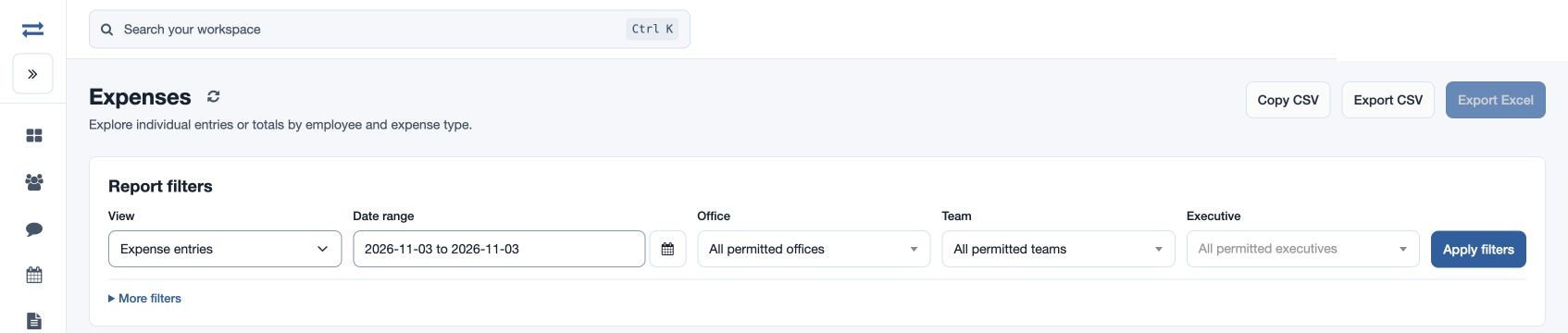
- Choose View: Expense entries for individual records or Employee / type summary for totals.
- Choose Date basis as Expense date or Submission date; set From and To, Office, Team, Executive and Expense type. Search entries by employee, payee, type or remarks if useful. Select Apply filters.
- Inspect records and any available receipt images. In the summary, compare totals within their displayed office currency; currencies are kept separate. Currency labels come from the employee’s current office; historical expense currencies are not stored. Missing amounts are counted separately and excluded from amount totals.
- Use Copy CSV, Export CSV or Export Excel for the filtered report when permitted.
Example and troubleshooting
For example, select Submission date and a fictional June range to review claims submitted during June, including expenses incurred earlier. If an entry is missing, switch the date basis and check scope, dates and type. An expense report total is recorded information, not by itself an approval decision.
Results and download limits
The expense-manager feature and expense-report permission are both required; report downloads also require download permission. Results and direct exports are limited to 2,000 output rows. Narrow the dates or employee scope if necessary. Amounts are grouped by the employee’s current office currency; missing amounts are counted separately from totals.