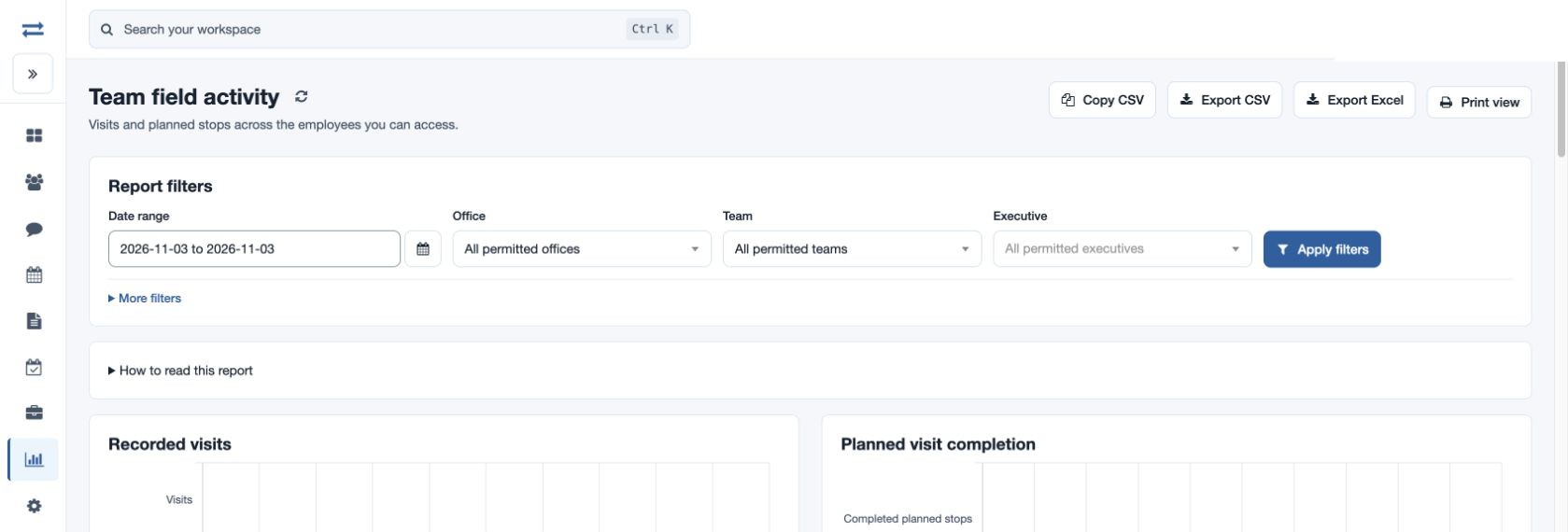
Team field activity
Compare planned stops and recorded visits across your permitted team.
Open Reports → Team field activity. The results include only employees within your permitted scope.
- Set the Date range, Office, Team and Executive. Expand More filters to search by employee name or email.
- Select Apply filters. Review the planned stops, pending stops, visits, productive visits and verified visits separately. Check visits without distance before relying on journey totals. Open the Beat Plan or Visits report separately for supporting details.
- Sort or page the records. Where available, use Copy CSV, Export CSV, Export Excel or Print view.
For example, select a fictional North team for one week and compare the records with the employee’s related visits. If no results appear, check the period, search and scope, and confirm the app recorded the relevant evidence.
Columns and report limits
Each employee row identifies Employee ID, Employee, Team and Office. Depending on permissions, visit columns show Visits, Productive visits, Verified visits, Recorded visit distance (km), Recorded travel time (minutes), and Visits without distance. Plan columns show Planned stops, Completed planned stops and Pending planned stops. A completed plan stop has a linked recorded visit. Narrow the filters if the report exceeds 2,000 entries. Use the refresh control to reload.
Availability and scope
Visit measures require visit-report permission; plan measures require Beat Plan reporting access and the Beat Plan feature. The available columns depend on those permissions. Select compatible office, team and executive filters within your scope; clear conflicting selections if the filter cannot be applied.