Payroll Register
Review payroll register for a selected payroll scope.
Generate the register
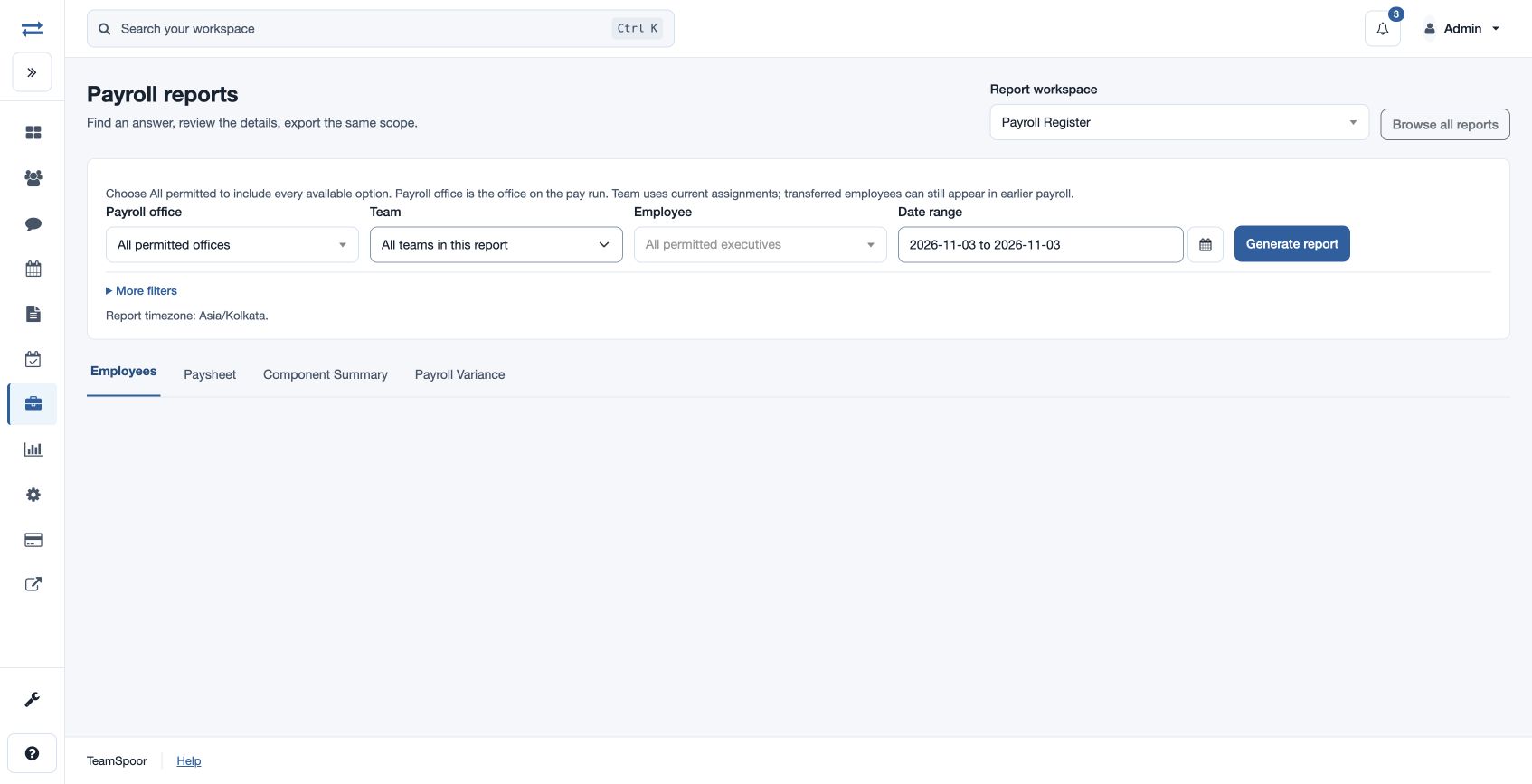
Open Payroll → Reports → Payroll Register. Choose Payroll office, Team, Employee and Date range; use More filters for Run Status and the additional available scope filters. Choose Generate report. Payroll office is the office on the pay run; Team uses current assignments, so transferred employees can still appear in earlier payroll.
Review the results
The employee table shows run/version and status, employee and email, office, period, payable days, LOP days, overtime hours, late marks, gross, deductions and net. Review the summary and Attendance totals disclosure before finalizing payroll. Search and sort the table, and use Export CSV when permitted. Compare amounts in the same currency; payroll items without a currency appear only in the table.
Use the Paysheet, Component Summary and Payroll Variance links for related views. If an employee is missing, check dates, run status, office, team and permitted scope.
Access and report limits
The payroll feature and payroll-report permission are required; Export CSV also requires report-download permission. Dates use the displayed viewer timezone, must be valid and ordered, and may span at most two years. If the report exceeds 2,000 entries, narrow the period or employee scope. Select a column heading to sort and review the visible summary and charts before exporting.