Payroll components
Define earnings, deductions and employer contributions.
Before you begin
Open Payroll → Setup & policies → Payroll Components. You need a payroll-enabled plan, payroll-settings permission and available payroll setup. Components define individual earnings, deductions and employer contributions. Create them before adding their amounts and order to a salary structure.
Create a component
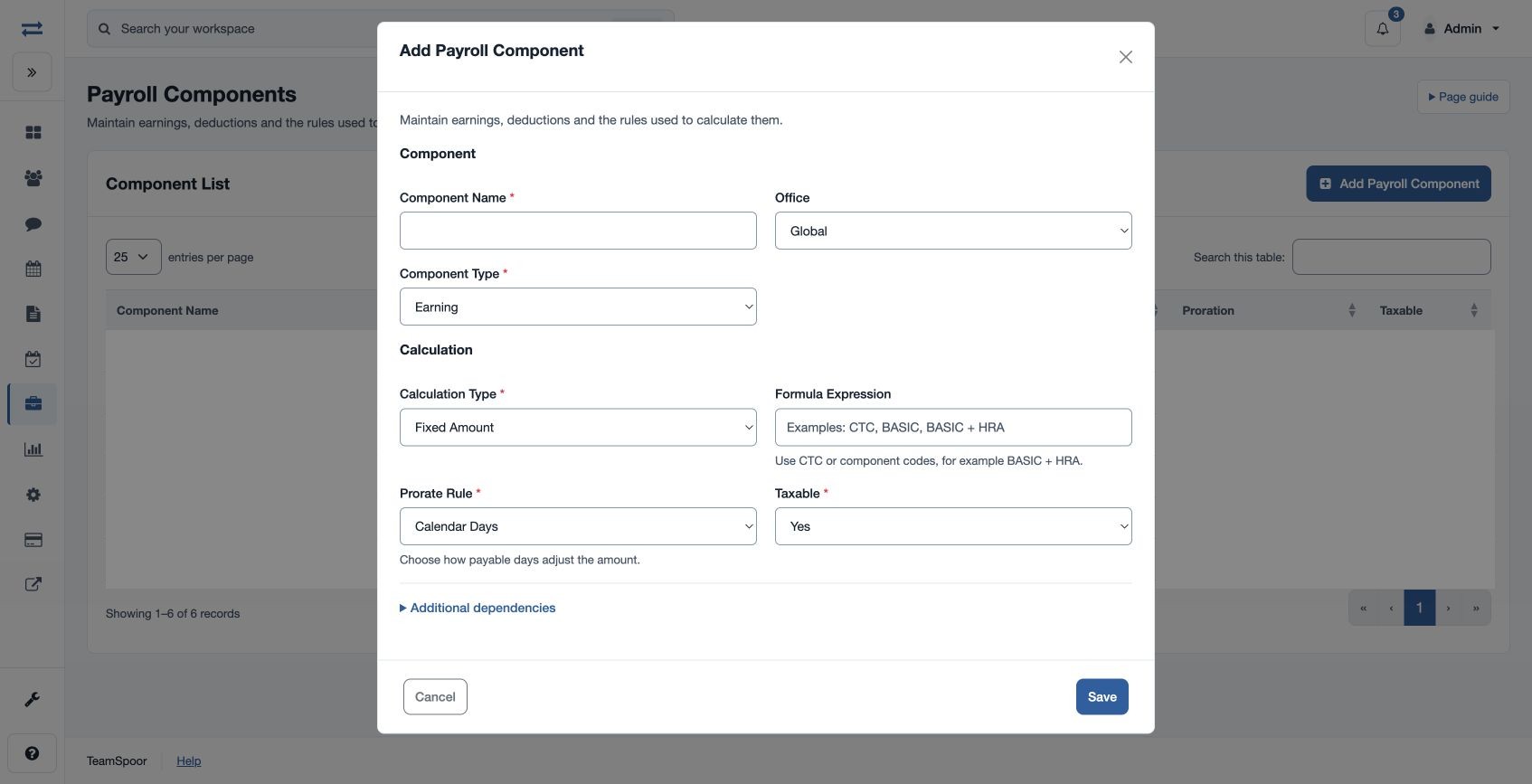
- Select the add control in Component List to open Add Payroll Component.
- Enter Component Name, using 3–80 characters. Use a recognizable name, such as Basic or Travel Allowance.
- Select Office: Global for company-wide availability, or the permitted office to which it applies.
- Set the component type, calculation, formula, proration and flags using the reference below.
- Select Save. The success message confirms that the component has been added and the list reloads. Cancel closes the form without adding it.
- Check Component Name, Office, Type, Calculation, Formula, Proration and Taxable in the list. Add the component to the intended structure, enter its default value, then calculate and inspect an employee result before approving payroll.
Choose the type and calculation
| Option | Meaning |
|---|---|
| Earning | Adds to the employee’s gross pay. |
| Deduction | Adds to deductions taken from employee pay. |
| Employer Contribution | Records the employer’s contribution separately from employee earnings and deductions. |
| Fixed Amount | Uses the structure’s default amount, subject to the selected proration and any applicable employee override. |
| Manual Amount | Also uses the assigned amount and proration. Select it for an amount maintained explicitly; the setting does not itself open a payment or enter an adjustment. |
| Percentage Based | Evaluates Formula Expression as the base, multiplies it by the structure’s default value divided by 100, and applies proration. For example, base BASIC and default value 10 mean 10% of the already calculated Basic result, then this component’s proration applies. Account for that second proration when choosing the rule. |
| Formula Based | Evaluates Formula Expression as an amount and then applies the component’s proration. |
Set proration and dependency flags
| Control | Effect |
|---|---|
| Calendar Days | Prorates the amount using eligible calendar days over the full payroll period’s calendar days. |
| Working Days | Uses eligible working days over the full period’s working days. |
| No Proration | Applies the full calculated amount. Attendance and leave dependency flags do not reduce it through proration. |
| Attendance Dependent: Yes | For calendar-day or working-day proration, uses payable days or payable working days as the numerator. |
| Leave Dependent: Yes | When Attendance Dependent is No, reduces eligible days for unpaid leave; calendar-day proration also includes sandwich days. Attendance dependency takes precedence when both flags are Yes. |
| Include In Arrear | Controls whether the ARREARS value is available to this component’s formula. Yes does not automatically add arrears to a fixed component; its calculation must use the appropriate input. |
| Taxable | Marks the classification. Taxable earnings contribute to taxable earnings calculations; configure the associated statutory settings separately. |
Even with both dependency flags set to No, calendar-day or working-day proration can reduce an amount for a partial eligible period, such as joining partway through it. A Replace calculated result employee override is also multiplied by the component’s proration ratio.
Enter a formula
Formula Expression is required for both Percentage Based and Formula Based. Use numeric expressions and supported payroll values, such as CTC, MONTHLY_CTC, DEFAULT_AMOUNT, or an existing component code such as BASIC. Component codes are derived from their names in uppercase, with underscores for separators. Referenced components must be available to the employee’s structure; avoid names that collide with reserved payroll values.
Arithmetic supports addition, subtraction, multiplication, division, remainder (%), unary signs and parentheses. Comparisons >, >=, <, <=, == and != can be used in conditions, for example IF(BASIC > 10000, 500, 0). Supported functions include IF(condition, value_if_true, value_if_false), MIN(...), MAX(...), ABS(value), CEIL(value), FLOOR(value), ROUND(value, decimals) and CLAMP(value, minimum, maximum). ROUND accepts an optional precision from zero to six decimal places; when omitted, the structure’s currency precision is used. For a capped allowance, MIN(BASIC * 0.10, 2000) calculates 10% of Basic capped at 2,000 before proration. Use approved company rules and inspect the resulting calculation.
Example and troubleshooting
A fictional Travel Allowance has Fixed Amount 3,000 in its structure, Calendar Days and Attendance Dependent Yes. If the employee has 27 payable days in a 30-day period, that component calculates as 3,000 × 27 ÷ 30 = 2,700 before the structure’s currency rounding.
If saving fails, check the name length, permitted office and required formula. For an unknown token, circular dependency or division-by-zero error, correct the formula or its inputs and recalculate. If setup is unavailable, contact your administrator or TeamSpoor support. A saved component definition alone does not confirm that an employee’s salary calculation is correct.