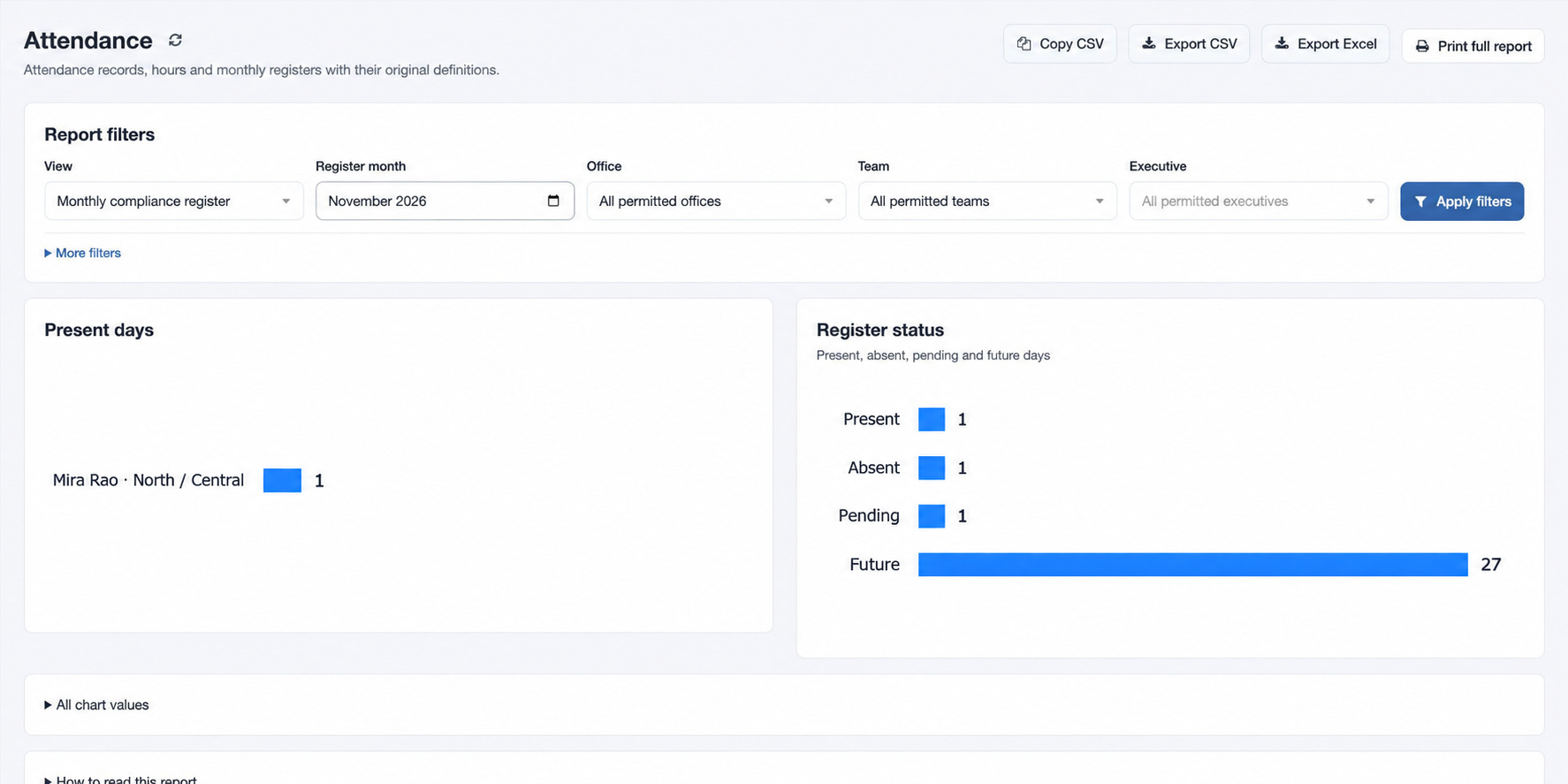
Monthly compliance register
Review recorded check-ins across a calendar month.
Open and filter
Open Reports → Attendance and choose Monthly compliance register in View. Attendance-report permission is required.
- Choose Register month. The view covers the full calendar month.
- Choose Office, Team and Executive, or leave each at all permitted values. Use More filters for employee name or email when needed.
- Choose Apply filters. Review the charts and records; use column sorting and scroll the records table horizontally when needed. Expand All chart values for accessible chart figures and How to read this report for the view’s notes.
Read the result
Columns: Employee ID, Employee, Email, Team, Office, one column per calendar date, Present days, Absent days, Pending today and Future days.
A recorded check-in is Present. A past date without a check-in is Absent; today without a check-in is Pending and future dates are Future. The register is a check-in view: check leave, holidays and weekly offs before treating an Absent cell as a working-day absence.
Export and troubleshoot
Copy CSV, Export CSV and Export Excel require report-download permission; Print full report opens the printable report. These actions reflect the selected view and permitted scope. For example, select fictional employee Mira Rao and one calendar month, then investigate an unexpected result in the original attendance record. If the result is unexpected, check the period, employee, office, team, report timezone and permissions, then compare the underlying records. Use Attendance Regularization for an authorized correction.