Request and download export archives
Prepare a private CSV archive and track its status.
Choose an export
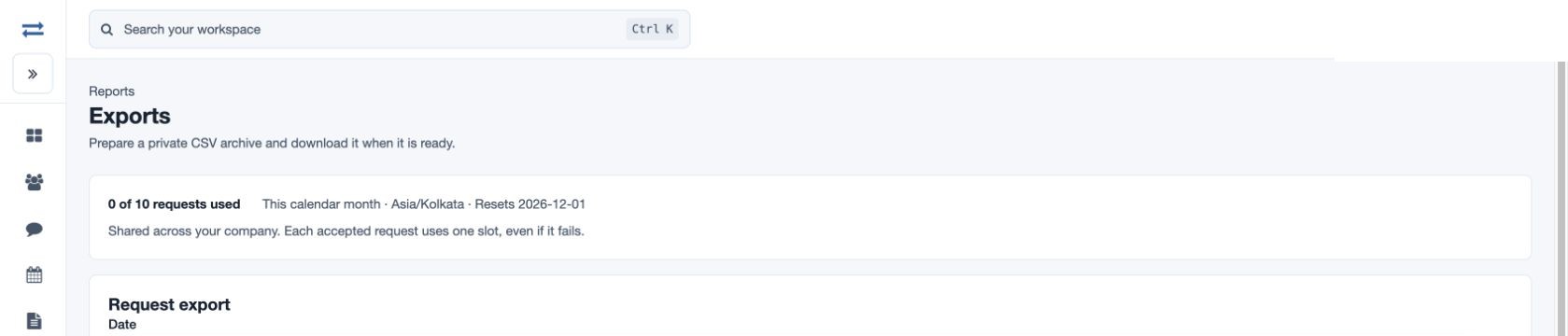
Open Reports → Exports. Select an available Data set, From and Through, and optional Office, Team and Employee. Available data and scope follow your permissions. The Data menu can include Visits, Orders, Attendance and Payroll register. Read the data description before requesting; for example visit exports include visit details and custom text fields but exclude images and attachments. Payroll datasets may show a Payroll status selector: Released, Draft or All statuses.
Request and download
- Review the selection and allowance. Each request covers at most 90 inclusive days and 20,000 rows. The company shares 10 requests per calendar month, measured in Asia/Kolkata; every accepted request uses one slot even if it fails.
- Select Request export · uses 1 slot. In Your exports, use Refresh to check status and the displayed row count, size and times. Times in the listing are UTC.
- When ready, download your file. Only the requester can download it, and the emailed link requires sign-in. Files expire seven days after generation. Downloading the same ready file again does not use another request.
Example and troubleshooting
For example, select a fictional team and a single month of visits, verify the scope, then request the archive. If requests are disabled or unavailable, check the allowance and service availability. If a job fails, inspect its status before retrying because a new accepted request uses another slot. Ordinary report downloads may still be available if archive exports are unavailable.
Direct report downloads and archives
The archive request is separate from a report’s immediate Copy CSV, Export CSV or Export Excel controls. The Data menu can include Visits, Orders, Attendance and Payroll register according to permissions. For payroll, choose Released, Draft or All statuses. Review Your exports and its status before creating a replacement request.
Archive availability and status
Archive requests are available to administrators with report-download permission and the permission for the chosen data set. Payroll also requires the payroll feature. Visits include visit details and custom text, without images or attachments; Orders contain individual order items by order date and exclude images and attachments. Attendance includes permitted inactive employees but excludes selfies. Payroll register contains current results; select the full payroll period. Bank files and payslip PDFs are not included.
Your exports lists the export, status, rows and size, requested, ready and expiry times, email status and available actions. Queued requests can be cancelled; ready archives can be downloaded or deleted. Cancelling or deleting does not restore a request slot. Status can also be Preparing, Failed, Cancelled, Revoked, Expired or Deleted. Email status distinguishes queued or sending, acceptance by the mail service, failure and unconfirmed delivery; acceptance does not confirm receipt. Use Refresh and Previous or Next to review jobs. If a submission result is uncertain, refresh the list before requesting again.