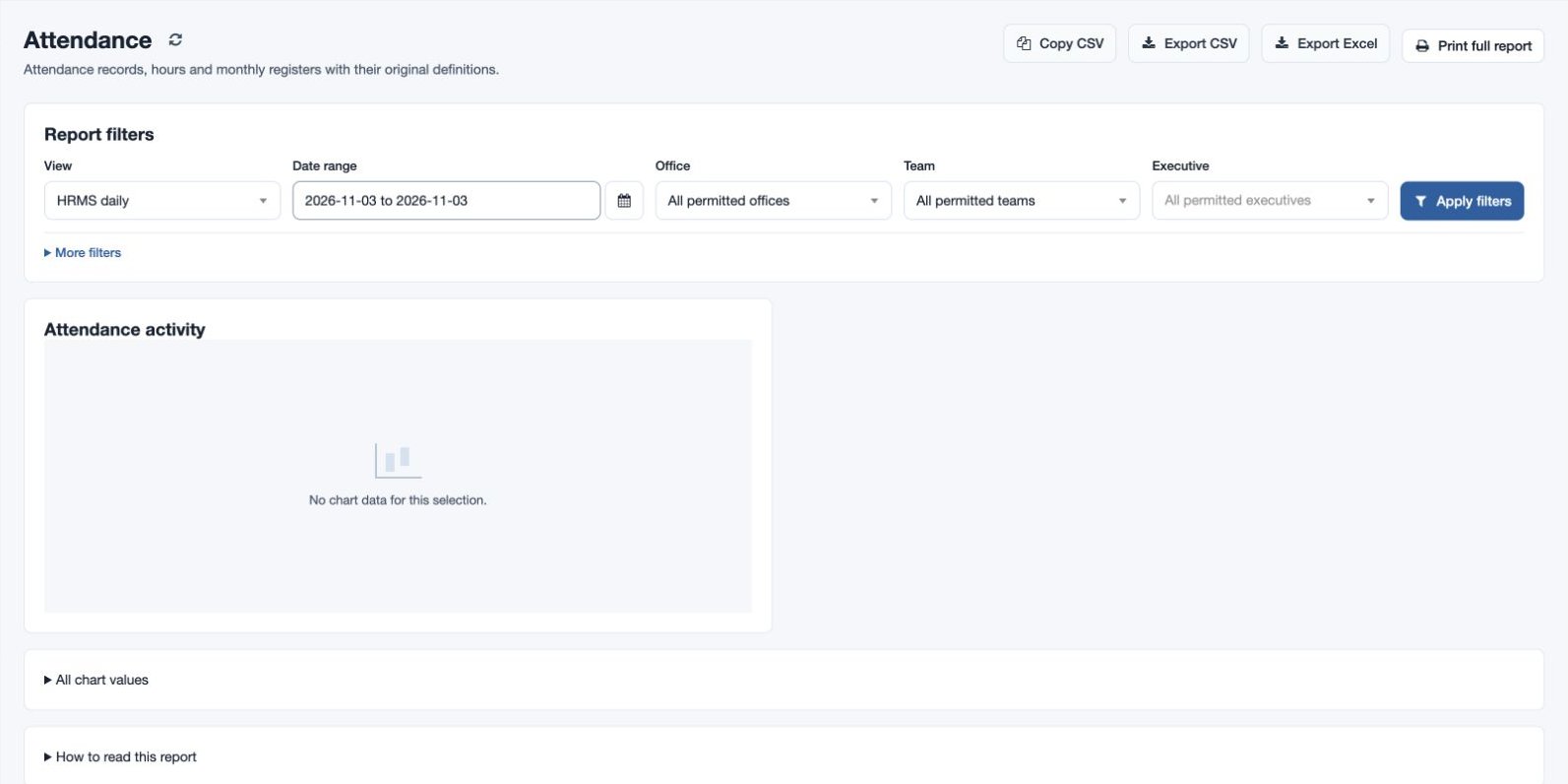
HRMS daily attendance
Review daily HRMS attendance and lateness.
Open and filter
Open Reports → Attendance and choose HRMS daily in View. The HRMS feature and HRMS attendance-report permission are required for this view.
- Choose the Date range (From through Through).
- Choose Office, Team and Executive, or leave each at all permitted values. Use More filters for employee name or email when needed.
- Choose Apply filters. Review the charts and records; use column sorting and scroll the records table horizontally when needed. Expand All chart values for accessible chart figures and How to read this report for the view’s notes.
Read the result
Columns: Employee, Office, Team, Date, Check-in, Check-out, Worked hours, Late minutes and Early minutes.
Compare the punch times with the employee’s assigned shift. If a date appears unexpected, check the report timezone shown in How to read this report.
Export and troubleshoot
Copy CSV, Export CSV and Export Excel require report-download permission; Print full report opens the printable report. These actions reflect the selected view and permitted scope. For example, select fictional employee Mira Rao and one workweek, then investigate an unexpected result in the original attendance record. Where no shift is assigned, timing comparisons use the default 10:00–18:00 shift; assign the correct shift before relying on late or early figures. If the result is unexpected, check the period, employee, office, team, report timezone and permissions, then compare the underlying records. Use Attendance Regularization for an authorized correction.