Geofence entry / exit visits
Inspect recorded fence arrivals and departures.
Open the geofence view in Reports; access and employee scope follow your report permissions.
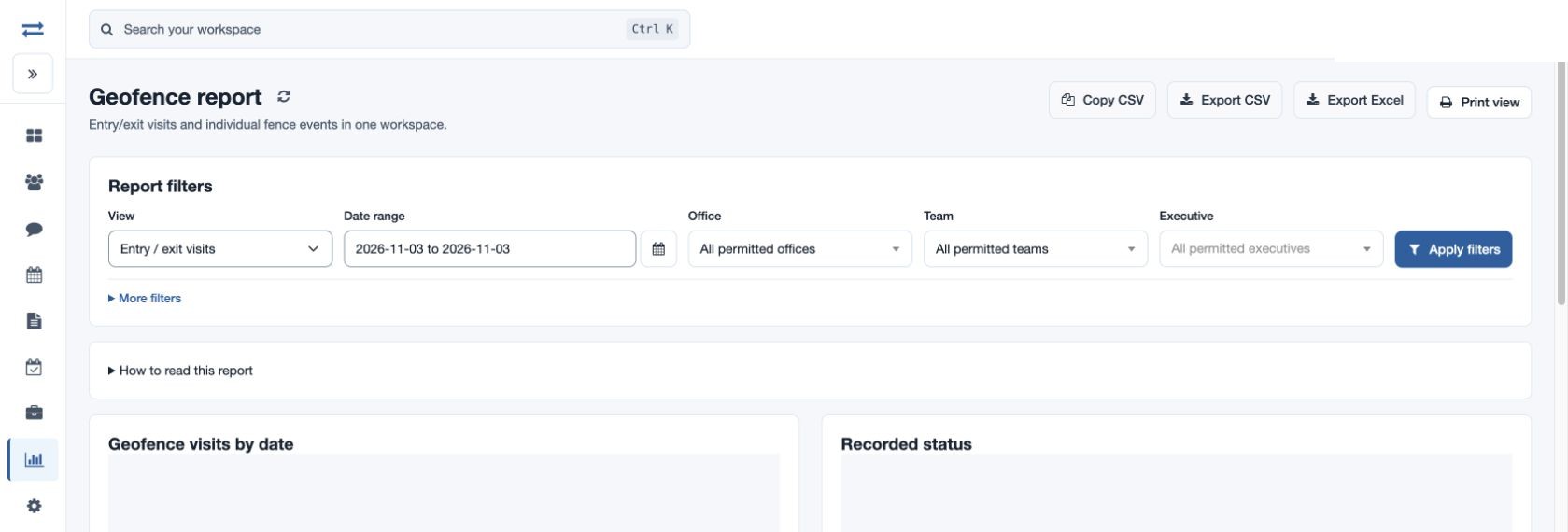
Filter and review
- Choose the named View, Date range, Office, Team and Executive. Expand More filters to search Employee or fence name, then select Apply filters.
- Review the date and status charts and sortable records. Common columns identify the record, employee, email, team, office, recorded time, fence, coordinates and radius.
- Inspect Geofence locations and Location records when available. Map lines connect recorded locations, not driving routes. Sort and page the location table; use its Map action where available.
- Use Copy CSV, Export CSV, Export Excel or Print view where permitted.
Interpret this view
Each row includes the fence, its coordinates and radius, Entered at, Exited at and Recorded duration (minutes). A missing exit means no departure was recorded; duration is unavailable when the pair cannot establish it.
Example and troubleshooting
Filter a fictional North team for a day and compare the event time with the recorded fence. If empty, check scope, date, name and whether a location or fence event was recorded. Invalid or missing coordinates cannot create a map point.
Interpret an entry and exit
The geofence feature and report permission are required. A blank exit means an exit was not recorded; it does not establish that the employee is still inside. The map identifies the fence location. Narrow the period or employee scope if the selection exceeds 2,000 records.