Component Summary
Compare posted earnings, deductions and employer components.
Filter and review
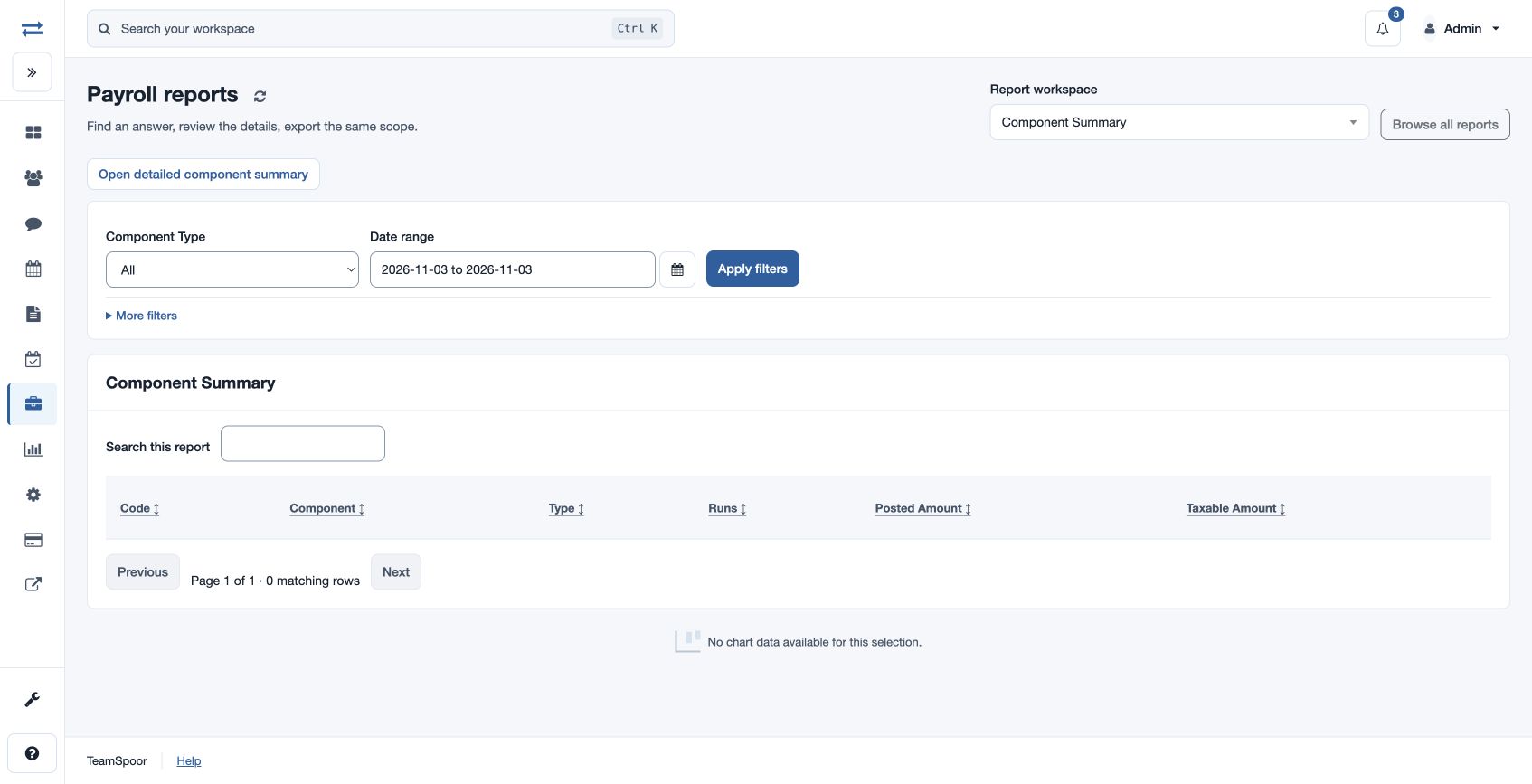
Open Payroll → Reports → Component Summary. Select Component Type: All, Earning, Deduction or Employer; choose the date range and Office under More filters, then Apply filters. The table shows Code, Component, Type, Runs, Posted Amount and Taxable Amount. Search, sort and page through the result; charts appear when data exists.
For example, select Earning for one month and compare posted and taxable amounts. Open detailed component summary for the related control report. Check the period and scope if the result is empty.
Access and scope
The payroll feature and payroll report permission are required. Results are limited to your permitted scope. If a report exceeds 2,000 entries, narrow the selected period or scope and run it again.
Interpret a component
Code and Component identify the payroll component; Type identifies earning, deduction or employer contribution. Runs counts matching runs, Posted Amount sums the component posted in the selection, and Taxable Amount is its recorded taxable portion. The report timezone is displayed on the page.
For a fictional June earning component, compare its posted 10,000 with its taxable 8,000, then review the component and run details. A different component type, office or period can exclude the row; select All and widen the period to investigate.