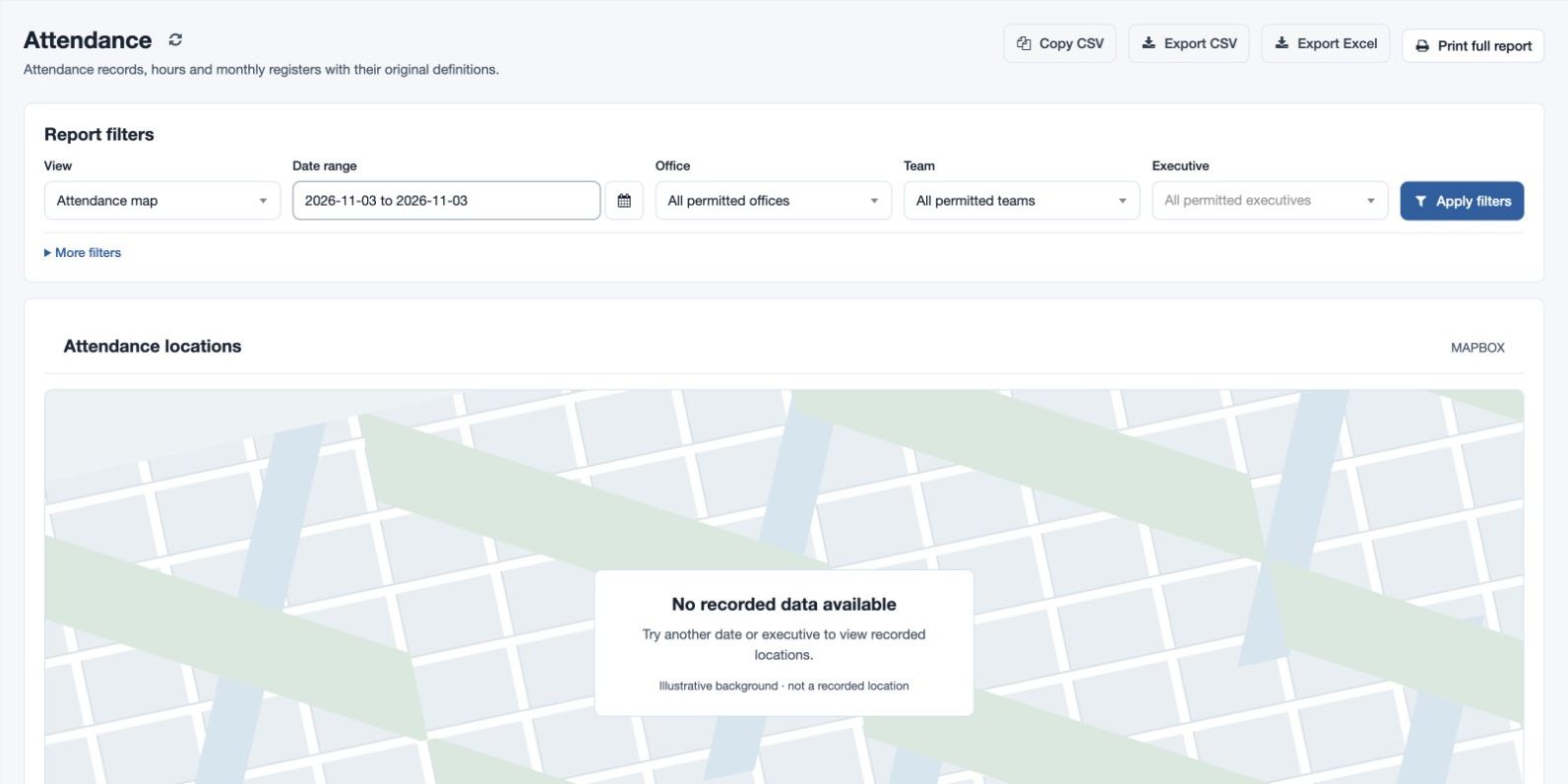
Attendance map
Inspect available check-in and check-out locations.
Open and filter
Open Reports → Attendance and choose Attendance map in View. Attendance-report permission is required; the map also depends on maps being enabled.
- Choose the Date range (From through Through).
- Choose Office, Team and Executive, or leave each at all permitted values. Use More filters for employee name or email when needed.
- Choose Apply filters. Review the charts and records; use column sorting and scroll the records table horizontally when needed. Expand All chart values for accessible chart figures and How to read this report for the view’s notes.
Read the result
Columns: The underlying records have Employee ID, Employee, Email, Team, Office, Attendance date, check-in and check-out times, selfie status and links, addresses, worked hours, coordinates, offsets, shifts, and check-out distance and travel time.
Available coordinates appear as check-in and check-out map points. A missing or invalid location does not by itself prove a person was absent. Verify the corresponding record and time.
Export and troubleshoot
Copy CSV, Export CSV and Export Excel require report-download permission; Print full report opens the printable report. These actions reflect the selected view and permitted scope. For example, select fictional employee Mira Rao and one workweek, then investigate an unexpected result in the original attendance record. If the result is unexpected, check the period, employee, office, team, report timezone and permissions, then compare the underlying records. Use Attendance Regularization for an authorized correction.