Employee Master
Create and review the employee directory and its hierarchy.
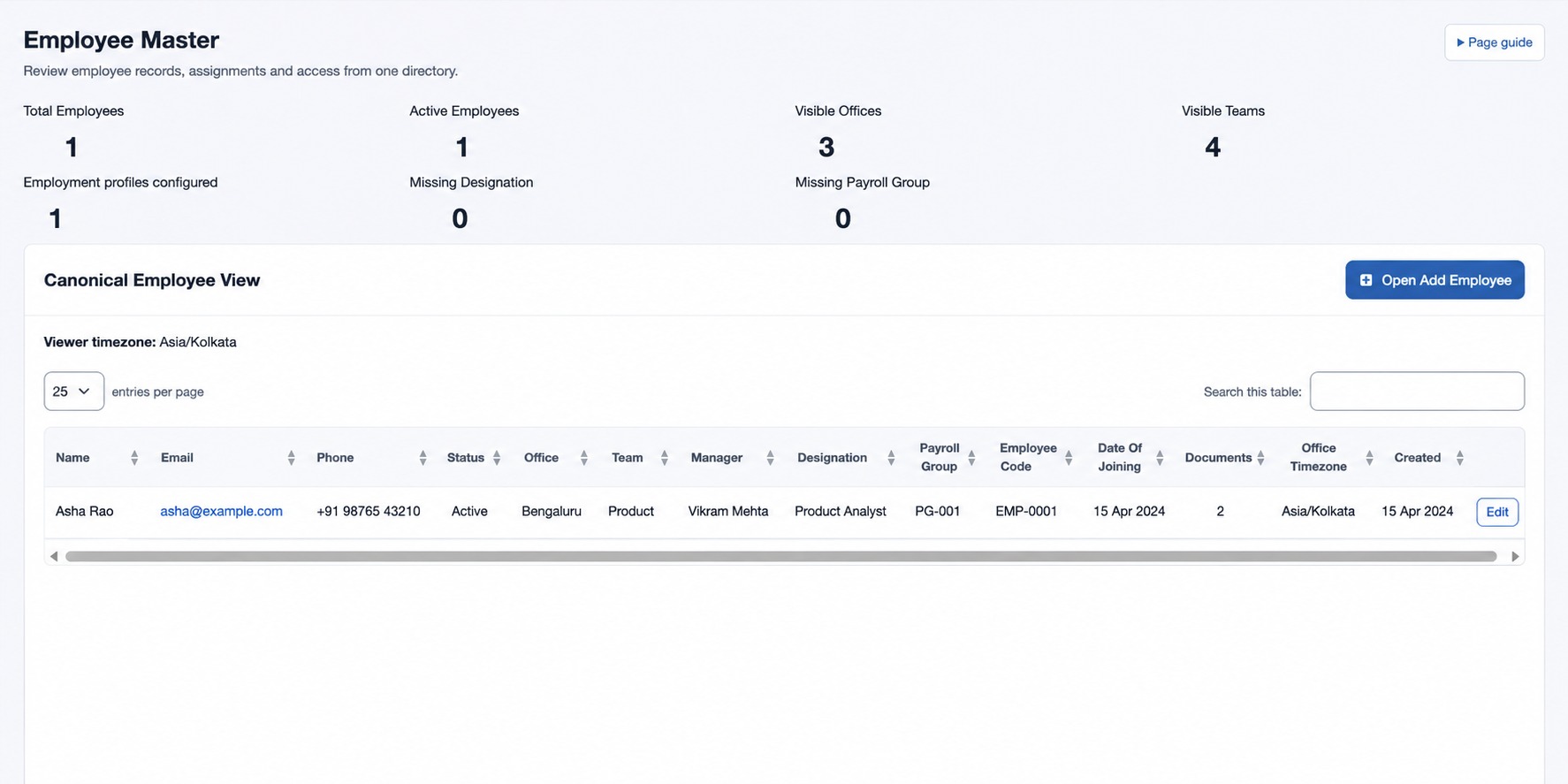
Open HR & attendance → Employee Master. The summary shows total and active employees, visible offices and teams, configured employment profiles and missing designations. The directory lists name, email, phone, status, office, team, manager, designation, employee code, joining date, office timezone and created time; payroll columns appear when available. Search, sort and page through the table.
Add or edit an employee
- With employee-management permission, select the plus button in Canonical Employee View, or Edit for a row.
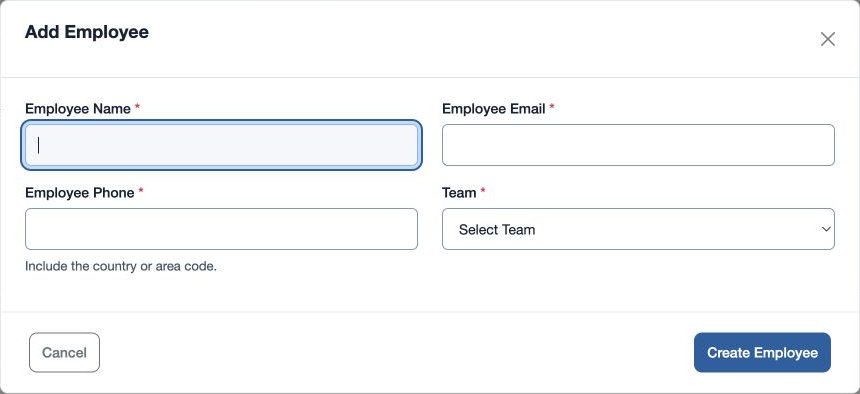
- Enter required Employee Name (up to 80 characters), Employee Email (valid email, up to 120), Employee Phone (up to 20) and Team. Team choices show office and team.
- Choose Create Employee or Save Changes. Confirm the success message and find the employee in the refreshed directory.
For example, create Mira Rao in the fictional North team, then complete her employment details in Employee HR Setup. Office and manager follow the operating hierarchy; configure them in the organization screens. The Documents link appears if you can view documents.
If the person or action is missing, verify your employee-management permission, permitted teams and plan. Check required fields and email/phone format if a form is rejected.