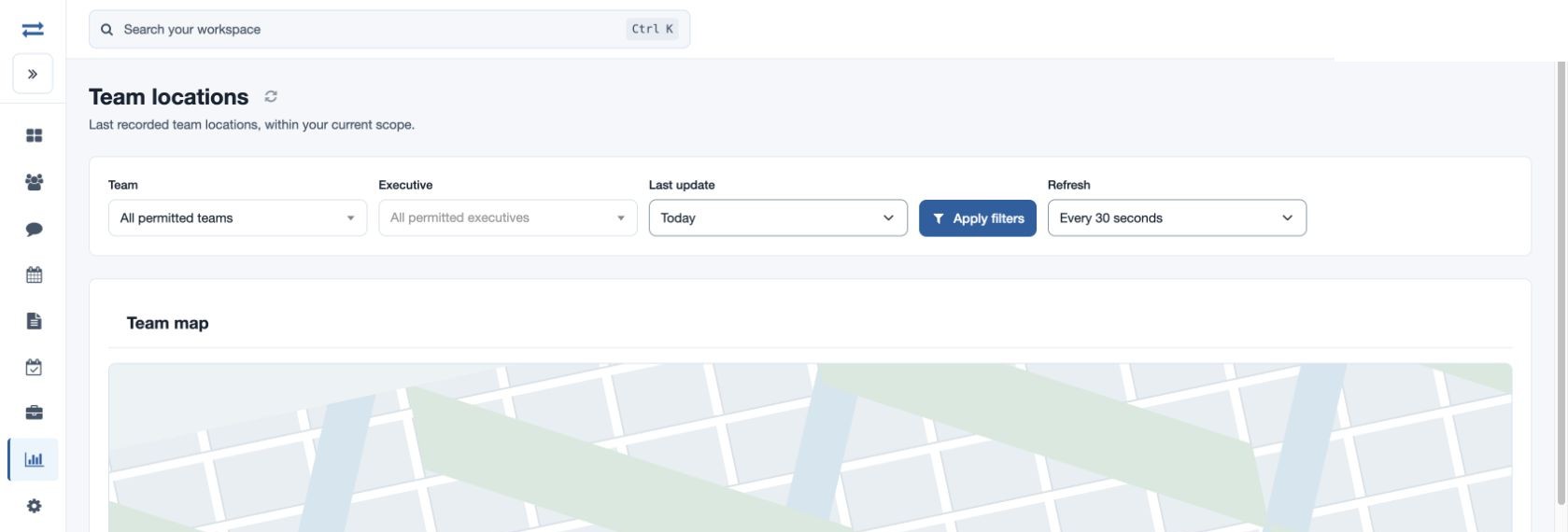
Team locations
See the last recorded positions of permitted active employees.
See the last recorded positions of permitted active employees. This view is available to non-executives when maps and the real-time location feature are enabled and location-report permission is granted; the selection is limited to your scope.
Set the scope and refresh
- Open Reports → Team locations. Choose Team and optionally Executive; the executive search accepts name or email.
- Choose Last update: Today restricts the latest recorded locations to today, while All recorded locations can include older updates. Select Apply filters.
- Choose Refresh: Paused, Every 10 seconds, Every 30 seconds or Every minute. The default is Every 30 seconds. The refresh icon also reloads the data.
Each location can include team, battery, accuracy and speed with its recorded time. A last recorded location is not proof that a person remains at the marker.
Read the map and location table
Use available layer controls to show the recorded categories. Select a marker for its details. Below the map, Location records lists Record, Recorded at, Layer, Latitude, Longitude and Details, with a Map action; sort column headings and use Previous or Next to page. Lines connect recorded locations and do not represent driving directions. Invalid or missing coordinates cannot appear as markers. If more than 2,000 valid points match, narrow the selection. These map screens do not offer a direct CSV export; use the relevant report for permitted downloads.
Example and troubleshooting
For fictional Maya Rao, select the applicable team and executive, then inspect the recorded time and details. If no point appears, confirm access, employee and date or freshness, app recording and valid coordinates. Refresh once after changing filters.