Wallet transactions and statements
Filter posted credits and debits and export a complete selected statement range.
Open the statement
Select View transactions on Billing overview, or View wallet transactions in Wallet. All statement dates are UTC.
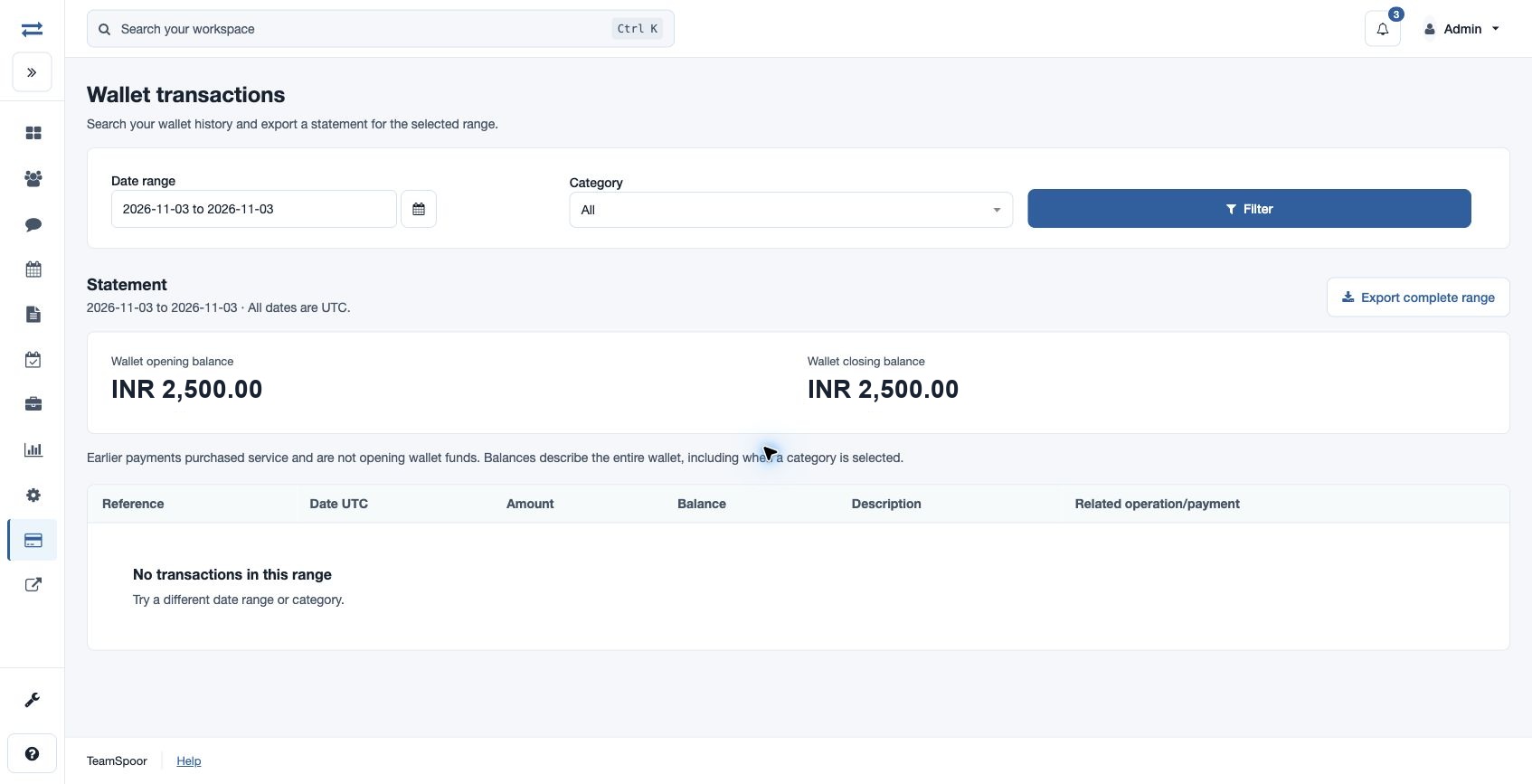
Find transactions
- Set Date range using the date picker or the displayed YYYY-MM-DD to YYYY-MM-DD format. Both dates are included, using UTC. The initial range is today in UTC. The start must not be after the end.
- Choose Category, or leave All selected.
- Select Filter.
- Review the date range printed above the statement and read each transaction’s reference, date, amount, resulting balance, description and related operation/payment.
- Select an operation reference to inspect its accepted purchase details and all related wallet entries.
- Use Next page when available. The on-screen statement shows up to 100 entries per page.
Read the statement correctly
| Item | Meaning |
|---|---|
| Wallet opening balance | Posted balance before the selected start date. |
| Wallet closing balance | Posted balance through the selected end date. |
| Reference / Date UTC | The wallet-entry identifier and posting time. An entry reference is separate from its related purchase-operation or payment reference. |
| Description | The category and description explain why funds were added or removed. |
| Amount | A signed credit or debit. Read the category and description to understand its purpose. |
| Balance | Wallet balance immediately after that entry. |
| Related operation/payment | Links the ledger entry to its purchase request and payment reference. |
Opening and closing balances describe the whole wallet even when a category filter is selected. Earlier payments that purchased service are not opening wallet funds.
Category reference
| Categories | Use |
|---|---|
| Staff Credit, Staff Debit, Correction | Identify staff-entered funding, debits and corrections. |
| Gateway Credit | Identify funds posted from gateway payment. |
| Activate, Renew, Renew Override, License Increase | Find main-plan activation, renewal or license-related entries. |
| Addon, Addon Renew | Find add-on purchases and renewals. |
| Subscription Payment, Quantity Payment, Order Payment | Find entries associated with those payment types. Read the description and related operation for the specific outcome. |
Export the selected range
- Apply the intended dates and category.
- Select Export complete range.
- Open the downloaded CSV. It includes opening balance, all matching entries across the selected range and closing balance, not just the current on-screen page. Entry columns are Reference, Date UTC, Credit/debit, Currency, Balance after, Category, Description, Payment and Operation.
- Store the file according to your company’s financial-data access rules.
Example and troubleshooting
To reconcile one month of add-on purchases, select that month and Addon. Compare the entries with their operation records; do not expect their sum to equal the whole-wallet closing balance. If the range is empty, check UTC dates and category. Reapply Filter to include entries posted after the current statement was opened. If export is absent while the account is expired, restore account access or ask the billing administrator; restricted billing access may allow viewing without export.