Employee Setup
Review employee payroll assignments and setup.
Review employee readiness
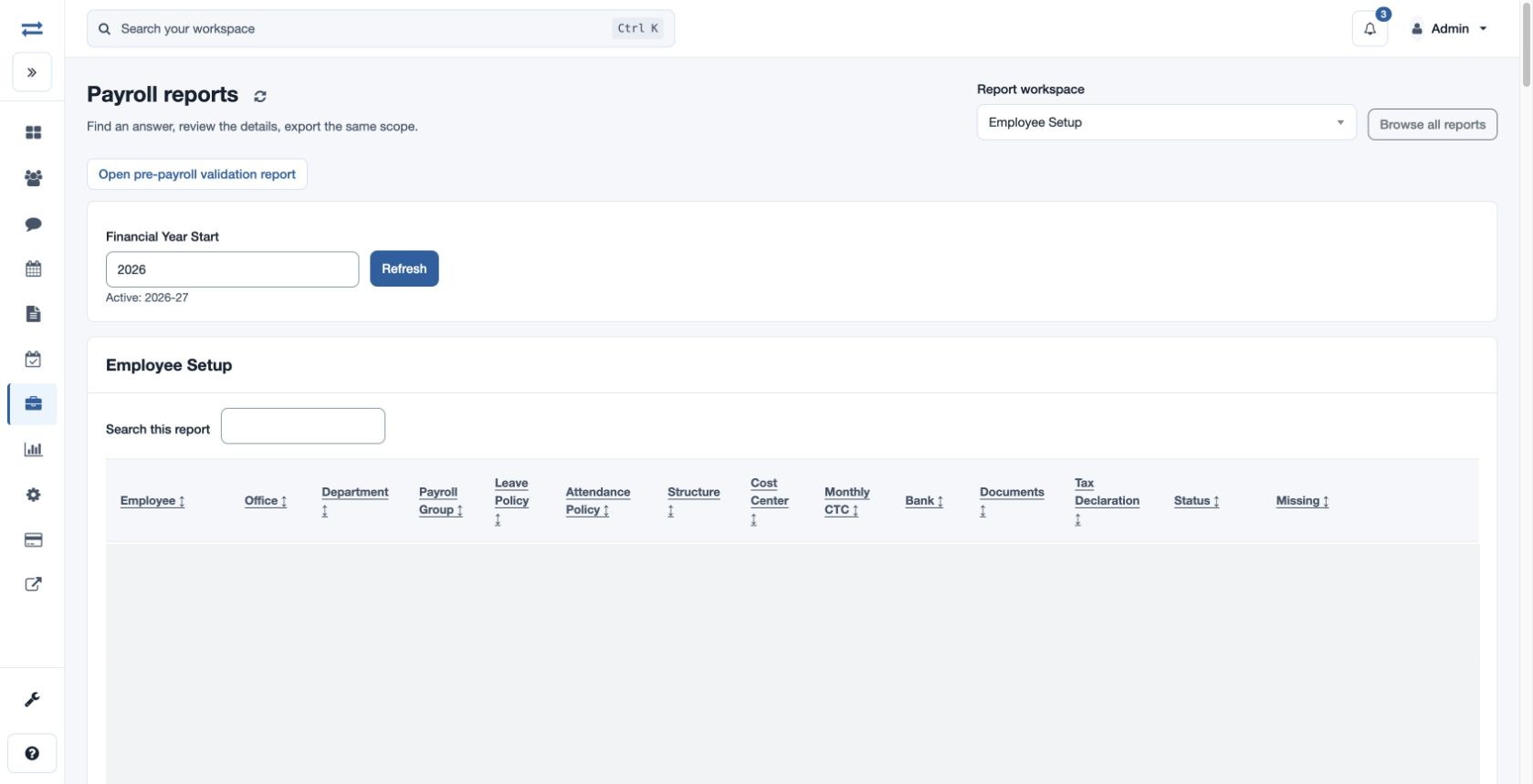
Open Payroll → Reports → Employee Setup. Enter Financial Year Start and choose Refresh. The table shows Employee, Office, Department, Payroll Group, Leave Policy, Attendance Policy, Structure, Cost Center, Monthly CTC, Bank, Documents, Tax Declaration, Status and Missing. Status identifies ready or incomplete setup. Search, sort and page through the records; this page has no office or period filter.
For an incomplete employee, review the Missing column and correct the applicable assignment or payroll detail. Choose Open pre-payroll validation report for a detailed readiness view. If an employee is missing, check your permitted scope.
Access and scope
The payroll feature and payroll report permission are required. Results are limited to your permitted scope. If a report exceeds 2,000 entries, ask an administrator to review the accessible scope.
Resolve incomplete setup
Financial Year Start selects the declaration year; the active year is displayed as a reference. Bank shows the recorded verification status, Documents is the document count, and Tax Declaration is the recorded total. Missing identifies absent office, team, department, payroll group, leave or attendance policy, salary structure, monthly CTC, complete bank details, tax declaration or documents. READY means none of those checks is missing; INCOMPLETE means at least one is.
For fictional Mira Rao, read Missing, update the named employee setup item, then Refresh and confirm the result. The displayed setup is a readiness check, not a finalized payroll result.