Quick Setup
Prepare offices, teams, executives, services and the mobile app.
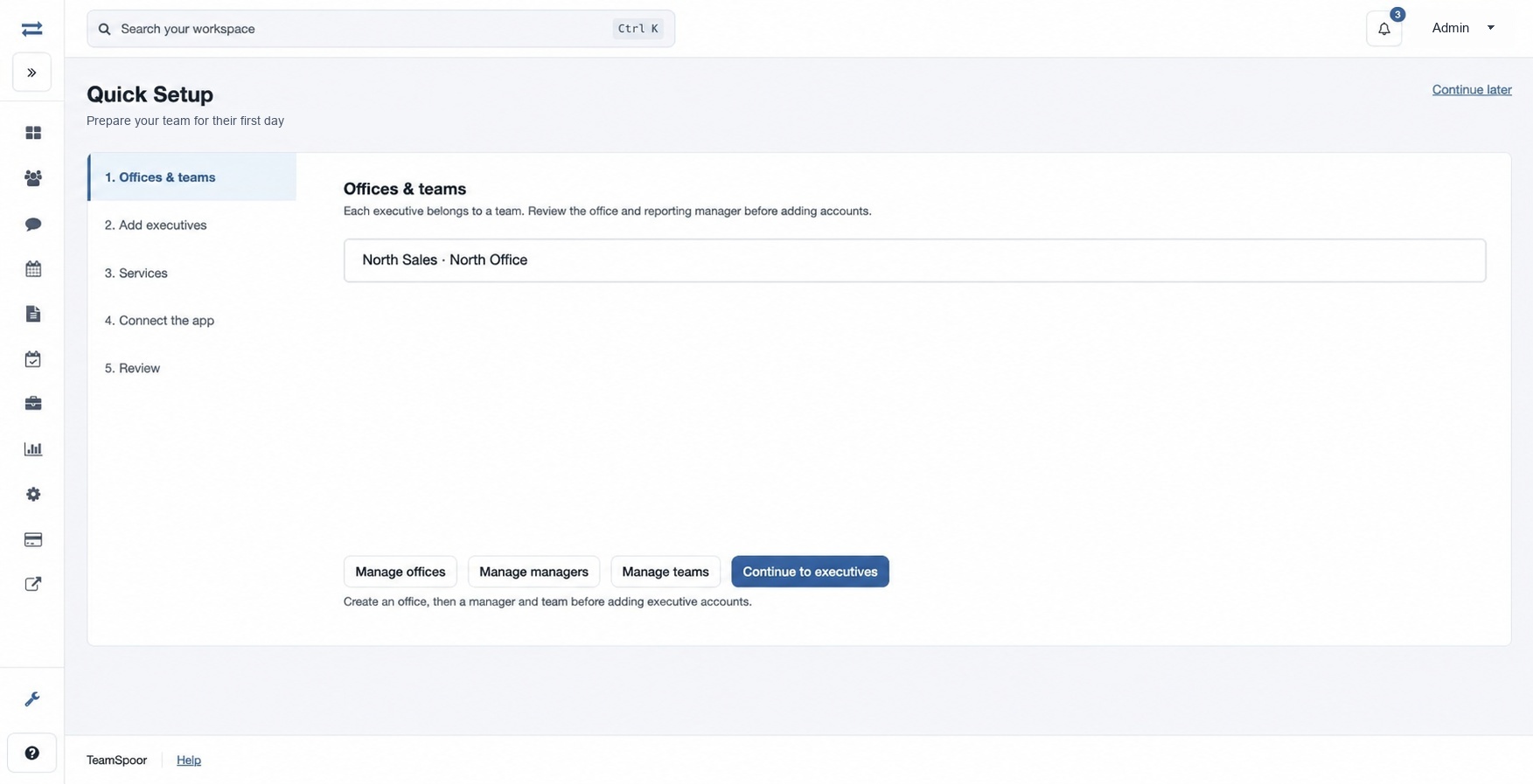
Quick Setup brings the first steps together. Executives cannot open Quick Setup. Creation controls require the relevant permissions, an accessible team and an available executive license. Create an office and manager before creating a team; an executive must belong to a team.
How to use this page
- Open Quick Setup in the navigation. Choose Offices & teams and follow the links to review or create an office, manager and team.
- Choose Add executives, then Add executive. Enter Full name, Work email, Phone number and Team, then select Create executive. For example, add a fictional Asha Rao to the North Sales team. The account is saved before the invitation is sent; check the confirmation message for delivery status.
- Under Services, enter a Service name and select Add service, if available to you.
- Open Connect the app. Ask executives to sign in with the credentials in their invitation and change their password. Review the app connection status.
- Open Review to check the workspace. Use Continue later to return to the dashboard; you can reopen Quick Setup.
Use the Google Play or App Store link in Connect the app. If the app status is Not yet observed, ask the executive to sign in. If no team is available, first check the office, manager and team setup and your access.
Account details and recovery
Full name is 2–45 characters; work email must be valid and at most 45 characters. Phone number is 8–20 characters using digits, spaces, parentheses, plus or hyphen. If the email already exists, the team is unavailable, or the license limit is reached, resolve that condition before retrying. If the account was created but invitation delivery could not be confirmed, check the executive list and use the password-reset workflow rather than creating it again.