Find and use reports
Find the right report, filter permitted records and use report actions.
Find a report
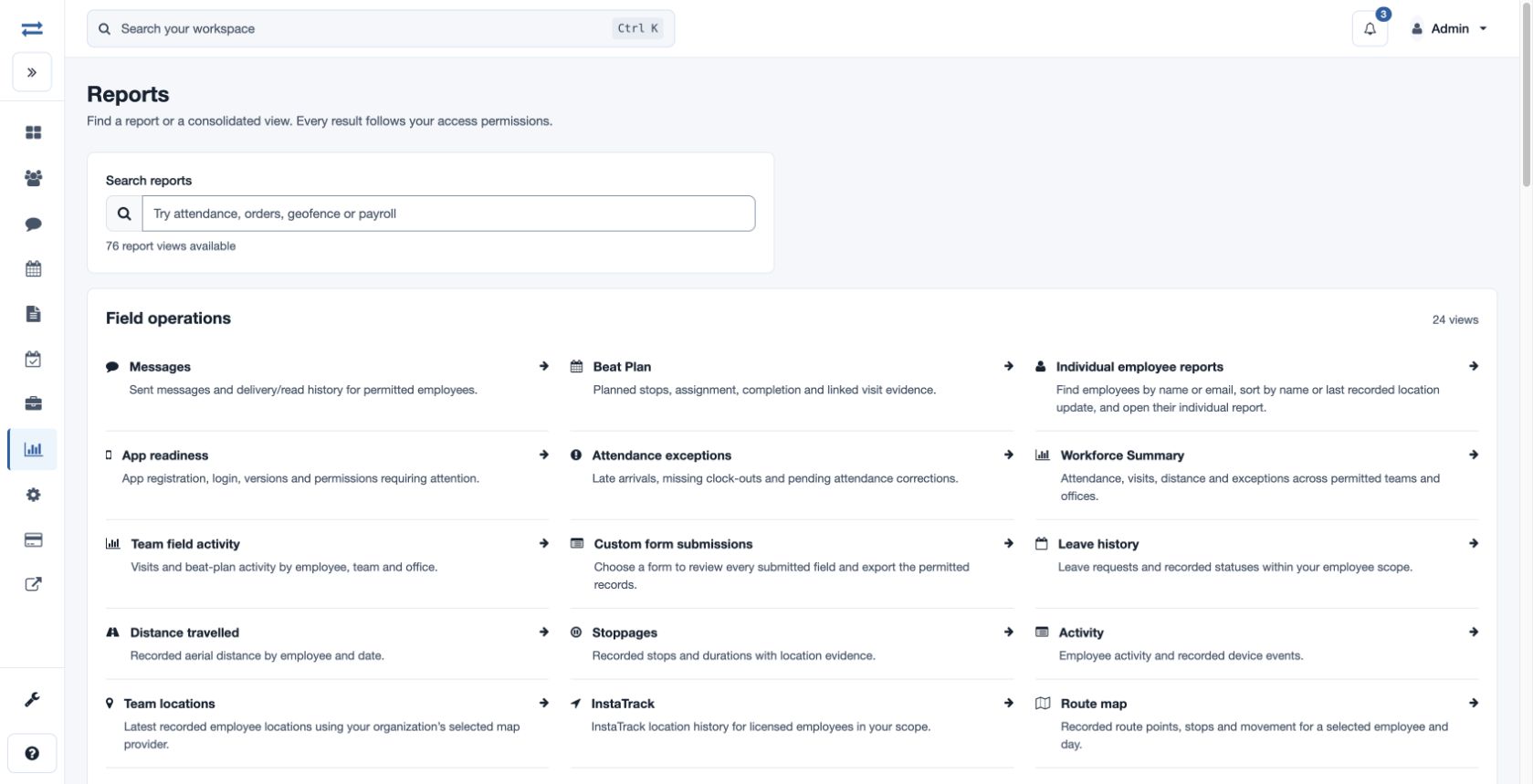
Open Reports in the navigation, then search by report name or topic in Search reports. The directory groups views such as Field operations, attendance and payroll. Only views allowed by your permissions appear.
Filter and use results
- Select a view. Set its date or date range and any available Office, Team and Executive filters. Additional filters may be under More filters.
- Select Apply filters or Generate report. Read the charts and records together; sorting or paging helps inspect the result.
- Where offered, use Copy CSV, Export CSV, Export Excel or Print view. These actions follow the current report filters and download permission.
Choose and troubleshoot
For example, use Team field activity for planned versus recorded visits, Visits for individual evidence, or Custom form submissions for answers. If a report or employee is absent, check your role and scope with an administrator. Widen the date and clear a search when a result is unexpectedly empty. A blank value means information was not recorded or available; do not infer a zero without checking its label.
Find a report
Use Search reports to filter the catalog by report name, then open the report card. The available catalog depends on your role, permissions and enabled features. If an expected report is missing, check those settings and your scope with an administrator; a report may also be accessible from a related workflow.