Sub-administrators
Assign a shared permission role and specific offices to a sub-administrator.
Sub-administrator access combines a permission role with explicitly selected offices. Create the role first. These account actions are available to full administrators.
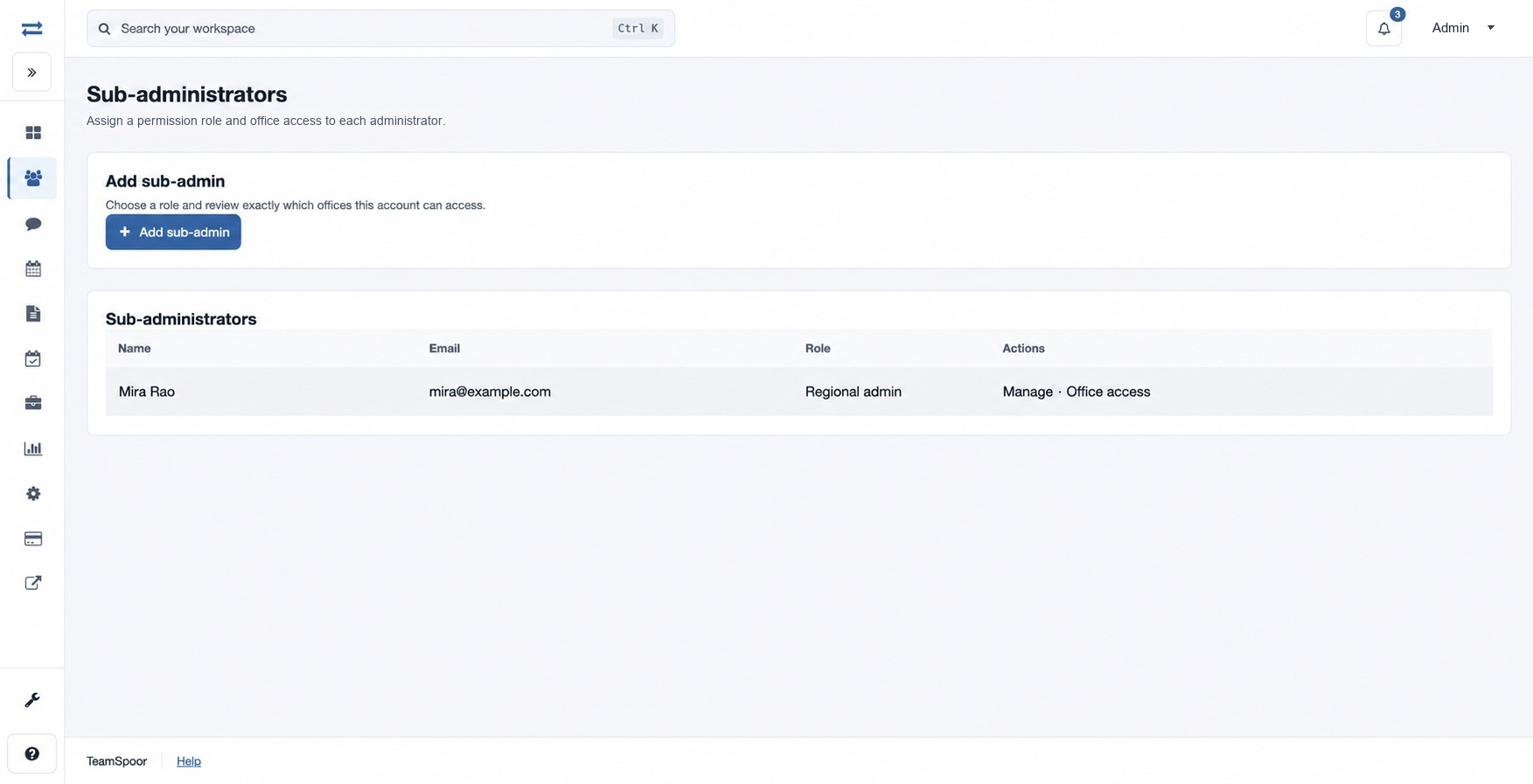
How to use this page
- Open Organization → Sub-administrators and choose Add sub-admin.
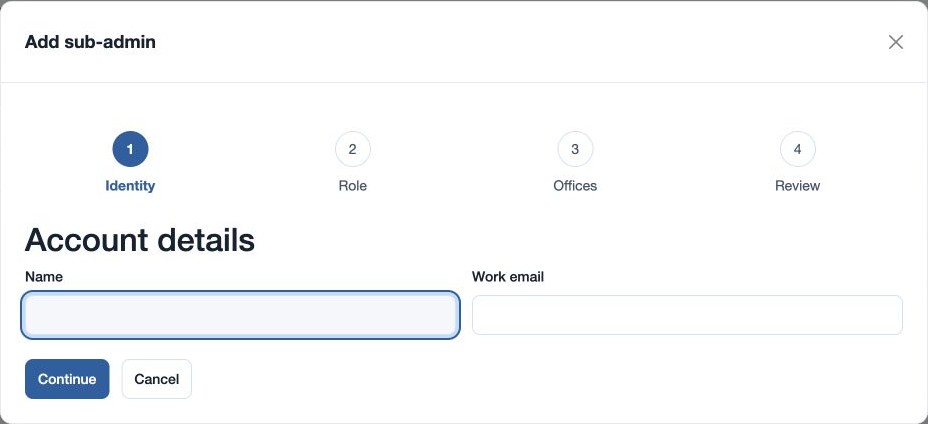
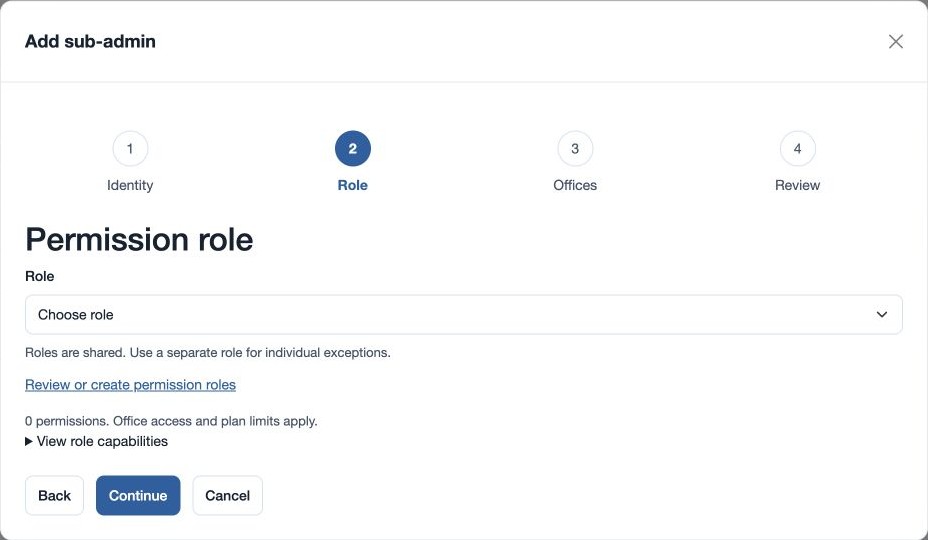
- Enter Name and Work email, then choose a Role. Roles are shared; use a separate role for individual exceptions.
- Choose offices under Office access. Select all current offices and Clear selection help adjust the list. No office selected means no access to office records; new offices are not added automatically.
- Use Continue between stages, review the role and offices, then choose Create reviewed account. The invitation is sent after the account and office selection are saved. For example, a regional administrator can be assigned only the fictional North Office.
- To change access, choose Manage, review the account name, role and offices, and select Save reviewed access. Work email is read-only when editing. Password and account removal contains reset and removal actions; reset revokes app sessions and emails new credentials, while removal requires DELETE.
If a sub-administrator cannot see records, check both role grants and selected offices. Changes to a shared role affect its assigned accounts.
Change offices separately
- In the sub-administrators list, choose Office access for the account.
- Choose an Office and select Grant office access. Confirm it appears in the assigned offices list.
- To withdraw an assignment, choose Remove access to the relevant office. Check the remaining list; no assigned offices means no office-scoped records.
The account editor’s four stages are Identity, Role, Offices and Review. Use Back to correct an earlier stage before saving. A role is shared across assignees, while the office list belongs to this account.
If the plan’s administrator limit has been reached or the work email is already in use, resolve that before retrying. If invitation delivery cannot be confirmed, check the address and account before resetting the password. If the account or selected role changed during review, reload and review the latest access before saving.