Attendance selfies and mobile task addresses
Set company-wide selfie and mobile address options.
Full administrators can configure these company-wide options under Settings → Global settings.
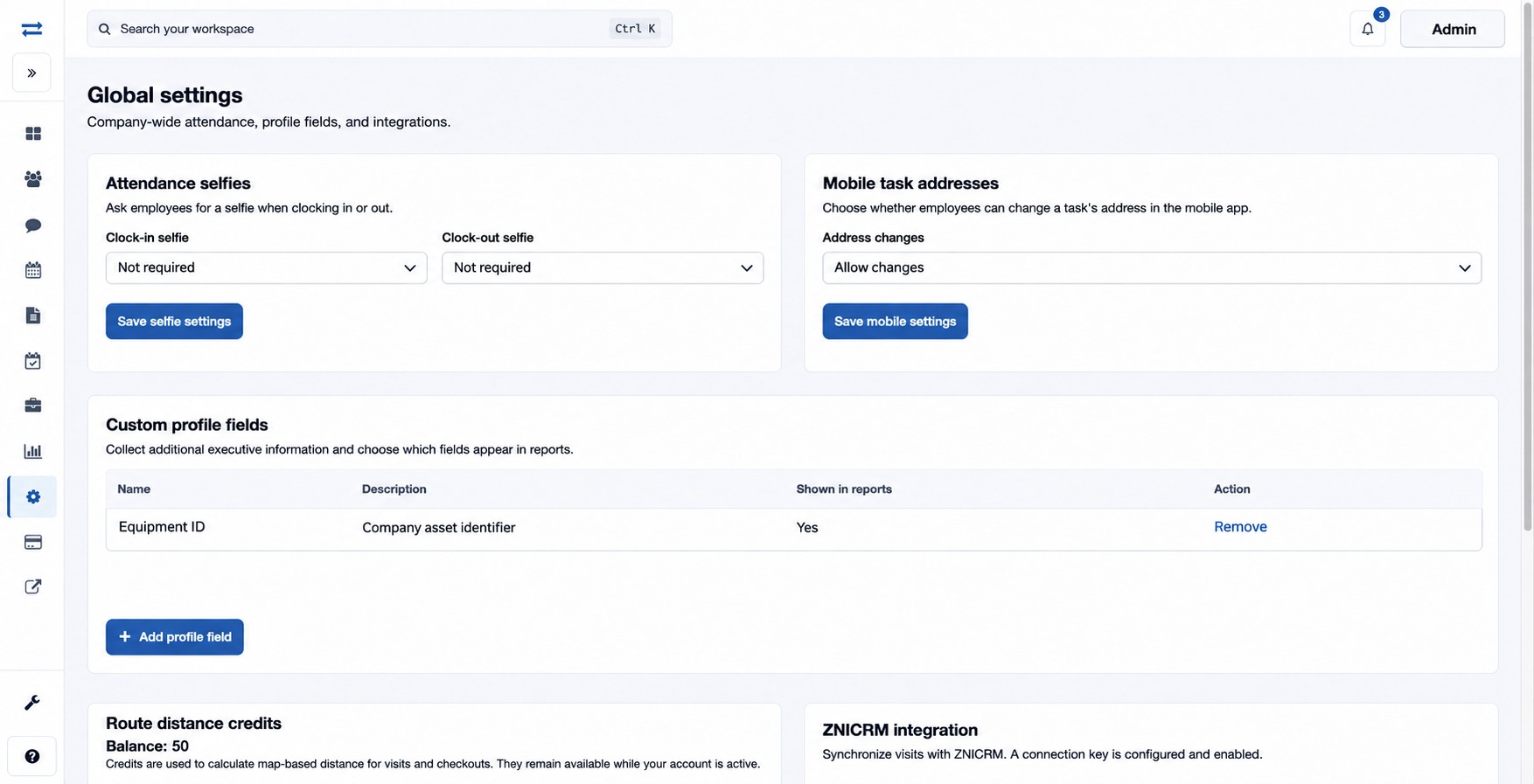
How to use this page
- In Attendance selfies, choose Required or Not required separately for Clock-in selfie and Clock-out selfie. Select Save selfie settings.
- In Mobile task addresses, set Address changes to Allow changes or Prevent changes, then select Save mobile settings.
- Check the selected values after saving. For example, a company can require a clock-in selfie while leaving clock-out optional.
Each section has its own save button. If a form expires, reload, review the current value and submit the intended change again.
Settings explained
| Control | Effect |
|---|---|
| Clock-in selfie | Choose whether a selfie is required at clock-in. |
| Clock-out selfie | Choose whether a selfie is required at clock-out independently of clock-in. |
| Address changes | Allow or prevent employees changing a task address in the mobile app. |
Save each section independently. If a value is not retained, check the success message and reload the page before attempting the change again.