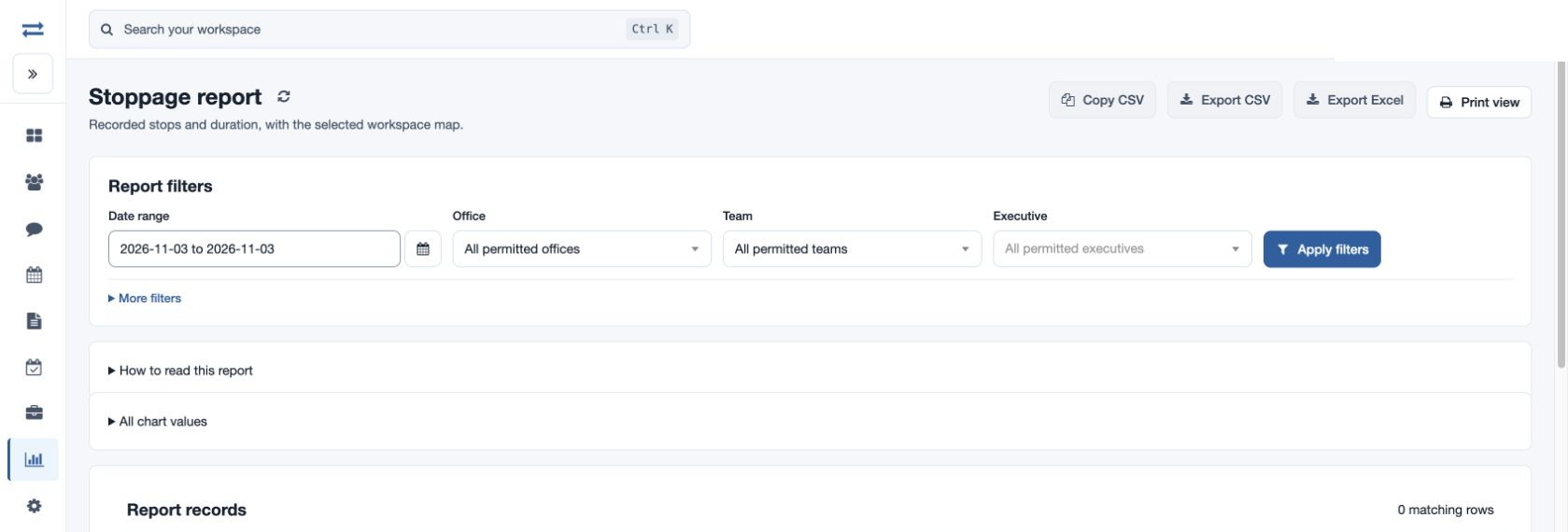
Stoppage report
Inspect recorded stops and their durations.
Open Reports → Stoppage report. The results include only employees within your permitted scope.
- Set the Date range, Office, Team and Executive. Expand More filters to search by employee name or email.
- Select Apply filters. Compare Stop started and Duration to identify long stops, and use the map where available to check the location. A missing duration means the length could not be confirmed.
- Sort or page the records. Where available, use Copy CSV, Export CSV, Export Excel or Print view.
For example, select a fictional North team for one week and compare the records with the employee’s related visits. If no results appear, check the period, search and scope, and confirm the app recorded the relevant evidence.
Columns and report limits
Each row lists Employee ID, Employee, Email, Team, Office, Stop ID, Recorded at, Stop started, Duration (minutes), Recorded meeting indicator, Latitude and Longitude. The map and its Location records table show valid coordinates; lines between points do not represent driving directions. Narrow the filters if the report exceeds 2,000 entries. Use the refresh control to reload.
Access
The route-map feature, route-map report permission and maps setting are required. A stoppage is a recorded device event; inspect its duration and location alongside the selected period.