Permission roles
Create, review, copy and manage shared permission roles.
Full administrators manage roles. Roles define grants used by sub-administrators; office access is assigned separately to each account. Changing a shared role affects its assigned people.
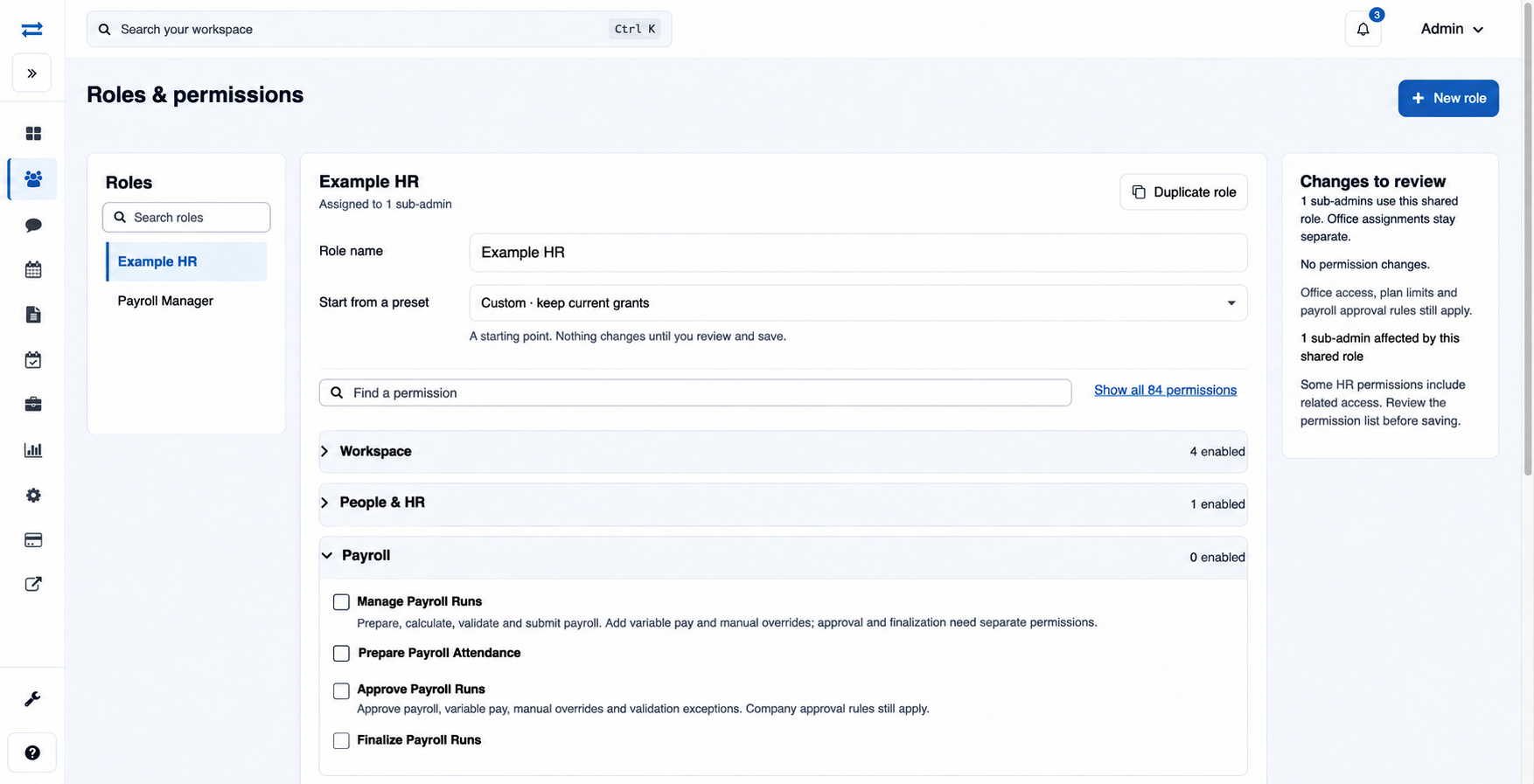
How to use this page
- Open Organization → Permission roles and choose New role. Enter a Role name and choose Start from a preset or a blank starting point. Review the grants and choose Create reviewed role.
- Choose a role using the selector or Search roles. Search individual grants with Find a permission, expand categories and adjust the available selections.
- Choose Review changes, inspect added, removed and inherited access and affected accounts, then select Save reviewed permissions or Back to editing. Discard draft abandons unsaved changes. Some HR permissions include related access, so review the resulting list.
- To make an individual exception without changing existing assignees, select Duplicate role, enter a New role name and choose Create copy, edit the copy and assign it separately.
- To remove an unused role, open Remove role, type DELETE and confirm. A role assigned to a sub-administrator cannot be removed.
Unavailable permissions remain unchanged. If access is still missing after a grant, check the account’s office selection as well.
Choose and review grants
A blank starting role has no grants; add individual permissions after creating it. A preset supplies an initial set, which you can review in the preview. In an existing role, choosing a preset replaces the draft after confirmation; nothing changes until the reviewed save. Use Show all permissions to expand the categories, and inspect the Changes to review panel. For example, duplicate a shared role before adding a special report grant for one sub-administrator. If the role changed while you were editing, reload and review the current permissions before saving again.
Permission families
Expand Workspace, People & HR, Payroll, Reports or Attendance kiosk to review individual grants and any descriptions shown. A view grant generally provides access to a permitted view; add, edit, manage, approve and download actions have their own grants or additional rules. An enabled grant does not override office scope, the plan or other approval controls.
- Workspace: grants such as View Users, Add User, Edit User and Delete User distinguish directory access from account changes. Manager, office and team actions also have separate grants. Manage Billing, Manage Services, Manage Webhooks, Send Message and Add Beat Plan govern different workflows. See Field executive directory and Webhooks.
- People & HR: View HRMS Workspace provides related HR views within scope. Manage HRMS includes related management, approvals and view access; the review panel shows inherited changes. Individual grants include Manage Employees, Manage Departments, Manage Attendance Policies, Manage Leave Policies, Approve HRMS Leave, Approve Claims and Approve Attendance Regularization. Payroll actions still require their own grants. See HRMS overview.
- Payroll: Manage Payroll Runs covers preparation, calculation, validation and submission, as well as variable inputs and manual overrides. Approve Payroll Runs and Finalize Payroll Runs are separate; Cancel Payroll Runs and Reverse Payroll Runs are also distinct. Prepare Payroll Attendance and Approve Payroll Attendance divide preparation from approval. See Run payroll and Attendance for payroll.
- Reports and delivery: View Payroll Reports, View Payroll Finance and View Payroll Audit expose different reports; Download Reports and Download Payslips control separate downloads. Generate Payslips differs from Publish Payslips, which also covers revoking and republishing. View Payroll Finance also permits Finance sign-off on older payroll corrections. See Payroll reports and Payslips and payments.
- Bank and final settlement: Export Payroll Bank File includes preparing payment files and managing bank details; bank verification and payment controls still apply. Mark Payroll Paid is separate. Manage Final Settlement covers preparation; Approve Final Settlement includes approval, finalization, payment and reversal. See Payroll bank accounts and Final settlement.
- Attendance kiosk: separate grants cover login, roster viewing, face enrollment, reenrollment and revocation, attendance submission, device management and diagnostics. Choose only the capabilities needed for the account. See Attendance kiosk.
For example, a report reviewer may need View Payroll Reports and, if exports are required, the appropriate download grant; that alone does not grant payroll approval or finalization. Review the effective and inherited access before saving a shared role.