Messages and message history
Send an executive a message and review recorded message history.
Open Messages
Open Messages. The composer and history are available to non-executives with message permission and cover permitted employees. Recipients must be active and have a registered device.
Send and review history
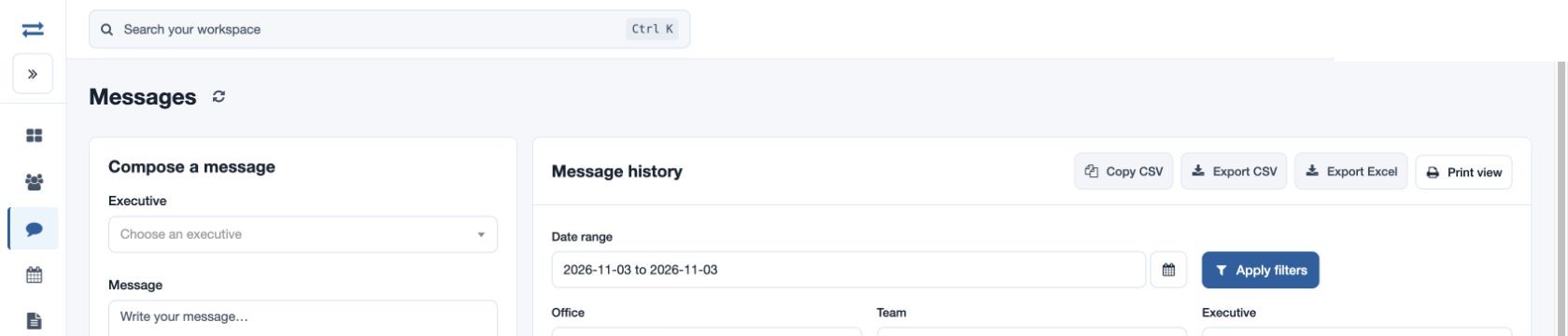
- Under Compose a message, choose an Executive and enter the Message (up to 480 characters).
- Review the recipient and text, then select Send message. For example: “Please confirm your next customer visit.”
- Under Message history, set From and Through, Office, Team, Executive or employee name/email and select Apply filters. Inspect Message ID, Recorded at, Sent to, Sent by and Message; expand Message history by date for the chart.
Confirm the outcome
A history entry records a send attempt. Confirm receipt with the executive if needed, and review history before sending again. If an executive is unavailable, check that their device is registered and that the employee is within your scope. Use the report’s print and permitted export actions when needed.
Read the history
Message ID identifies the history row; Recorded at is its recorded time; Sent to and Sent by identify recipient and sender; Message is the recorded text. Sort and page the list and expand Message history by date for counts. A recorded entry is a send attempt, so check with the recipient if receipt matters.
Message access and history controls
Sending requires the send-message permission. Search history by employee name or email, sort its columns and use the page controls; the search accepts up to 120 characters. Print view prints the history, while Copy CSV and Excel export require download permission. A recorded send attempt can exist even when notification delivery is not confirmed, so inspect history before retrying an uncertain send.