Attendance Regularization
Request and review corrections to attendance punches.
Request and review a correction
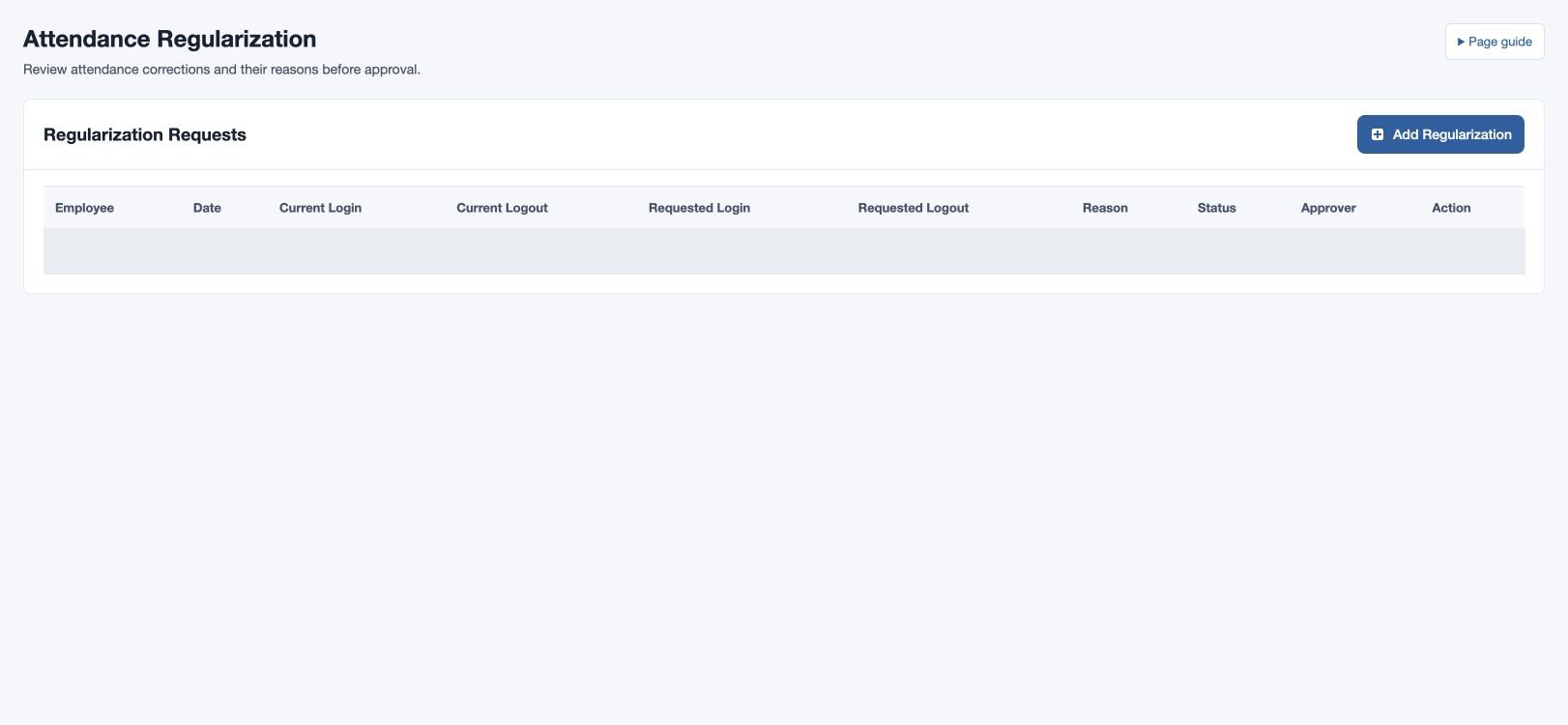
Open HR & attendance → Attendance → Attendance Regularization. Access depends on your HR workspace or approval permission and employee scope. The table shows employee, date, current and requested login/logout, reason, status and approver.
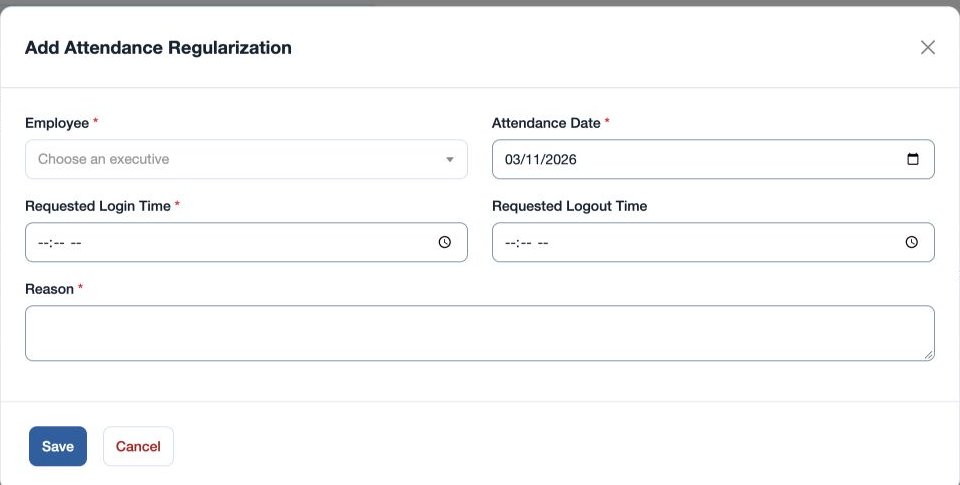
- Choose the add control. Where offered, select Employee. Enter required Attendance Date, Requested Login Time and Reason; enter Requested Logout Time if applicable.
- Submit and check that the request appears. An authorized approver reviews the current and requested punches and uses the available decision action.
- After approval, check the corrected attendance record for that date. Approval creates or updates the attendance record for that date. If a requested time is blank, the corresponding current time is retained.
For example, request 09:05 for fictional Mira Rao with the reason “clock-in sync delayed.” If the request cannot be submitted or approved, check employee scope, required fields, date and approver permission. Compare against shift and other reliable context before deciding.
Executives submit for themselves; other permitted users select an employee. Approve and Reject appear only for pending requests when the viewer has approval permission. The table displays times in the viewer timezone, so take extra care when reviewing cross-office corrections.
The web form requires Requested Login Time and a reason of at most 255 characters; Requested Logout Time is optional. Review both times and the reason before choosing Approve or Reject. A rejected request does not post corrected times.