Webhooks
Configure event delivery to another system.
Webhooks send visit, attendance and geofence events to your system. Use an endpoint controlled by your organization. The webhooks feature and webhook management permission are required; executives cannot open this page.
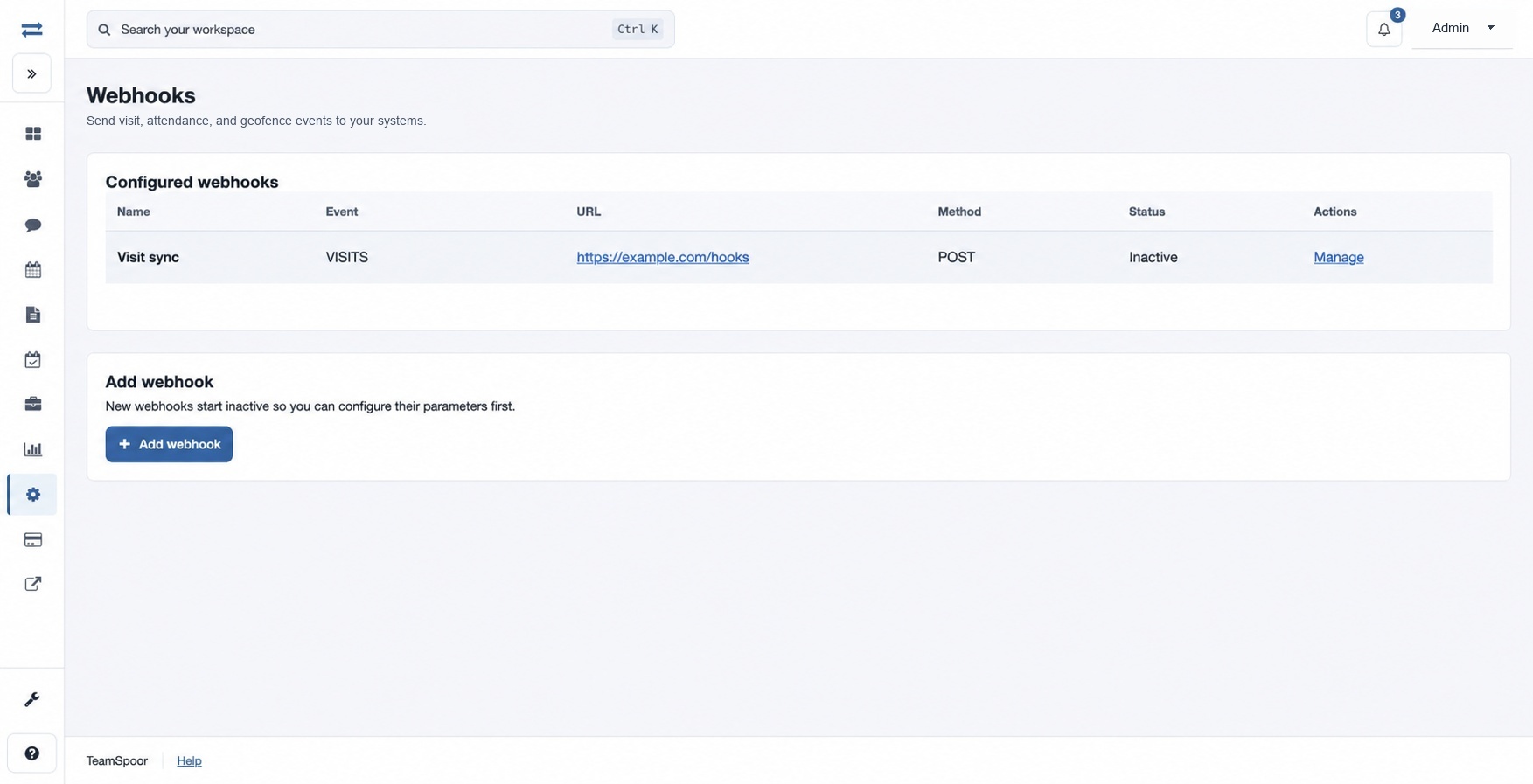
How to use this page
- Open Settings → Webhooks. Under Add webhook, enter a Name, choose an Event (Visits, Attendance or Geofence), a Method (POST or GET), and the destination Public URL. Select Add webhook. It starts inactive.
- In Configured webhooks, select Manage. Add each Parameter name and Value or event tags, then select Add parameter. Open Available event tags for the tags supported by that event; for example,
{{date}}or{{staffname}}. Remove a parameter with its Remove button. - Review the endpoint and parameters, then choose Enable webhook and confirm. Delivery begins for future matching events. Use Disable webhook to stop future delivery.
- To remove a webhook and its parameters, expand Remove this webhook, type DELETE and select Remove webhook and parameters.
If an event is not received, check that the webhook is active, the event type and public URL are correct, and the receiving system accepts the method and parameters.
Webhook controls
Name identifies the connection (3–45 characters). Event chooses which kind of event triggers delivery. Method is POST or GET; Public URL is the receiving endpoint. In Parameters, names accept letters, numbers, underscores, periods and hyphens; values can contain event tags shown for the chosen event. The status control affects future matching events, and removing the webhook removes its parameters too.
Event tags and validation
Common tags are {{date}}, {{latitude}}, {{longitude}}, {{staffemail}}, {{staffname}} and {{staffphone}}. Visits also offers {{logid}}, {{leadcompanyname}}, {{leadname}}, {{leademail}}, {{leadphone}}, {{servicetype}}, {{leadaddress}} and {{leadremarks}}; attendance adds {{status}}; geofence adds {{oldstatus}}, {{newstatus}}, {{fencedistance}} and {{fencename}}. For example, configure a Visits parameter named staff with value {{staffname}}.
Use a public HTTP or HTTPS URL without embedded credentials or a fragment. Parameter names are at most 45 characters; values are required and at most 900. If creation is rejected, check the address and your plan’s webhook limit. If enabling fails, check the saved URL; changing status affects future matching events.