Paysheet Summary
Review paysheet summary for a selected payroll scope.
Filter the summary
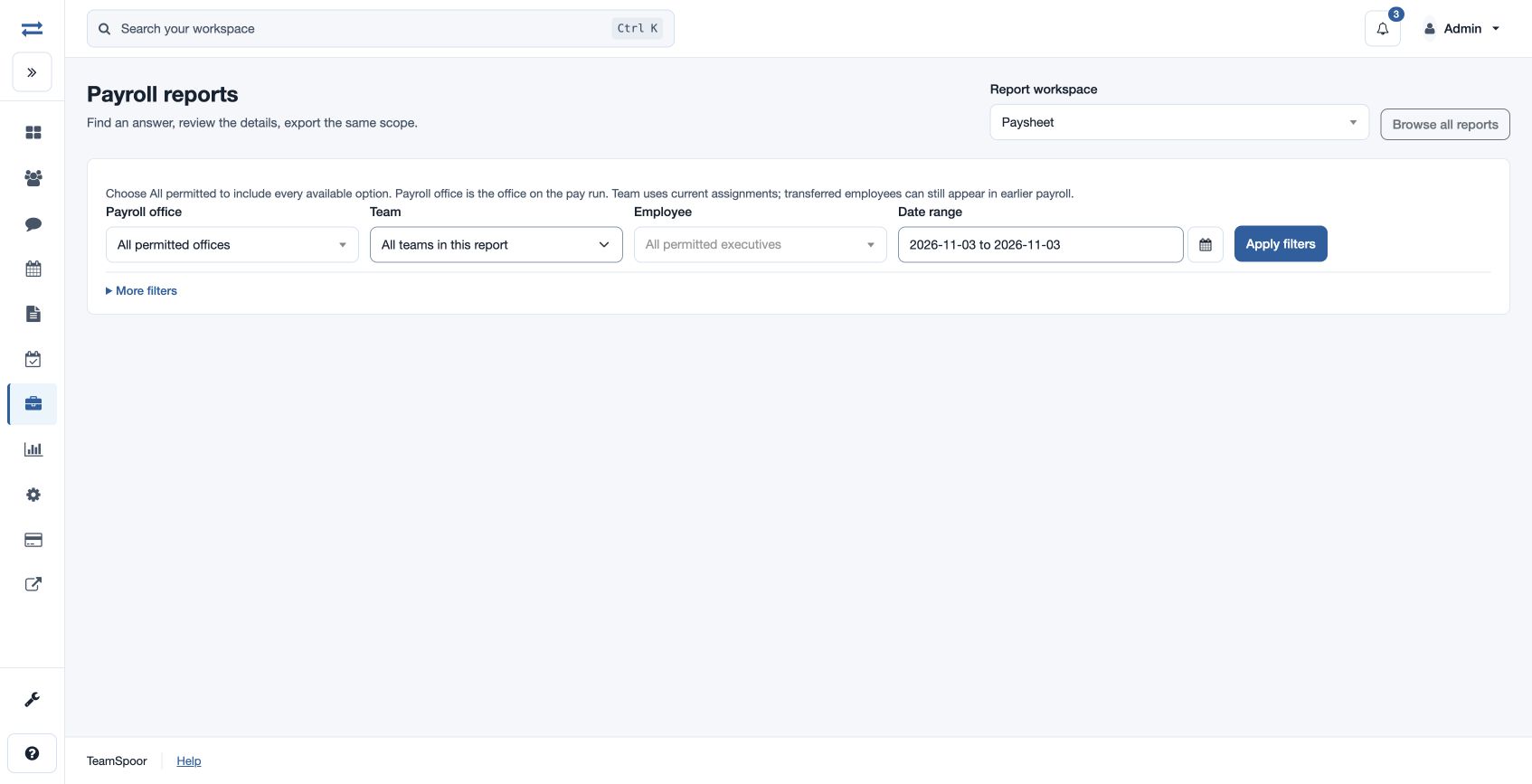
Open Payroll → Reports → Paysheet. Choose Payroll office, Team, Employee and Date range; under More filters choose Run Status (All Statuses, Draft or Finalized / Released) and the available additional filters. Apply filters. Payroll office is the office on the pay run, while Team uses current assignments.
Read and export
Paysheet Summary shows run ID/version, office, period, status, employee count, payable days, LOP days, overtime hours, late marks, gross total, deductions total and net total. Search, sort and review the records and charts. Export CSV is available with the relevant permission and uses the selected permitted scope.
For example, select the month and finalized status to compare the summary with the employee payroll register. If the expected run is absent, check the date range, status, office and scope.
Access and report limits
The payroll feature and payroll-report permission are required; Export CSV also requires report-download permission. Dates use the displayed viewer timezone, must be valid and ordered, and may span at most two years. If the report exceeds 2,000 entries, narrow the period or employee scope. Select a column heading to sort and review the visible summary and charts before exporting.