Payroll Variance
Review payroll changes over a selected date range.
Compare results
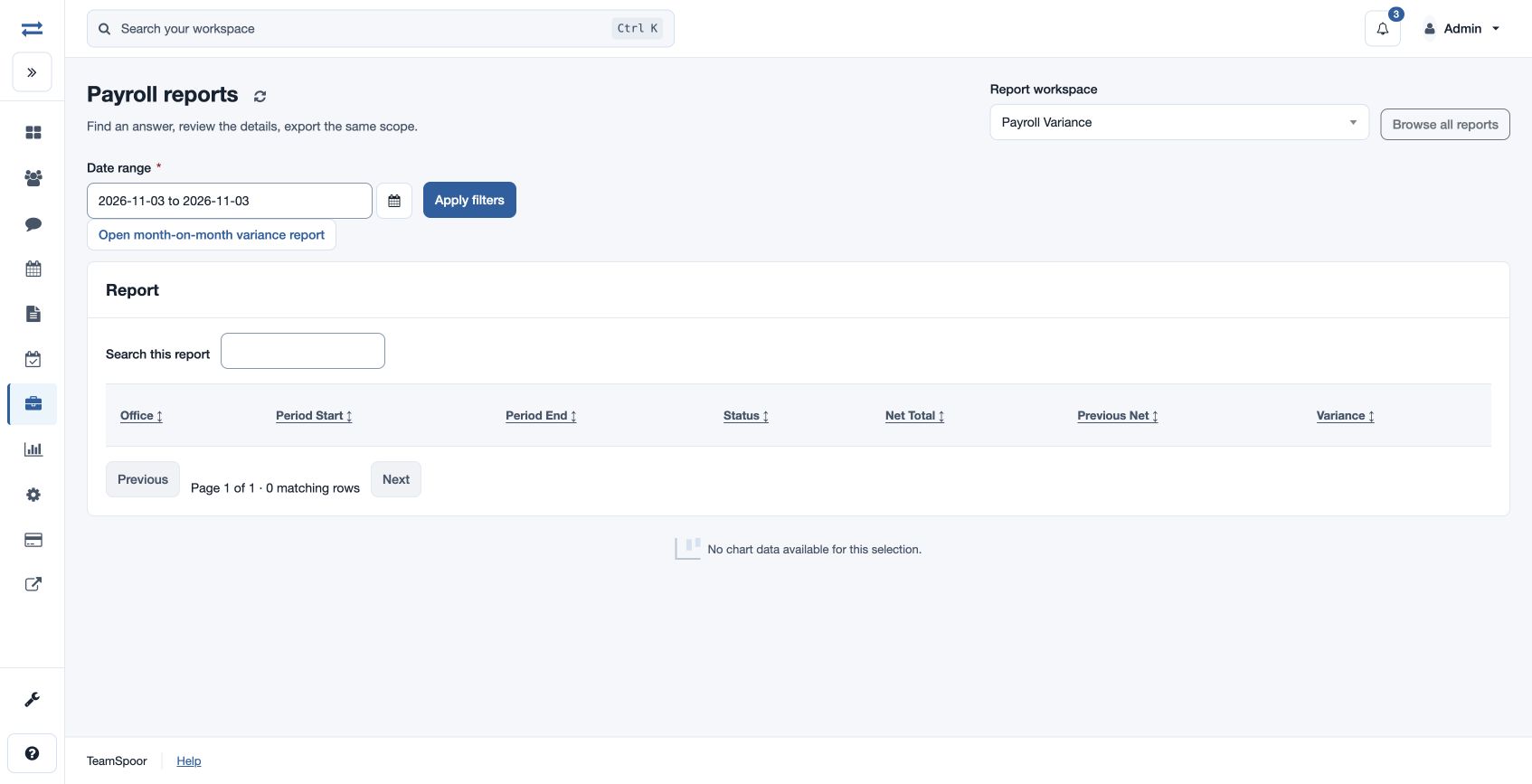
Open Payroll → Reports → Payroll Variance. Enter the required From and Through dates and choose Apply filters. The table shows Office, Period Start, Period End, Status, Net Total, Previous Net and Variance; use its search, sortable headings and page controls. A chart appears when data is available.
For example, investigate a large net variance by reviewing the corresponding run and employee changes. Open month-on-month variance report for the detailed control report. Check the selected date range if there are no rows.
Access and scope
The payroll feature and payroll report permission are required. Results are limited to your permitted scope. If a report exceeds 2,000 entries, narrow the selected period or scope and run it again.
Understand the comparison
Office and Period Start / End identify the run, Status is the run state, and Variance is Net Total less Previous Net. This view uses finalized or released runs and the previous selected run for the same office. The first selected run has a previous net of zero, so include an earlier period to establish the intended comparison.
For example, if the fictional North office’s preceding selected net is 100,000 and its current net is 110,000, variance is 10,000. Review the underlying runs and employee changes before attributing the difference.