Build, assign and review beat plans
Plan field visits, repeat a schedule and follow completion.
Open Beat Plan. Viewing and creating depend on your permissions and the company plan. A non-executive with the required permission can build stops; bulk upload is for administrators with the required permission.
Build a plan
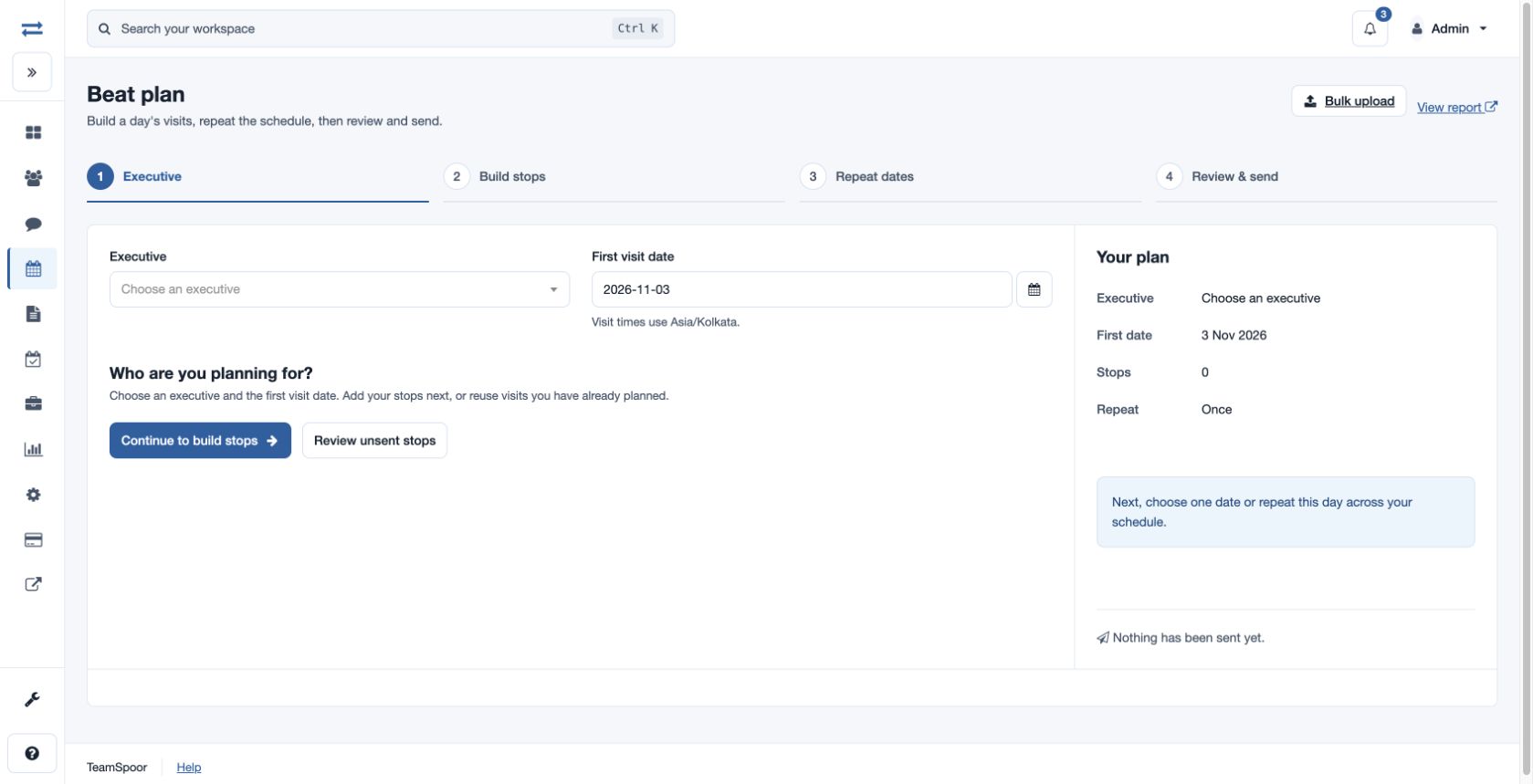
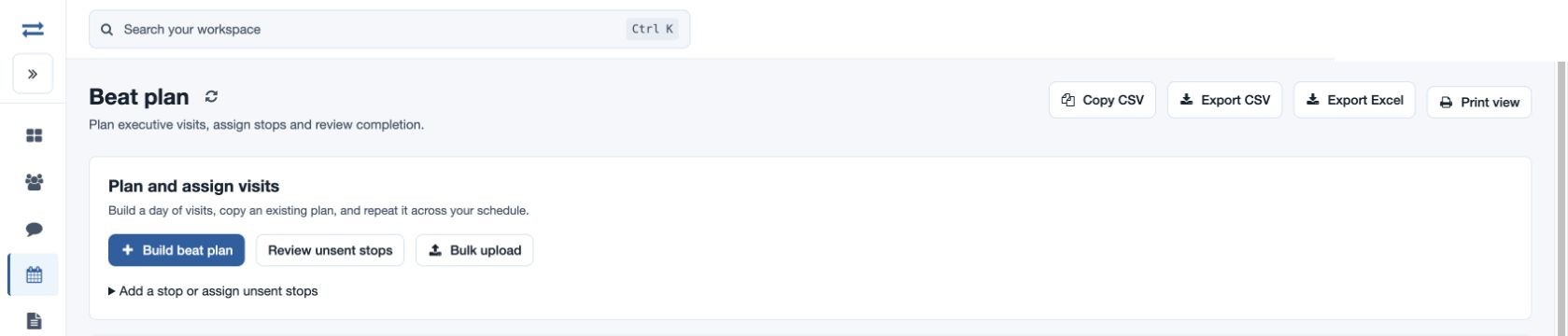
- Select Build beat plan. Choose the Executive and First visit date; visit times use Asia/Kolkata. Continue to build stops.
- Search saved accounts or select Add manually. Enter Company name, Contact name, Visit type, Date and Time. Contact phone, Address, Remarks and coordinates are optional; enter both Latitude and Longitude or neither. Select Use this stop. Times determine order; moving a stop adjusts its time. You can copy stops from an executive and date range, or duplicate a day.
- Choose Once, Selected dates, Daily, Weekly or Monthly. Set interval, weekdays, end date, included or skipped dates as applicable. Monthly patterns support day of month, weekday of month and last day; choose whether to skip a missing day or use the last day. Review the dates: at most 366 days and 1,000 stops.
- Review the stops, duplicates and dates. Save unsent stops or send the reviewed selection. If sending cannot be confirmed, inspect saved stops and status before retrying.
Single stops and assignment
The report’s Add a stop or assign unsent stops section can save a single stop. Assign stops assigns that executive’s unsent stops scheduled today or later, including those outside the report dates. Previously assigned stops are not resent; reschedule past stops first.
Bulk upload
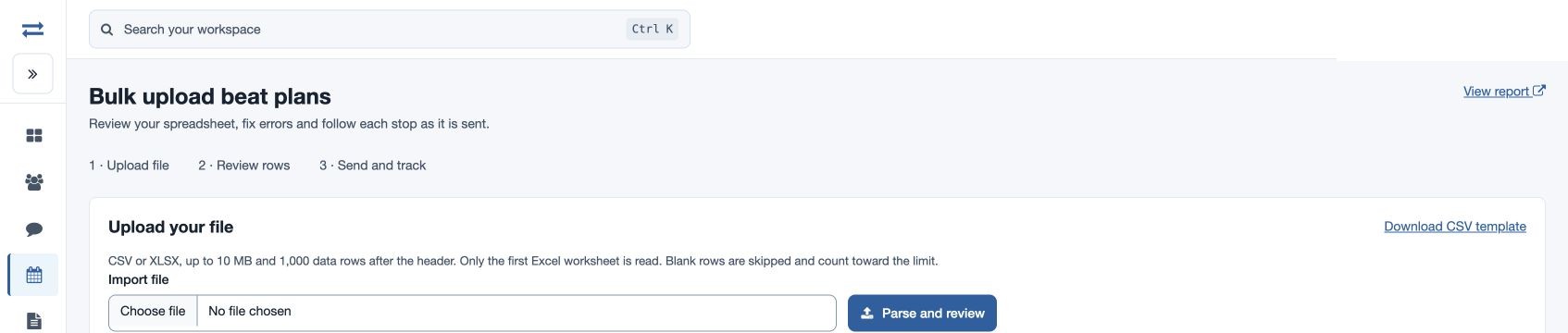
Choose Bulk upload and download the CSV template. Keep ten columns in order: Executive email, Company, Contact, Phone, Scheduled time (YYYY-MM-DD HH:MM:SS), Visit type ID, Remarks, Address, Latitude, Longitude. Company, contact, an active executive and a company visit type are required. Use both coordinates or neither, preserve phone numbers as text and paste values instead of spreadsheet formulas. Past dates cannot be imported; a blank time uses the time of review.
Choose a CSV or XLSX file up to 10 MB and 1,000 data rows after the header, then select Parse and review. Only the first Excel worksheet is read; blank rows are skipped but count toward the limit. Inspect row feedback, select valid rows, resolve or explicitly confirm duplicates, and choose whether to skip invalid rows. Select Send reviewed rows and keep the page open while assignment runs. Check status and Check download status distinguish server assignment from notification and app download. Download errors or results before correcting and retrying only rows confirmed not saved.
Review progress
Filter the report by date and executive. Completed means a visit was recorded for the stop; Received by app indicates the plan reached the app. Open the visit link for evidence. For example, schedule fictional Acme Traders for 10:00, review the date and recipient, then check the report after the visit.