Payroll overview
Find the current period’s payroll work and prerequisites.
Find current payroll work
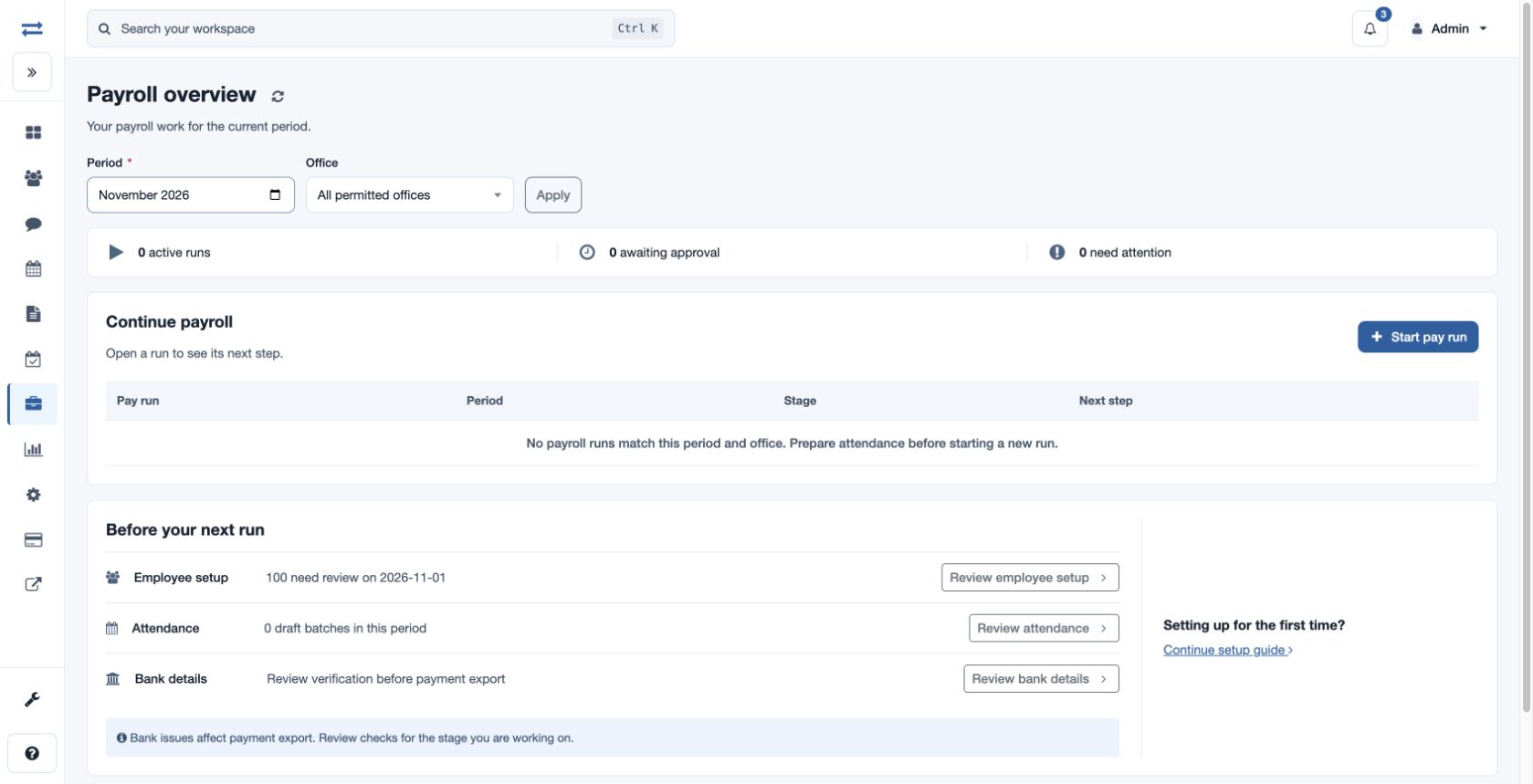
Open Payroll → Payroll overview. Select the required Period and an Office, or All permitted offices, and choose Apply. The period matches the month in which a run starts. Run results and prerequisite links depend on your role and permitted office scope.
Read the run summary
With payroll-run access, the summary shows active runs, awaiting approval and need attention for the selection. Active counts exclude Paid, Cancelled and Reversed runs. Awaiting approval counts Ready for Approval runs. Need attention counts Validation Failed and Rejected runs; these categories can overlap with active runs.
Continue payroll lists Pay run (cycle and office), Period, Stage and Next step. Select the row’s action to open that run. The label reflects its state: Prepare run for Draft, Review calculation for Calculated, Resolve checks for Validation Failed, Review rejection for Rejected, Review approval for Ready for Approval, Review finalization for Approved, Review payslips for Finalized, Review publication & payment for Payslips Published, Review payment for Payment Exported, View history for Paid or Cancelled, and Review correction for Reversed. An authorized payroll manager can choose Start pay run.
Review prerequisites
- Under Before your next run, review the available Employee setup count, Attendance draft batch count and Bank details reminder. Employee setup is checked as of the first day of the chosen month; attendance counts draft batches whose period starts in that month.
- Select the corresponding Review action to open employee setup, attendance preparation or bank details. Bank issues affect payment export; review the checks relevant to the current stage.
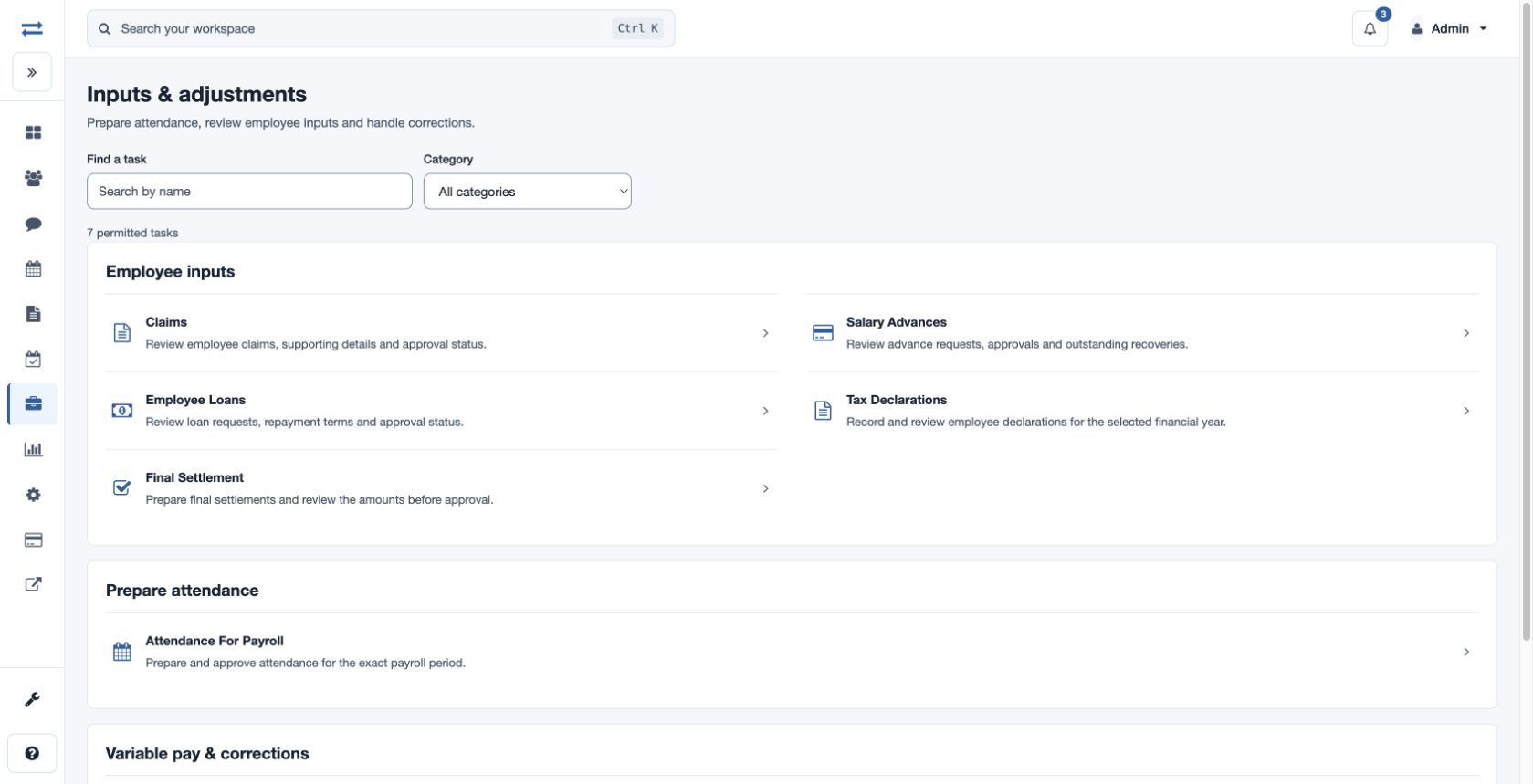
- Choose Continue setup guide when offered for first-time setup. Otherwise use the displayed payroll task links. Inputs & adjustments, Payslips & payments, Reports, and Setup & policies have their own searchable task catalogs, subject to your permissions.
Example and troubleshooting
For a fictional November payroll, select November and one permitted office. Open a Validation Failed run through Resolve checks, correct its blocking issues, and review the current calculation. If no runs match, check the period and office and prepare attendance before starting an eligible run. If run totals or a prerequisite are absent, check your permissions. A temporary setup-check notice means the source task should be opened to inspect its current status.