Weekly Off Roster
Schedule employee weekly-off dates alongside policy defaults.
Set a date-effective roster
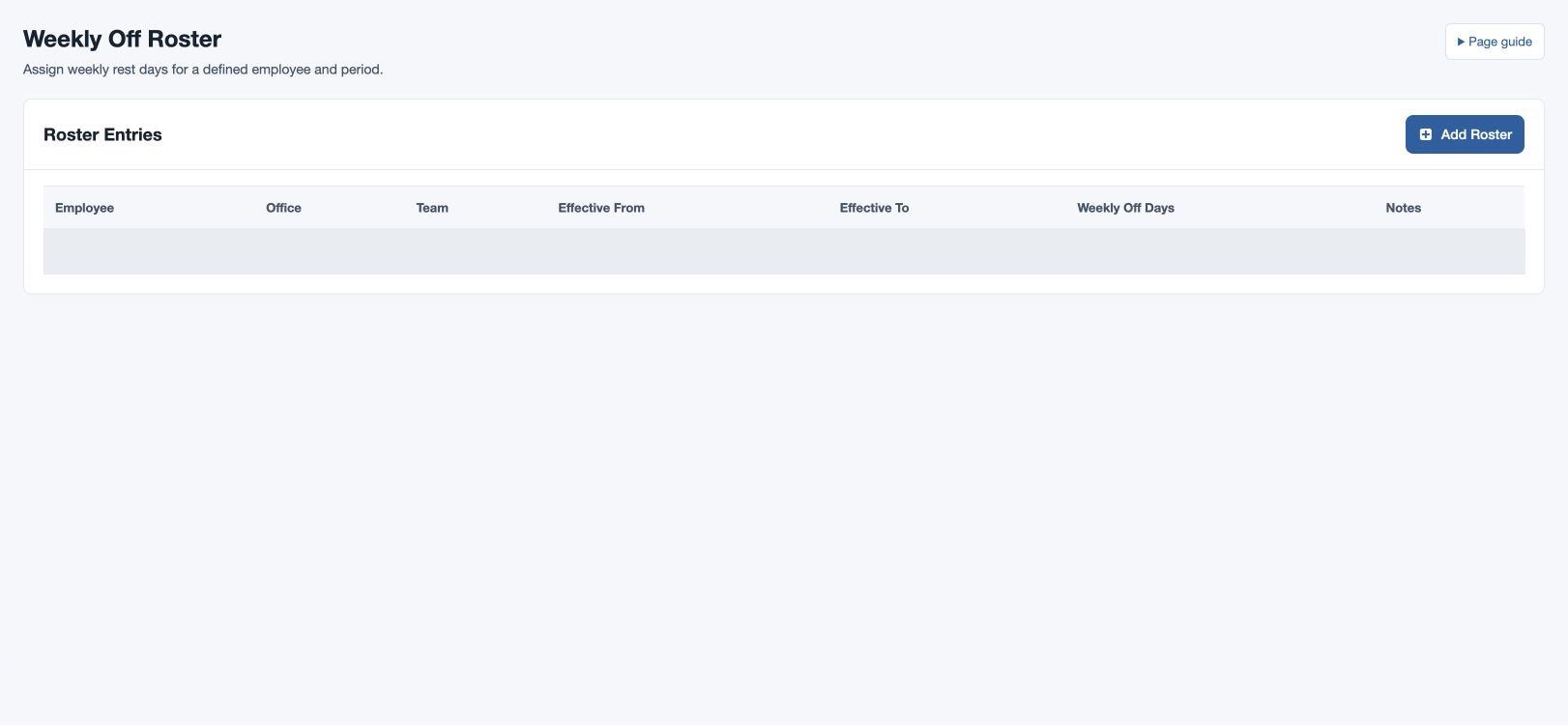
Open HR & attendance → Attendance → Weekly Off Roster as an administrator with attendance-policy management permission. Use it when an employee’s weekly offs vary from the policy’s static day list.
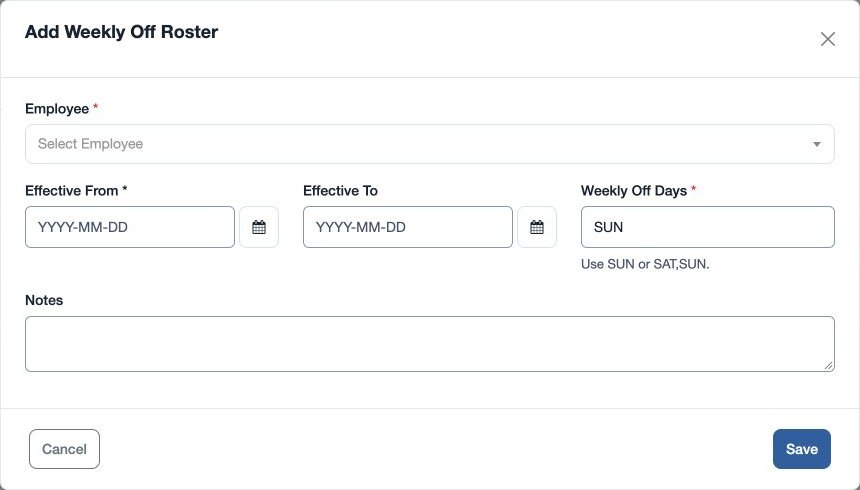
- Select the plus control in Roster Entries. Choose required Employee and Effective From.
- Optionally enter Effective To, which cannot be before the start. Enter required Weekly Off Days, for example
SAT,SUN, and optional Notes. - Save and verify employee, dates and days in the list.
For example, assign fictional Mira Rao SAT,SUN for April. Roster-marked off dates are added to the calendar; policy weekly-off dates still apply on dates not marked by a roster. If a day is unexpected, check the date range and policy as well as the roster.
Roster entries are date-effective: Effective From is inclusive, Effective To is optional, and an end date must be on or after the start. Use a separate row for a changed schedule and check the covered dates before running a period calculation. Avoid overlapping roster entries and review the combined calendar. For example, a SAT roster with a SUN policy can leave both Saturday and Sunday as weekly offs.
Use the three-letter codes SUN, MON, TUE, WED, THU, FRI and SAT, separated by commas. Notes accepts up to 255 characters. If “Weekly off days are not valid” appears, check the spelling and separators; if the end date is earlier than the start, correct the range.