Manage an executive profile
Update executive details, assignments and account controls.
Open an executive through Organization → Field Executives → Manage. The profile requires an administrator account with user-report access. Editing requires edit-user permission; removal requires delete-user permission. Location and geofence sections require their respective access and features.
How to use this page
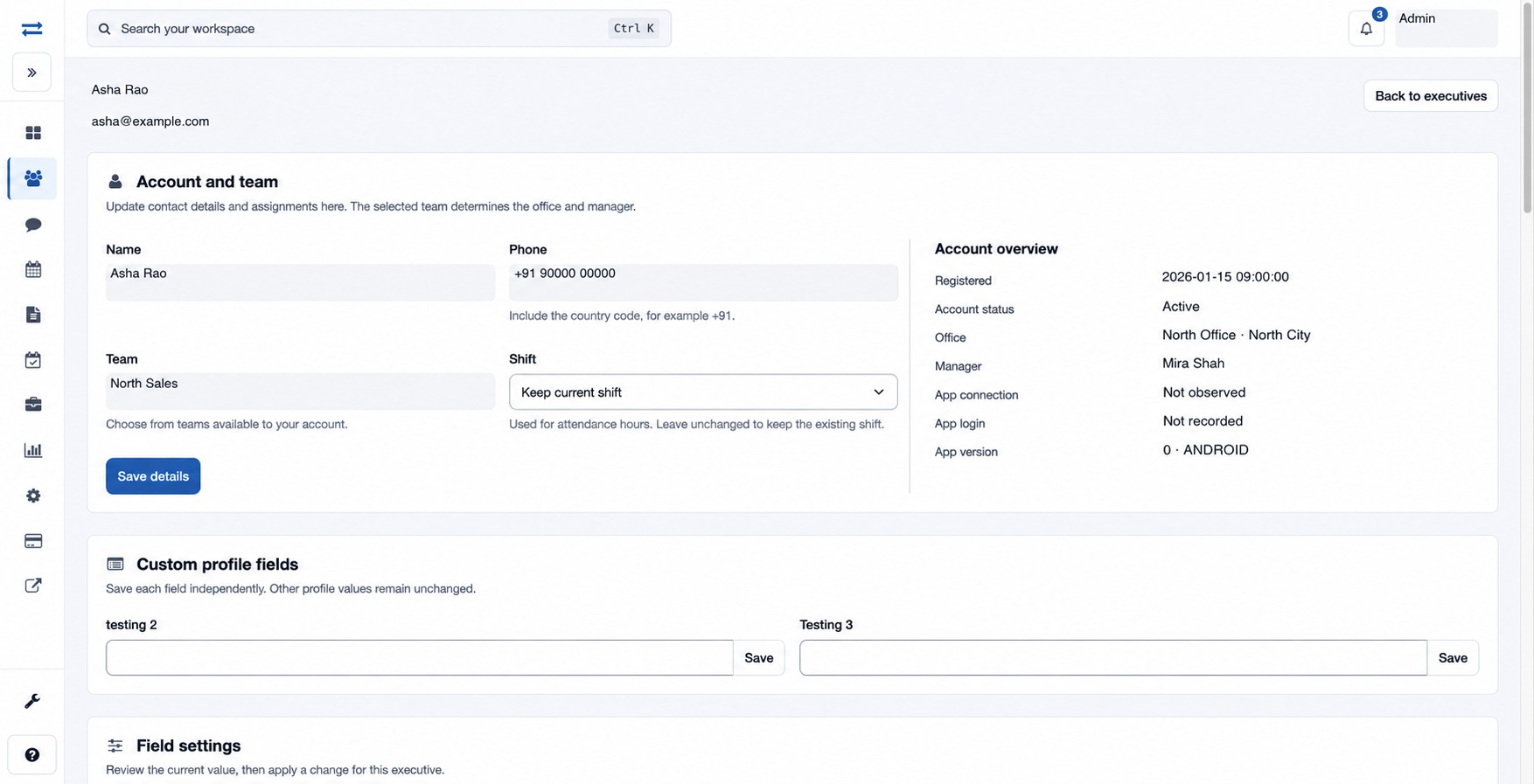
- In the details section edit Name, Phone and Team; include the country code in the phone number. Select a Shift for attendance hours, or keep the current shift. Select Save details. The team determines the office and manager.
- Where custom fields are shown, enter a value and use that field’s Save button.
- Where available, review tracking controls and current location. To set work or home location, enter decimal latitude and longitude and save. Latitude must be −90 to 90 and longitude −180 to 180.
- Under Geofences, choose Add geofence, enter Name, Latitude, Longitude and Radius (metres), then save. Radius must be a whole number from 1 to 1,000,000 metres; up to ten active geofences can be assigned. Review existing boundaries and their last recorded status.
- Under account controls, an authorized administrator may reset the password, unlock the device, change account status or remove the account. A reset accepts 10–32 characters or a blank value to generate one, revokes app sessions and emails credentials. Removal requires typing DELETE.
Tracking requires an active account and a valid license allocation. If an action is absent or fails, review your permission, the executive’s status and license, and the values entered.
Account and team
The page heading shows the account email. The editable contact fields are Name and Phone; email is displayed but is not an editable field here. Team determines the office and manager; Shift affects attendance hours, and Keep current shift leaves it unchanged. Account overview shows registration, status, office, manager, app connection, app login and app version.
Field settings
For each row, inspect Current value before using its action. Visit reply emails enables or disables visit reply email; Visit-based distance tracking enables or disables that calculation; Attendance location restriction switches between any location and the work location; set a work location before choosing Restrict to work location; InstaTrack allocation enables or disables tracking allocation. Each action is saved separately. Tracking requires an active account and a valid license allocation.
Location and account access
Locations shows work and home coordinates and the latest location when available; Open route map opens the route view. Set work and home coordinates separately. Geofences have a name, latitude, longitude and radius in metres. The profile can also show recent device and location-setting events, subject to access.
Under Account access, Reset password accepts a 10–32 character password or generates one when blank, revokes existing app sessions and emails the credentials. Suspend account stops access; Restore account uses an available executive license. Unlock device clears the device lock. Remove executive account requires typing DELETE. Review these consequences before saving; if email delivery is uncertain, check the account and delivery status before repeating a reset.
For example, after saving an executive’s work coordinates, choose Restrict to work location and check that Current value shows Work location. Use Allow any location to change it back. To remove a boundary, select its Remove action. If restoration is rejected, check the available executive licenses; if geofence or location controls are missing, check location or geofence access and the enabled feature.