Managers
Create and manage reporting managers.
Managers are assigned to teams. The directory requires an administrator account with manager-report access; creating or changing managers also requires the corresponding permission.
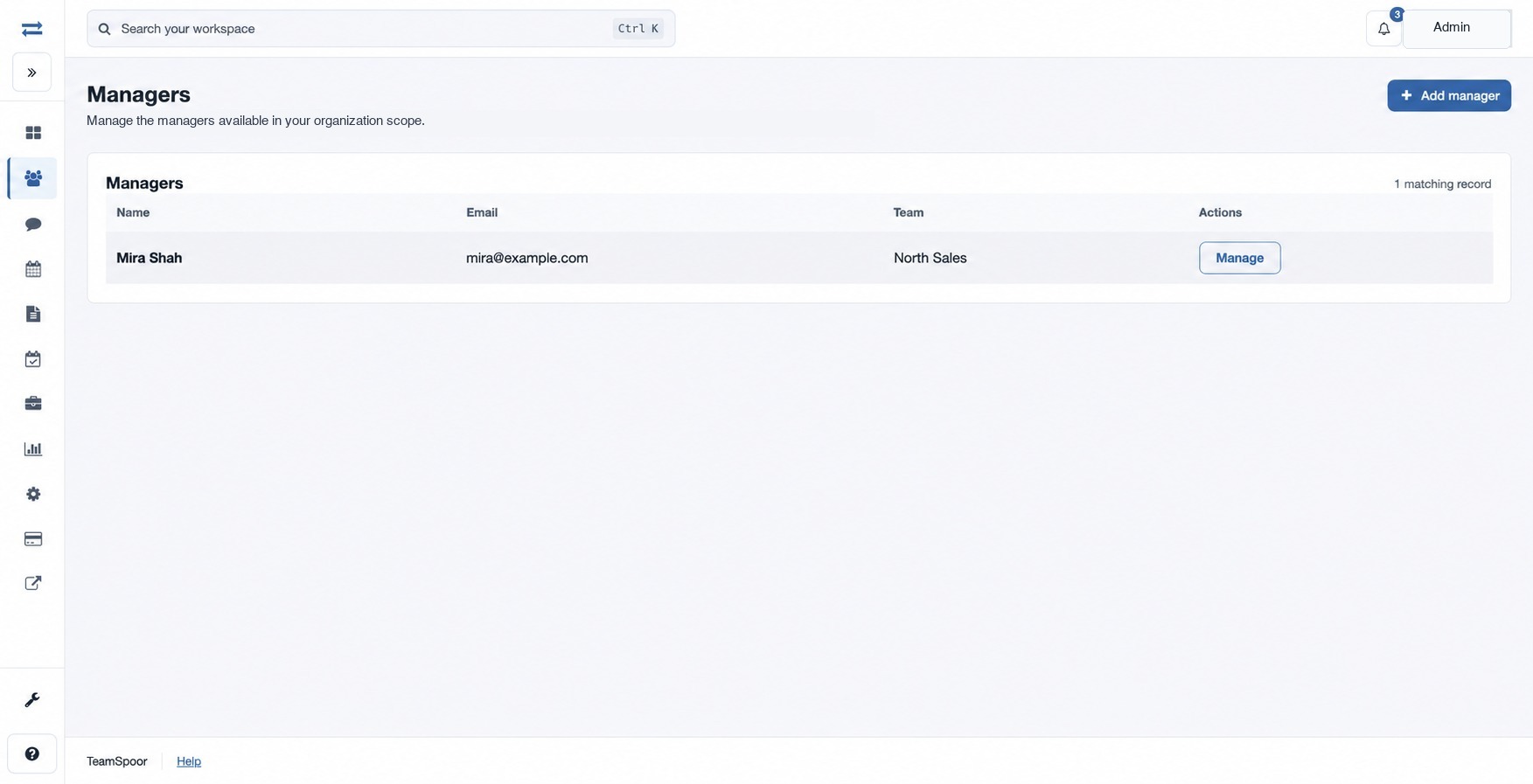
How to use this page
- Open Organization → Managers and select Add manager.
- Enter Name and Work email, for example a fictional “Mira Shah” and a company email. Select Save manager. The invitation is sent after the manager account is saved; check the result message for delivery status.
- Use Manage beside a manager to change their name. Under Account actions, an authorized administrator can reset the password, sign out existing devices and email new credentials.
- To remove a manager, enter DELETE and choose Remove manager. This clears their team assignments; review those teams afterwards.
If an invitation is missing, check the work email and ask the recipient to check their mail. If a control is missing, check your permissions.
Fields and account actions
Name identifies the manager in the directory and team selector; enter 2–45 characters. Work email is required at creation and receives the account invitation. The edit form changes the name; it does not offer an email field. If the address is already in use, resolve the duplicate before creating the account.
Open Account actions on the manager’s Manage page for Reset password or Remove manager. Reset signs out devices and emails new credentials; if email delivery cannot be confirmed, check the address and delivery before retrying. Removing a manager clears their team assignments, so review affected teams and assign a replacement.
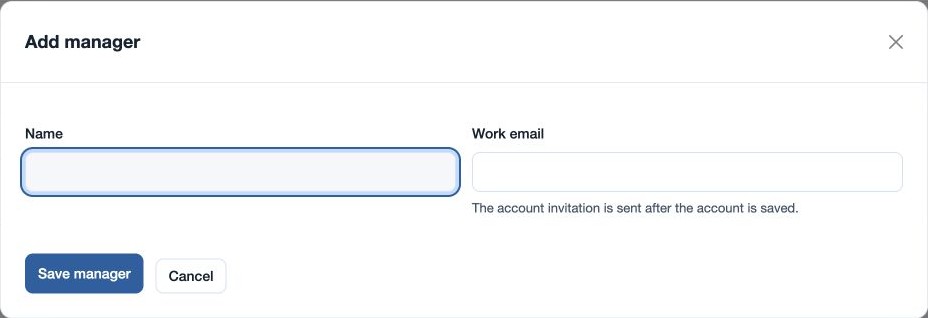
Manager creation is also subject to your plan’s manager limit. If delivery cannot be confirmed, check the saved manager record and work email before using Reset password.