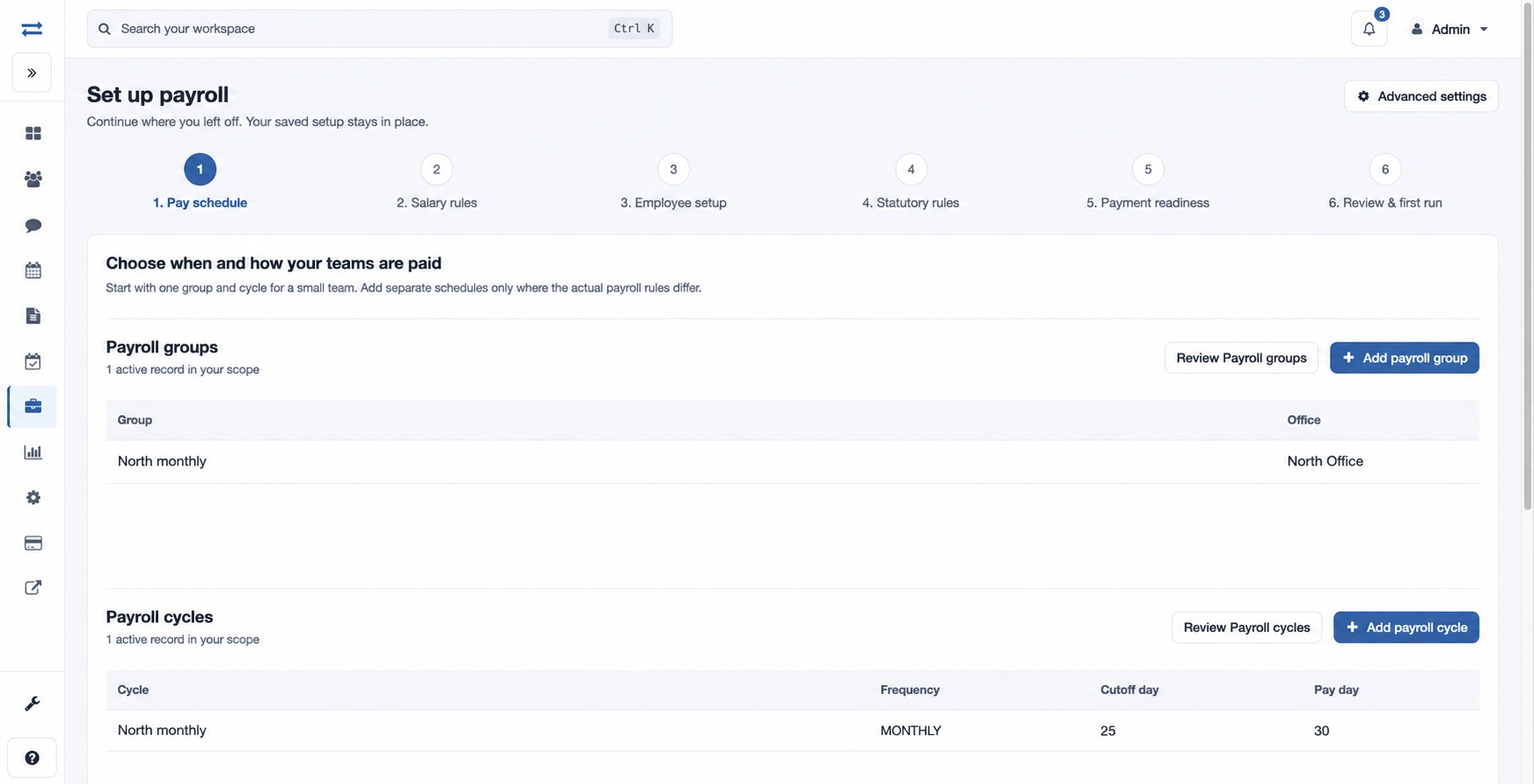
Payroll Foundation setup guide
Work through six payroll setup steps and review readiness.
Before you begin
Open Payroll → Setup & policies → Payroll Foundation, or choose Continue setup guide. The payroll plan and access to the setup guide are required. Individual review and edit links depend on your role. Ask an authorized colleague to complete any unavailable step.
Follow the guide
- Pay schedule: review or add payroll groups and cycles. Start with the schedules your teams actually need.
- Salary rules: review or add components and structures. Components define the earning, deduction or employer rule; a structure combines them.
- Employee setup: filter by employee, office, payroll group, setup status and As of date. Review setup issues and update selected employees or import a file. Salary structure and monthly CTC changes require an effective date.
- Statutory rules: review applicability, dates and independent approval with the authorized payroll owner.
- Payment readiness: review masked employee bank records, effective dates and verification status before preparing files.
- Review & first run: review setup area counts, approval and variance controls, resolve issues and proceed to a run.
Use Back and Continue or the numbered step selector to move between steps. The guide reuses saved records and does not automatically apply a template.
Optional starting templates
Full administrators with payroll settings access may open Advanced settings and starter templates. Applying a template creates new timestamped records, including a group, cycle, components, structure and statutory setting. Review existing records, rates and formulas first to avoid duplicates. Templates are examples and do not establish current statutory compliance. A partially completed application is not automatically undone or retried.
Troubleshooting
If records are unavailable, check scope and permissions. If an employee remains under Needs attention, open the issue and review the effective date and assignments. For example, after assigning a salary structure effective on the first day of a period, refresh the same As of date to check readiness.
Advanced reset
For an authorized full administrator, Advanced settings includes Danger zone · reset HRMS data. It displays the company registration date and whether the reset window is available, including days remaining. When allowed, Reset HRMS data asks for the confirmation word NUKE; cancelling or entering a different word stops the action.
This action deletes the company’s HRMS and payroll setup and operational data. Attendance-related data and the employee, office, team and manager masters are preserved. Treat the action as irreversible and use it only when the company intends that reset.