Cost Center
Review current cost-center allocation and mapped monthly CTC.
Read the report
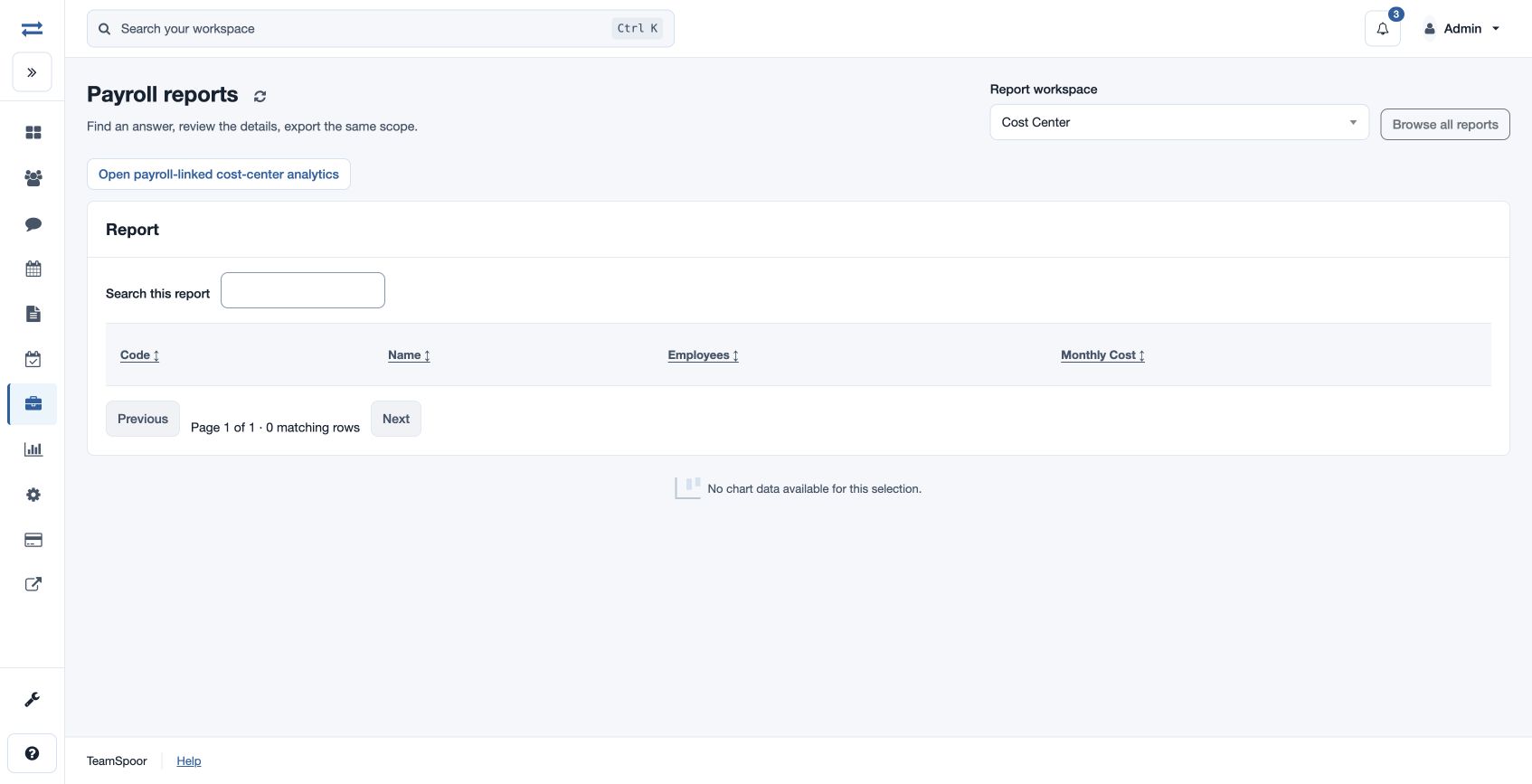
Open Payroll → Reports → Cost Center. The table shows Code, Name, Employees and Monthly Cost for cost centers, with Search this report, sortable headings, page controls and a chart when data is available. It does not offer a date or office filter on this page.
Monthly Cost reflects mapped monthly CTC for currently allocated employees; it is not a period payroll payout. Compare a center’s employee count and monthly cost with the underlying employee allocations. Choose Open payroll-linked cost-center analytics for the detailed payroll view. If no rows appear, check whether cost centers and allocations are configured and within your scope.
Access and scope
The payroll feature and payroll cost report permission are required. Results are limited to your permitted scope. If a report exceeds 2,000 entries, ask an administrator to review the accessible scope.
Understand the grouping
Code and Name identify the cost center. Employees counts the accessible allocations in that center; Monthly Cost adds the mapped employee monthly CTC values. Compare like-for-like scopes and check salary records where a value seems unexpected. The payroll-linked analytics view uses payroll results for the selected period, so it can differ from this setup view.
For example, inspect the fictional North Sales center’s count and mapped cost, then check employee allocations if a person is missing. Refresh report data after correcting an allocation.