Reporting workspace
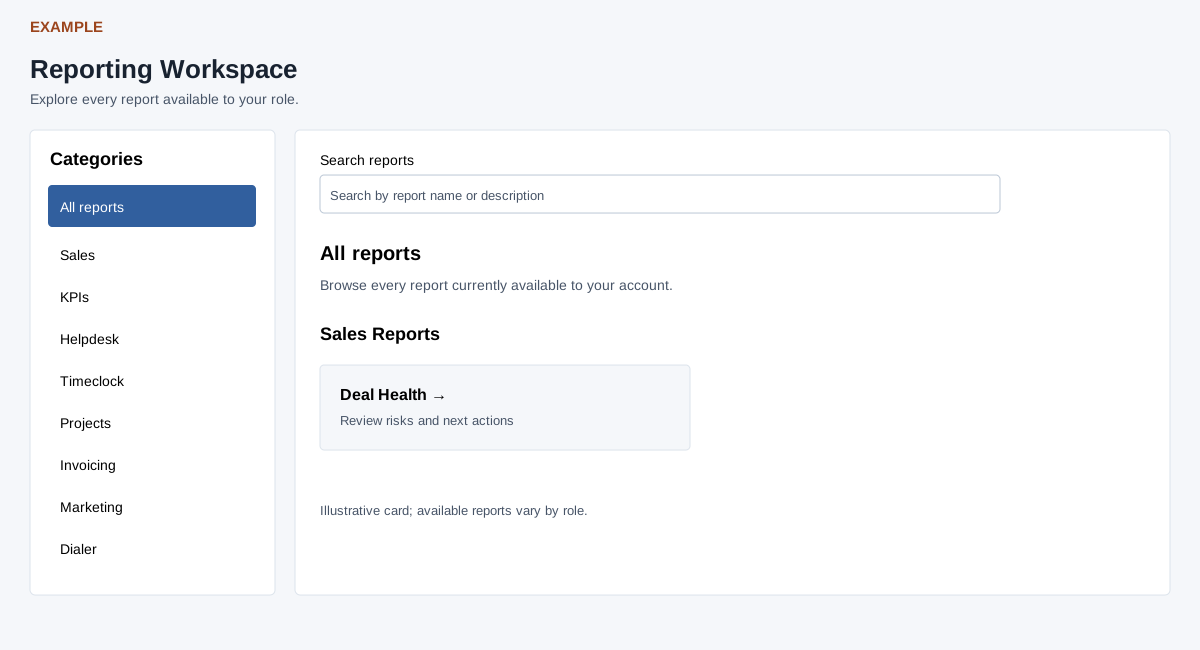
Find a report
Open Reports. The Reporting Workspace displays report cards grouped by category. Choose All reports, Sales, KPIs, Invoicing or Marketing; Helpdesk, Timeclock, Projects and Dialer appear when the relevant access conditions are met. Select a report card to open its report. Individual reports can enforce additional access checks and may have their own data-changing effects.
Enter words in Search reports to filter card titles and descriptions. All entered words must match; category selection and search work together. The displayed report count and category counts update with the search. Clear search appears when text is present and clears it; select All reports to browse all categories. “No reports found” means the current search and category have no displayed matches, not that the company has no data.
Example and verification
Select Sales and search for “deal health”, then open the matching card. If it is absent, clear the search and check the relevant feature and role access; card visibility does not guarantee that a report contains rows. Use report tables and charts for shared controls. Some report openings can change data, including attendance auto-close and deal-revival queue repair; consult the individual guide first.
Detailed procedures
- Agent Monthly Sales
- API Sync Audit
- Attendance By User/Date
- Attendance Exceptions
- Attendance First/Last
- Attendance Summary
- Average Deal Value
- Contact Method
- Conversion Rate
- Country/State Sales
- CRM Meeting Time
- Daily Activity
- Deal Health
- Deal Revival
- Deals
- Invoice Sales
- Lead Response Time
- Lead Status Wise Report
- Location Permissions
- Loss Analysis
- Meeting Form Compliance
- Opportunity Win Rate
- Payment Gateway Orders
- Product Sales
- Quota Attainment
- Report chart index
- Report tables and charts
- Revenue
- Sales Cycle Length
- Sales Growth YoY
- Sales Productivity
- Submitted Forms
- Subscriptions
- Tasks
- Tasks list
- Team Sales
- Timeclock reports