Manage public contact forms
Create a shareable lead-intake form and configure its fields and public page.
Contact forms list, routing and URL controls
Create and manage
Open Account Settings → Features Settings → Contact Forms as an administrator. Add New asks for Form Name (required, up to 45 characters), Form Description (required, up to 90) and Route Leads To Department (None or an available department). Create form saves and reloads the list; plan limits can prevent creation. The list shows name, description, department, owner, URL and delete action. Search filters rows; open the name to edit fields. Copy Link copies the URL and Open URL opens it in a new window.
Click the URL suffix to edit it inline and confirm. The suffix must contain at least eight characters and is limited to 45 after sanitizing; a taken or invalid key is rejected. Changing it changes the shareable address, so update published links. Delete asks for confirmation and warns the form cannot be recovered. Confirm only when deletion is intended. No separate publish or embed control appears on this list; share the form URL.
Build form fields
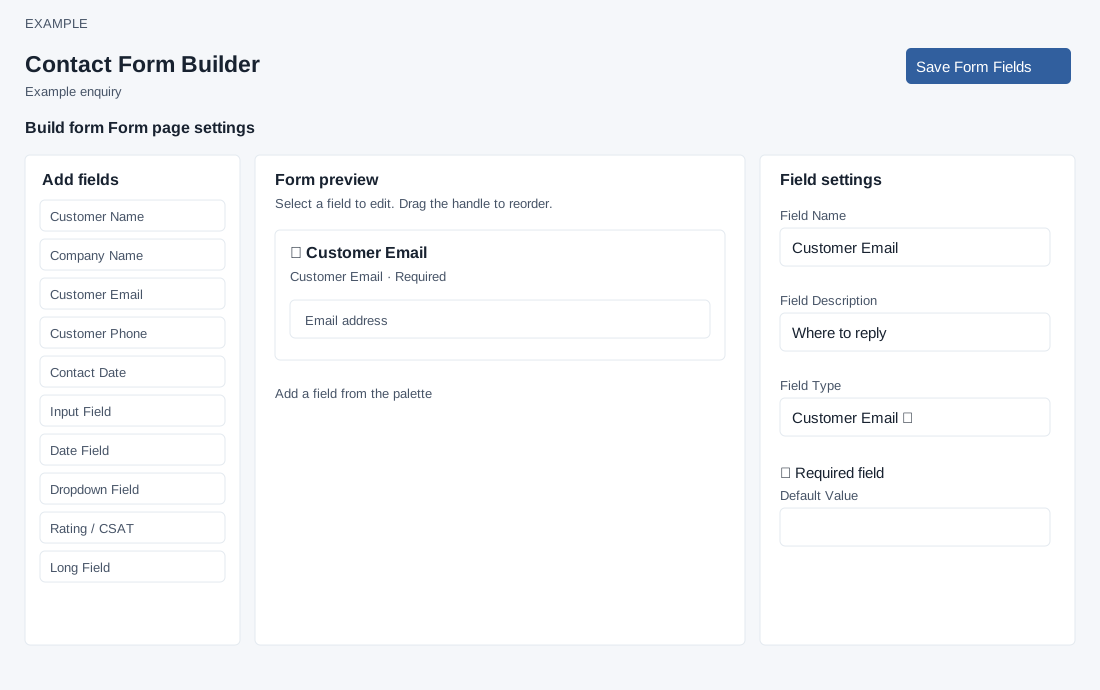
- Open the form name and Build form. Click a palette type or drag it into Form preview; select its row to edit. Types are Customer Name, Company Name, Customer Email, Customer Phone, Contact Date, Input Field, Date Field, Dropdown Field, Rating / CSAT and Long Field.
- Enter Field Name and Field Description, both required; choose Field Type and optionally check Required field. Default Value is an optional prefill. For Dropdown Field enter ordered options separated by commas; at least one option is required. Rating uses the existing 1–5 scale. For lead capture set either Customer Phone or Customer Email mandatory. A Rating field can be saved without either, but it will not identify a lead. A Contact Date carried through lead assignment can create a follow-up task for the assigned user (or contact owner fallback); an invalid or past date is replaced with the next day, and task creation can fail separately. Verify the task after assignment.
- Drag the handle or use up/down arrows to reorder; trash removes a field from the draft. Save Form Fields explicitly saves the entire field list. Empty forms and incomplete names, descriptions or dropdown options are rejected by the editor. Wait for All field changes saved; if save fails, the draft remains in the page for correction and retry. Preview opens the public URL, so save field edits first.
Form page settings
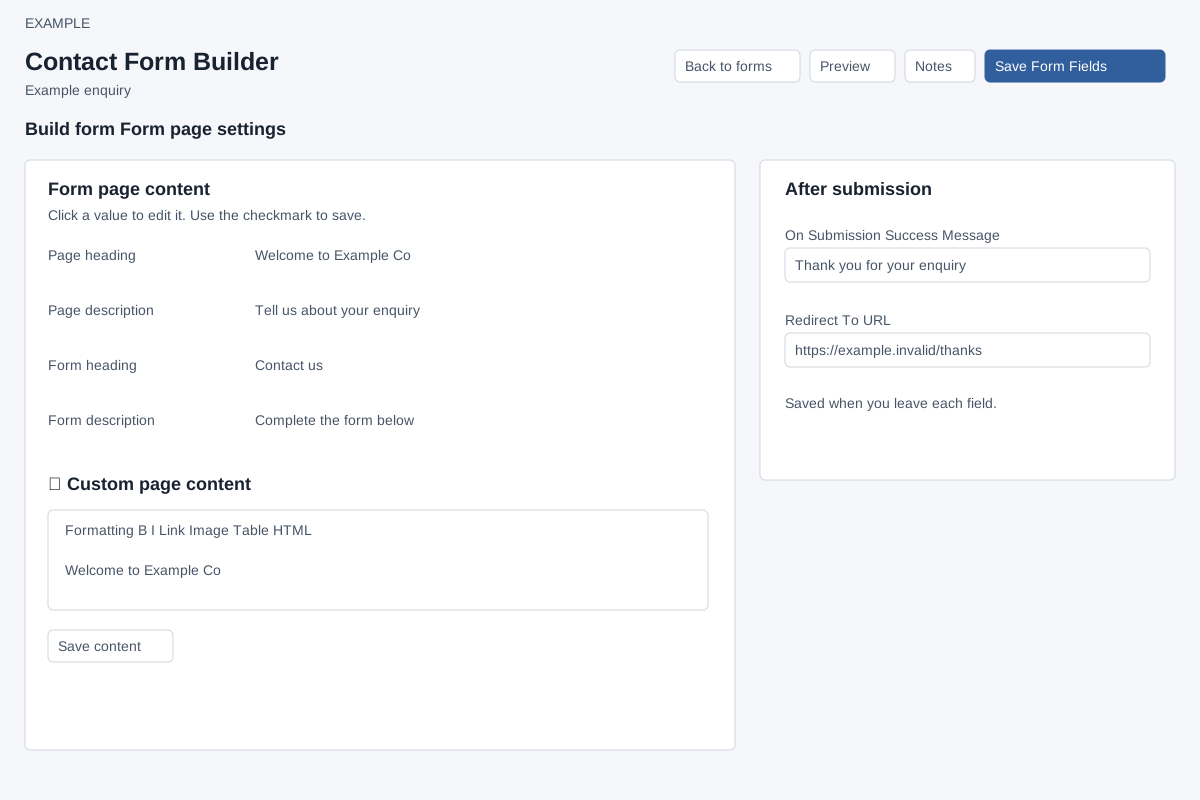
Switch to Form page settings. Page heading, Page description, Form heading and Form description are edited individually: click a value and use the checkmark. Custom page content opens a rich-text editor with formatting, colors, lists, links, images, tables, alignment, HTML view and fullscreen; Save content saves that area. On Submission Success Message and Redirect To URL save separately when each field loses focus; these settings do not apply to Engage. Enter nonempty values within these limits: Page heading 4–90, Page description 4–255, Form heading 4–45, Form description 4–90, success message 4–100 and redirect URL 4–255 characters after sanitizing. The Page description error text says 250 even though the check permits 255. These fields cannot be cleared to an empty value. Check the displayed response and reopen the form to verify each saved setting. Preview and share the URL only when the intended configuration is ready.
For an Example Co enquiry, use required Customer Email and a short Input Field, save, then inspect the public preview. If creation fails check the plan limit and required fields; if saving fails keep the page open, correct the reported issue and retry. Contact record forms are a separate internal response workflow.